A failed firmware flash mid-update can brick a printer, yet skipping updates leaves you with stale calibration routines and old bugs that quietly ruin prints. The right way to update your 3D printer firmware depends entirely on how your machine connects to the world: over Wi-Fi, through a desktop slicer, or from a card you carry to the machine by hand. Pick the method that matches your printer's connectivity and the update goes smoothly.
Quick Answer
There are three practical routes. Over-the-air (OTA) over Wi-Fi is the default on cloud-connected printers, a desktop slicer such as Bambu Studio pushes the same package from your PC, and a microSD card flash is the offline fallback for machines with no network. The offline flash typically takes 10 to 20 minutes, and you must never cut power during it.
OTA over Wi-Fi: the hands-off default
If your printer is on your home network and linked to a manufacturer account, OTA is the simplest path. The machine checks for a new release on boot and shows a notification or banner when one is ready. You confirm on the touchscreen, it downloads and applies the package, then restarts on its own.
OTA needs a solid connection. If the update prompt never appears, restart the printer so it re-checks at boot. Weak signal is the usual culprit in a garage or a back-room workshop, where a printer sits far from the router. A mesh node or a range extender often fixes a flaky OTA more reliably than repeated retries. Browse the mini PCs and small-form machines if you want a quiet always-on box near the printer to manage prints and updates without a full tower.
Slicer push from the desktop
A desktop slicer like Bambu Studio updates any printer on the same network or tied to your account. When a release is available you get a banner at the top of the device panel. Click Update Firmware, confirm, and the slicer sends the package while you watch progress in both Studio and on the printer screen. The printer reboots when it finishes.
This route is handy when the printer's own update checker is sluggish or when you manage several machines from one PC. The slicer becomes a single dashboard for the fleet.
SD card flash: the offline fallback
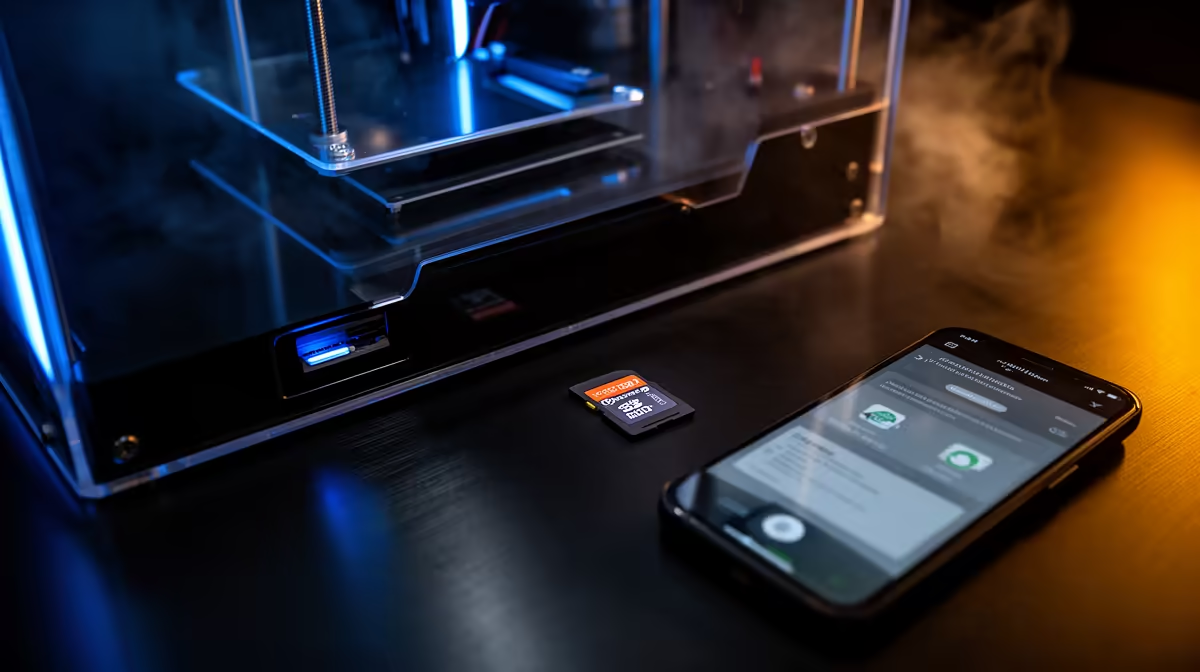
When the printer cannot reach the cloud, the microSD card method is the answer. Download the correct offline package for your exact model, copy it to the card, insert it, and trigger the update from the printer menu. Two rules decide whether it works:
- Do not rename the offline package or unzip it. The printer expects the file exactly as supplied, and altering it makes the flash fail.
- Do not power off during the upgrade. Wait the full 10 to 20 minutes for it to complete on its own.
Format the card to FAT32 if the printer refuses to read it, and use a small-capacity card rather than a large one to avoid filesystem quirks.
Avoiding a failed flash
Most bad updates come from interruptions, not bad files. Run the printer off a stable wall socket, not a daisy-chained power strip you might knock. Confirm the model number matches the package before you start, since a P-series file on an X-series machine is a fast way to a brick. Keep the previous firmware version noted so you know what you are rolling back from if a new release introduces a regression. A spare card and a quality cable live in the accessories best sellers if you want backups on hand before you flash.
Frequently Asked Questions
Which update method should I use?
Use OTA if the printer is on Wi-Fi and signed into your account, the slicer push if you manage prints from a desktop, and the SD card flash only when the machine has no network access. They install the same firmware, so the choice is about convenience.
How long does a firmware update take?
OTA and slicer pushes usually finish in a few minutes. An offline SD card flash runs longer, roughly 10 to 20 minutes, and you must let it complete without touching the power.
Will updating firmware delete my settings?
Most updates keep your stored profiles and calibration, but a major version can reset some values. Note your key settings before a big update so you can restore them quickly if needed.
Why does my OTA update never appear?
A weak Wi-Fi signal is the common reason. Restart the printer so it re-checks at boot, and if it sits far from the router, add a mesh node or extender to give the update a stable path.
Can I roll back a firmware version?
Some printers allow flashing an older package via SD card, but not all do, and rolling back can break features tied to the newer release. Check the model's release notes before downgrading.
Ready to upgrade the hardware behind the firmware? Explore the full 3D printer range at Evetech and get a machine that handles OTA, slicer and offline updates with ease.