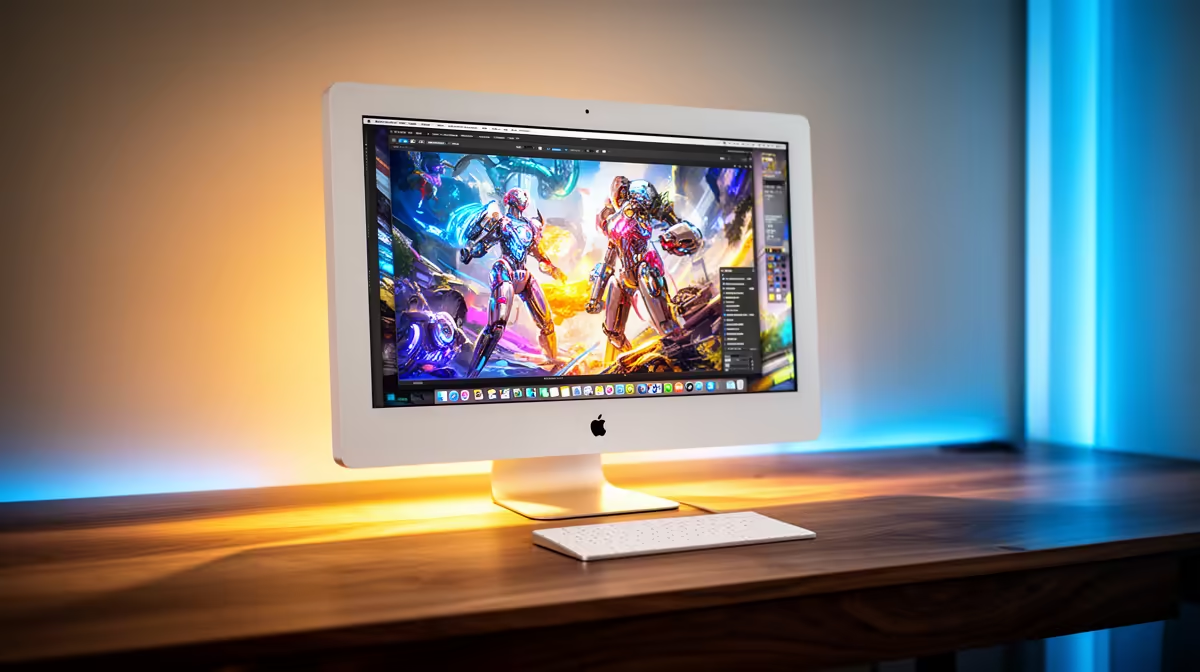
Apple silicon Macs can turn a sentence into a stylised image without ever sending the prompt to a server, and the whole thing runs in seconds. Image Playground on Mac is Apple Intelligence's image generator, available both as a standalone app and built straight into Messages, Notes and Freeform. Type a description, pick a style, and you have a usable picture for a chat, a doc or a quick mock-up. Here is exactly how to drive it.
Quick Answer
Open the Image Playground app on an Apple silicon Mac running macOS Sequoia 15.2 or later, type a text description in the prompt field, choose Animation, Illustration or Sketch as your style, and the Mac generates options on-device in seconds. You can also launch it from inside Messages and Notes.
What You Need First
Image Playground only runs on Apple silicon Macs, meaning M-series chips, with Apple Intelligence switched on. It arrived with macOS Sequoia 15.2, and the Sketch style was added later in the 15.4 update, so keep your Mac updated to see every option.
Check that Apple Intelligence is enabled under System Settings, then confirm your region and language are supported. Because generation happens on-device, you do not need an internet connection for the built-in styles once everything is set up, and your descriptions are not uploaded for the standard styles.
For a direct look at which M-series MacBooks are in stock and priced in Rand, browse the MacBook range at Evetech for the full current line-up.
Step by Step: Generate Your First Image
- Open Image Playground from Launchpad or Spotlight. The standalone app gives you the full canvas and the most room to refine results.
- Click into the description field and type what you want. Be specific. "A red robot watering a small plant on a windowsill" gives the model far more to work with than "a robot".
- Pick a style at the top or via the picker. Animation produces a glossy 3D look, Illustration gives flat shapes with clean lines and colour blocking, and Sketch gives a hand-drawn pencil feel.
- Watch the options appear in the centre. The Mac generates several variations at once.
- Swipe or click through the variations and use the thumbs up or thumbs down controls to nudge the model toward what you want.
- Add more detail to the prompt to refine, for example a colour, a setting or a mood, and the results update.
- Save the image you like, or drag it straight into the document or message you are working on.
Using It Inside Messages and Notes
You do not have to open the standalone app every time. In Messages, tap the plus button next to the text field and choose Image Playground to make a picture without leaving the conversation. In Notes and Freeform, the same generator is available so you can drop an illustration directly into your work.
This is the fastest way to use it day to day, because the image lands exactly where you need it. The standalone app is better when you want to experiment, generate several ideas, and pick the strongest one before committing.
Getting Better Results
The model rewards clear, concrete prompts. Name the subject, an action, a setting and a colour or two. If a generation drifts off, do not delete everything; adjust one part of the description and let it regenerate. Switching styles on the same prompt is a quick way to see which register suits your use, since Animation, Illustration and Sketch can give very different moods from identical words. For more demanding creative and productivity work, capable hardware makes a real difference, and the laptop best sellers at Evetech shows what South African buyers are actually picking up right now.
Frequently Asked Questions
Which Macs can run Image Playground?
Apple silicon Macs with M-series chips running macOS Sequoia 15.2 or later, with Apple Intelligence enabled. Intel Macs are not supported because the on-device generation relies on the Apple silicon neural engine.
Does Image Playground need an internet connection?
For the built-in Animation, Illustration and Sketch styles, generation runs on-device, so an internet connection is not required once setup is done. Optional styles routed through ChatGPT do send your request out and need a connection.
Can I use it without opening the separate app?
Yes. Image Playground is built into Messages, Notes and Freeform, so you can generate an image right where you are working by choosing it from the relevant menu or the plus button in Messages.
Why are my images stylised rather than photorealistic?
That is by design. Apple's built-in styles produce Animation, Illustration and Sketch looks rather than photorealism, which keeps results clearly artistic and avoids confusion with real photos.
How fast is image generation?
On a supported Apple silicon Mac it is typically a few seconds per batch of variations, because the work happens locally on the neural engine rather than waiting on a remote server.
Want a Mac that runs Apple Intelligence and Image Playground smoothly? Compare the current Apple silicon options in the MacBook range at Evetech and pick the model that fits your creative workflow.