

Should You Buy a 240Hz monitor or Build a PC in South Africa?
Should You Buy a 240Hz monitor or Build a PC. Full parts list, Rand pricing & expected performance. Build confidently with SA-available components.
Read moreInstall 3.5-inch SATA Drive in your desktop with clear, step-by-step guidance. Learn bay mounting, SATA power/data hookup, formatting, and safety tips 🔧💡
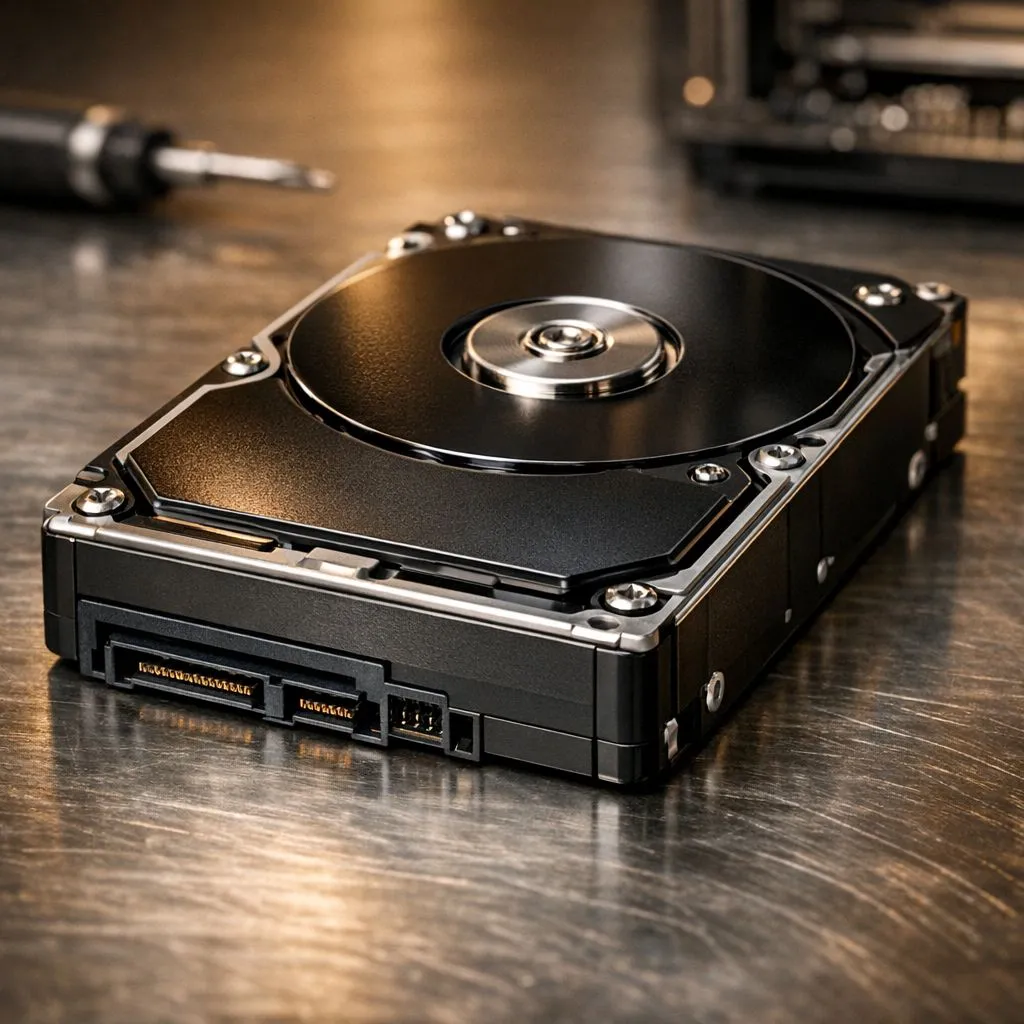
Running out of space for your Steam library? In South Africa, we know the struggle of balancing massive game installs with limited storage. Whether you are archiving footage or expanding your game vault, knowing how to install 3.5-inch SATA drive in desktop: beginner's guide is a fundamental skill. It is the most cost-effective way to add terabytes of storage without breaking the bank. Let’s get your rig upgraded. 🔧
Before you open your chassis, ensure you have the right tools. You will need a Phillips-head screwdriver and your new drive. While many modern builds focus on lightning-fast Gen 5 (NVME) speeds, the humble 3.5-inch hard drive remains the king of capacity for bulk media.
Ensure your PC is completely powered off. Unplug the power cable from the wall. This prevents any nasty shocks to you or your components. If you are moving files frequently between setups, you might also consider external SSDs for better portability.
Most South African mid-tower cases feature dedicated drive cages. Locate yours at the bottom front of the case. If you have a high-quality Western Digital drive, it should slide into the plastic rails or screw directly into the metal frame.
Align the drive so the ports face your cable management area. This keeps the interior looking clean and improves airflow. If your case is too cramped, exploring portable external SSD options might be a simpler alternative for secondary storage.
Always touch a grounded metal object before handling your internal components. Static electricity can damage sensitive circuitry on your drive's logic board. Working on a hard floor instead of a carpet also helps reduce the risk of a static discharge ruining your new hardware.
Your drive needs two connections to function. First, find the SATA power cable coming from your Power Supply Unit. It is the wider, L-shaped connector. Plug it firmly into the drive. Next, take your SATA data cable. One end goes into the drive... the other goes into an available SATA port on your motherboard.
If you are upgrading from older tech, you might notice that modern ADATA drives are much quieter than the "clicky" disks of the past. Once connected, double-check that the cables are secure and not blocking any cooling fans.
Once you boot back into Windows, the drive won't show up in "This PC" immediately. You need to tell Windows it exists. Right-click the Start button and select "Disk Management". You will see a "New Volume" with unallocated space. Follow the wizard to format it as NTFS and assign a drive letter.
While mechanical drives are great for storage, remember that to buy solid state drives is the best way to speed up your actual boot times and loading screens. Use the 3.5-inch drive for your clips and the SSD for your OS.
Ready to Expand Your Digital Horizon? Mastering the install of a 3.5-inch SATA drive in your desktop is just the start of your DIY journey. For the best prices on high-capacity storage and lightning-fast SSDs in South Africa, we have you covered. Explore our massive range of storage specials and never delete a game to make space again.
You need a Phillips screwdriver, SATA data cable, SATA power connector (from PSU), mounting screws, and an anti static wrist strap for safe installation.
Slide the 3.5 drive into an available bay, align mounting holes, and secure with screws. This covers the mounting 3.5 drive in desktop step.
Attach the SATA data cable to motherboard port and SATA power cable from the PSU to the drive. Ensure firm, straight connections to prevent errors.
Yes. Initialize and format the drive in Windows Disk Management or macOS Disk Utility. This formats new sata drive for your OS.
Back up important files, power down before wiring, and use proper mounting. Follow best practices sata drive installation to protect data.
Check SATA power and data cable seating, BIOS detection, and try a different SATA port. Refer to sata drive troubleshooting after install.
Yes. Use reliable cloning software and connect both drives. Clone to new sata drive then set boot order in BIOS to complete migration.
Should You Buy a 240Hz monitor or Build a PC. Full parts list, Rand pricing & expected performance. Build confidently with SA-available components.
Read more
Should You Buy a VA monitor or Build a PC. Full parts list, Rand pricing & expected performance. Build confidently with SA-available components.
Read more
Every spec on PCIe 5.0 explained in plain English. What matters for gaming and creator work in 2026, what's marketing fluff, and how each number translates to real-world performance.

A head-to-head look at WiFi 7: real-world performance, ZAR pricing and which option delivers better value for SA builders. The clear answer — no fluff.

Everything you need to set up and tune PCIe 5.0 properly: the prep work, the settings that actually matter, and the mistakes to skip. Written for SA builders in 2026.

Everything you need to set up and tune X870E Motherboard properly: the prep work, the settings that actually matter, and the mistakes to skip. Written for SA builders in 2026.

Wondering what a 512GB SSD capacity really holds? This guide breaks down how many games, photos, and documents fit on 512GB, with real-world ranges 📦💾

Every spec on vrm explained in plain English. What matters for gaming and creator work in 2026, what's marketing fluff, and how each number translates to real-world performance.

Every spec on motherboard explained in plain English. What matters for gaming and creator work in 2026, what's marketing fluff, and how each number translates to real-world performance.

Premium vs Midrange Motherboards in South Africa: real-world performance, SA pricing, power draw and which one delivers better value for your build for SA buyers. The clear answer — without the fluff.
Wondering what a 512GB SSD capacity really holds? This guide breaks down how many games, photos, and documents fit on 512GB, with real-world ranges 📦💾
Every spec on PCIe 5.0 explained in plain English. What matters for gaming and creator work in 2026, what's marketing fluff, and how each number translates to real-world performance.
A head-to-head look at WiFi 7: real-world performance, ZAR pricing and which option delivers better value for SA builders. The clear answer — no fluff.

Every spec on USB4 explained in plain English. What matters for gaming and creator work in 2026, what's marketing fluff, and how each number translates to real-world performance.