

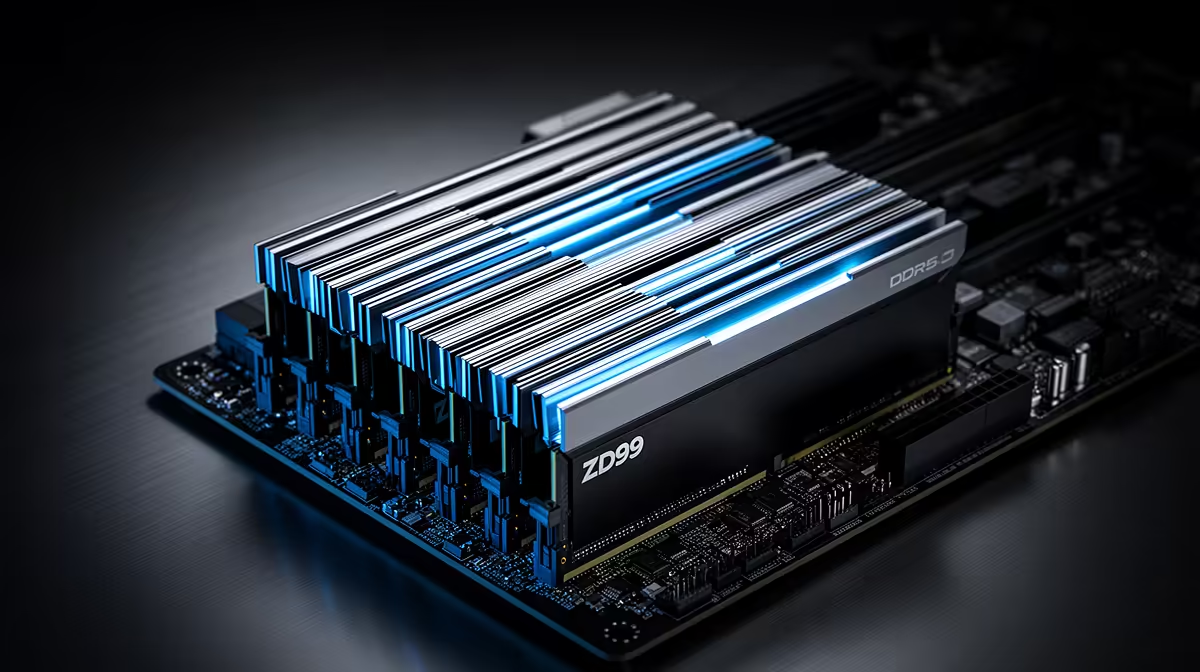
Got your hands on the beastly ASRock Z890 Taichi? Lekker! This motherboard is a powerhouse, ready for the latest Intel CPUs and cutting-edge tech. But before you can unleash its full potential, there's one critical step: installing that lightning-fast DDR5 memory. It might seem simple, but getting it right ensures your new rig posts perfectly on the first try.
This guide will walk you through how to install DDR5 memory on an ASRock Z890 Taichi motherboard, hassle-free.
Before You Begin: Essential Prep
Preparation is key to a smooth PC build. Before you even touch your RAM sticks, make sure you've covered these basics. First, ground yourself. Static electricity is the silent enemy of PC components. Touch a metal part of your PC case or use an anti-static wrist strap to discharge any static buildup.
Next, consult your ASRock Z890 Taichi manual. It will specify which DIMM slots to use first for a dual-channel configuration (usually slots A2 and B2). Using the correct slots is crucial for optimal performance. Remember, a top-tier motherboard is the foundation of any great PC build, so treating it right from the start pays off.
A Step-by-Step Guide to Install DDR5 on the ASRock Z890 Taichi 🔧
With your prep work done, it's time for the main event. The Z890 Taichi is part of a powerful lineup of Intel motherboards, and its design makes this process straightforward.
Step 1: Open the DIMM Slot Latches
Locate the DDR5 DIMM slots next to the CPU socket. The ASRock Z890 Taichi, like many modern boards, often uses a single-latch mechanism. Gently press down on the latch at the top end of the DIMM slots you'll be using. It should click and pivot open. The bottom end is a fixed insertion point.
Step 2: Align Your DDR5 Memory Module
Take your DDR5 stick and notice the small notch in the bottom row of pins. This notch is off-centre and specific to DDR5, preventing you from accidentally installing older DDR4 RAM. Align this notch with the corresponding key or bump inside the empty DIMM slot on the motherboard. It can only fit one way, so don't force it.
BIOS Pro Tip ⚡
Once your PC boots successfully, jump straight into the BIOS. Find and enable the XMP (Extreme Memory Profile) setting. This is a crucial one-click step to ensure your memory runs at its advertised high speed, not the much slower default JEDEC speeds. You paid for that performance... don't leave it on the table!
Step 3: Insert the RAM with Firm, Even Pressure
Once aligned, place your thumbs on the top edge of the RAM module and press down firmly and evenly on both ends. You'll feel and hear a satisfying 'click' as the module seats into the slot and the top latch swings back into place, securing the stick. That click is your confirmation of a successful Z890 Taichi memory installation.
What If It Doesn't Boot? Troubleshooting Tips
Sometimes, things don't go perfectly. If your brand-new build powers on but shows a black screen, don't panic. A DRAM error light on the motherboard is a common sign of improperly seated memory.
- Power Down Completely: Turn off the PSU and unplug the power cable.
- Reseat the Memory: Unclip and remove the DDR5 modules. Carefully re-insert them, ensuring you apply even pressure and hear that solid click. A module that looks seated might be off by a millimetre.
- Try One Stick: If reseating doesn't work, try booting with just one RAM stick in the primary slot (A2). This can help identify if one of your modules is faulty.
These installation principles are quite universal, so whether you're building with this board or exploring options from the latest AMD motherboards, the core process of seating RAM remains very similar. ✨
With your DDR5 memory correctly installed on the ASRock Z890 Taichi, you're one giant step closer to a fully operational, high-performance gaming rig. 🚀
Ready to Build Your Dream Machine? The right memory is crucial for unlocking your PC's true potential. From high-speed kits for gaming to massive capacities for content creation, we've got you covered. Explore our massive range of DDR5 memory and find the perfect match for your build.











