

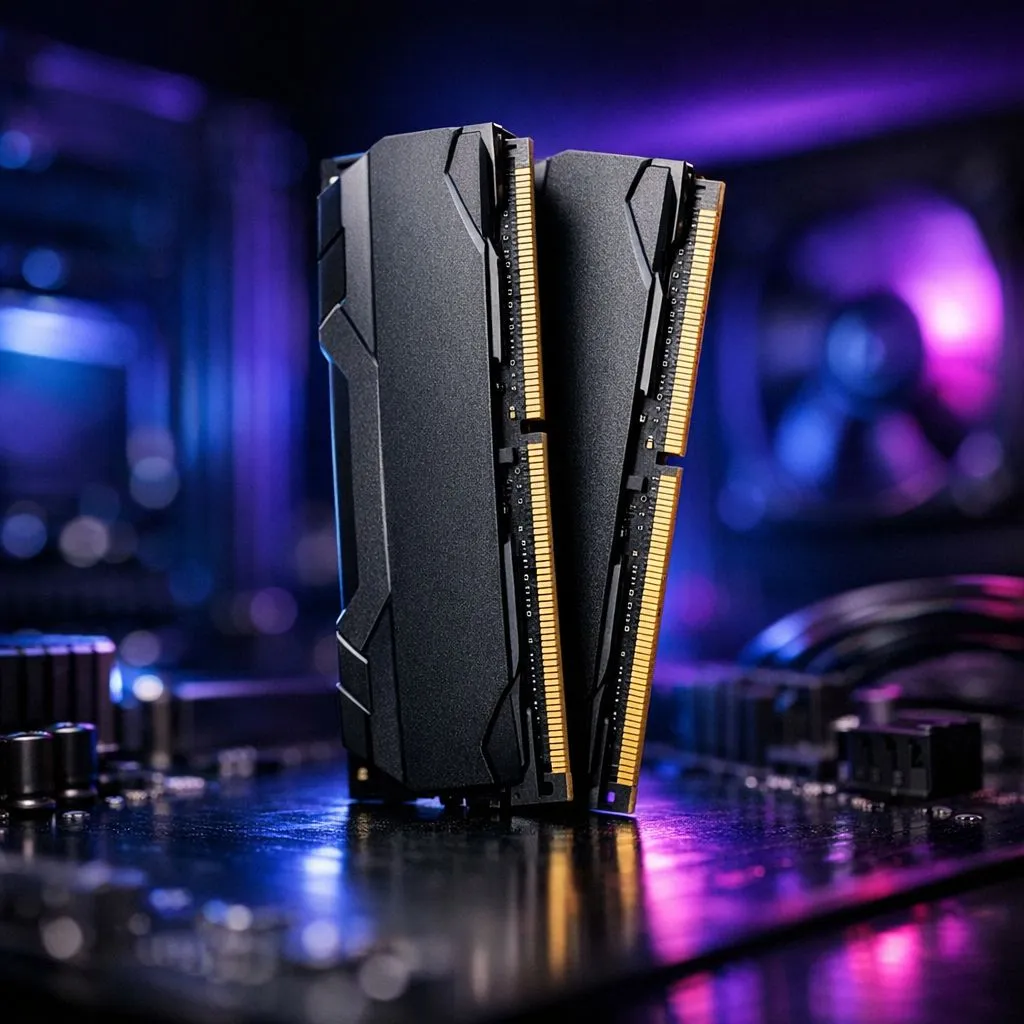
So, that shiny new RAM kit has landed on your desk. The excitement is real—smoother frame rates in Helldivers 2, faster multitasking, and a snappier PC are just moments away. But there’s a small, nagging fear… what if you zap a component with static or snap a DIMM slot? Don’t stress. We’re here to show you how to install desktop memory safely, turning that fear into the satisfaction of a successful DIY upgrade. It’s easier than you think. 🔧
Pre-Installation Prep: Your Safety Checklist
Before you even open your PC case, a little prep work goes a long way to ensure you can install desktop memory safely without any drama. Rushing this step is where most mistakes happen.
First, power down your PC completely. Don't just put it to sleep; shut it down via the operating system, then flip the switch on the back of your power supply unit (PSU) to 'Off'. Unplug the power cable from the wall for good measure.
Next, find a clean, well-lit, and clutter-free workspace. Your mission is to defeat the ultimate enemy of PC components: static electricity (ESD - Electrostatic Discharge). The simplest way to ground yourself is to touch a large, unpainted metal object, like your PC case's metal frame (while it's still unplugged, of course), for a few seconds before you handle any components.
Finally, double-check your new RAM's compatibility. Does your motherboard support the speed and type? Upgrading from an older rig requires careful selection of the correct DDR4 memory, while modern systems thrive on the performance of the latest DDR5 RAM.
The Step-by-Step Guide to a Safe RAM Installation
With your PC unplugged and your workspace ready, it’s time for the main event. This process for safely installing RAM is straightforward.
- Open Your Case: Remove the side panel of your PC case. This usually involves undoing a couple of thumbscrews at the back.
- Locate the RAM Slots: Find the memory slots, which are long, thin slots located near your CPU. Most motherboards have two or four of them.
- Release the Old RAM (If Upgrading): To remove existing memory, push down on the plastic clips at one or both ends of the RAM slot. The module will pop up, and you can gently lift it out. Handle it by the edges to avoid touching the gold contacts.
- Align the New RAM: Take your new memory module and notice the small notch on the bottom row of gold contacts. This notch is off-centre and corresponds to a small bump inside the DIMM slot. This design makes it impossible to install the memory backwards, so don't force it!
- Seat the Module: Align the notch and gently place the RAM stick into the empty slot. Apply firm, even pressure to both ends of the module with your thumbs. You'll hear and feel a satisfying "click" as the clips on either side snap into place, locking the RAM securely. ✨ That’s the sound of success!
Pro Tip: Enable XMP/EXPO ⚡
After successfully installing your new RAM, boot into your PC's BIOS UEFI. Look for a setting called XMP (Extreme Memory Profile) for Intel or EXPO (Extended Profiles for Overclocking) for AMD. Enabling this tells your motherboard to run the memory at its advertised high speeds, not the slower default settings. It's free performance you don't want to miss!
Common Pitfalls When Installing Memory
Even the pros can make simple mistakes. To ensure your memory installation is flawless, watch out for these common issues. The most frequent error is not seating the RAM module completely. If one of the clips isn't fully locked, your PC probably won't boot. Always double-check that both clips have clicked firmly into place.
Another issue is installing mismatched RAM sticks or placing them in the wrong slots for dual-channel mode. Your motherboard manual is your best friend here—it will show you exactly which slots to populate first (usually slots 2 and 4) for optimal performance. Using quality kits from brands like Kingston often simplifies this, as they are designed and tested to work together perfectly.
What If It Doesn't Boot? Quick Troubleshooting
So you've followed the steps, but your PC powers on to a black screen. Don't panic! This is a common hurdle in the PC building journey. A safe memory installation sometimes needs a little follow-up.
- Reseat the RAM: The most common culprit. Power down completely and re-seat each memory stick, making sure they click in solidly.
- Try One Stick at a Time: Test each new RAM stick individually in the primary slot recommended by your motherboard manual. This helps identify if one of the modules is faulty.
- Clear the CMOS: Sometimes the motherboard needs a reset to recognise the new hardware. You can do this by briefly removing the small, circular battery on the motherboard (with the PC off and unplugged).
Whether you're working with brand new high-performance ADATA memory or upgrading older DDR3 systems, these troubleshooting steps will solve the vast majority of installation issues. You've got this! 🚀
Ready for a Speed Boost? Installing new RAM is one of the easiest and most rewarding PC upgrades. Now that you know how to do it safely, it's time to find the perfect kit for your rig. Explore our massive range of gaming memory and unlock your PC's true potential.











