

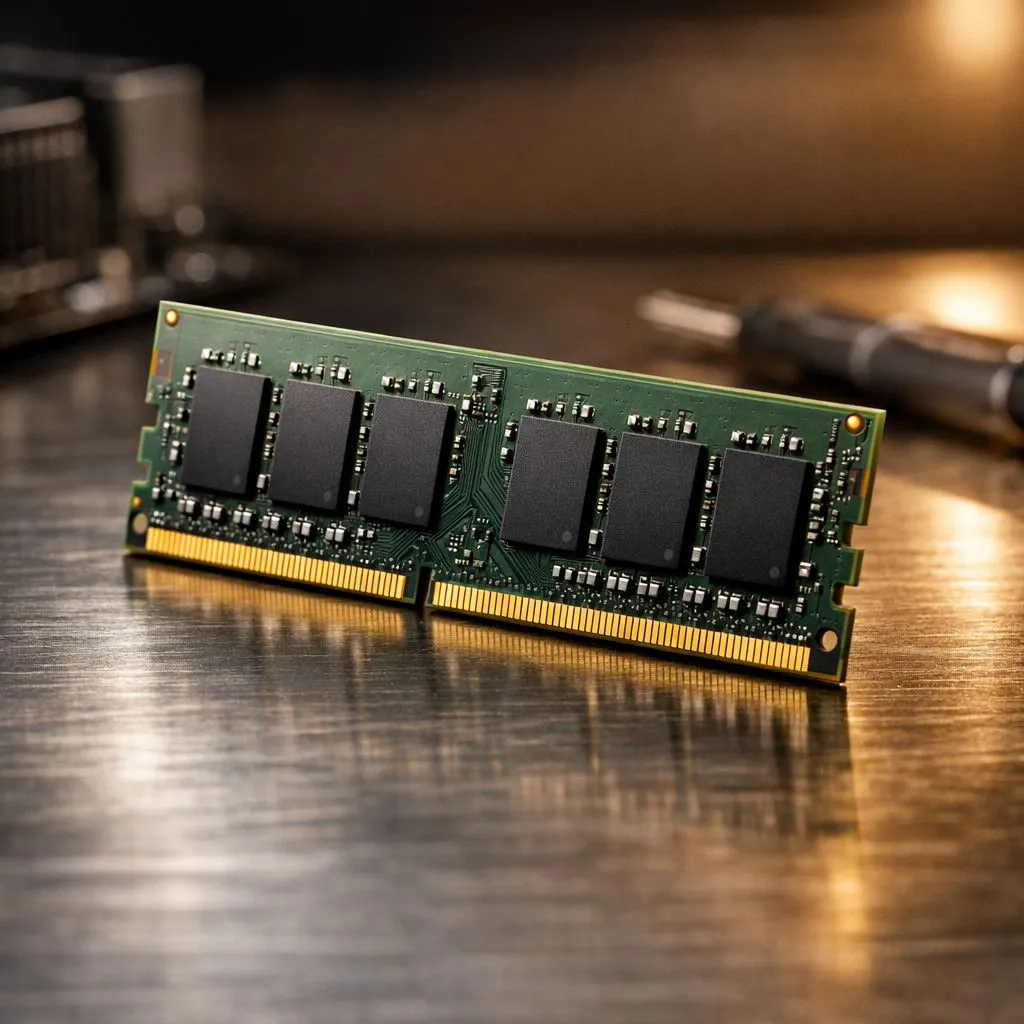
Is your PC feeling a bit sluggish? That frustrating stutter mid-game or the lag when you have too many Chrome tabs open… we've all been there. The good news is that you don’t need a whole new rig. A simple memory upgrade is one of the quickest and most cost-effective ways to boost performance. This step-by-step guide will show you exactly how to install desktop RAM, even if you’ve never opened a computer case in your life. It’s easier than you think! 🚀
Preparing to Install Desktop RAM
Before you even touch a component, a little prep work goes a long way. Getting this right ensures your RAM installation is smooth and successful.
### Compatibility is Key
First, you need to know what kind of RAM your PC uses. You can't just plug any stick in. Your motherboard is designed for a specific generation, such as DDR3, DDR4, or the latest DDR5.
- Check Your System: The easiest way is to use a free tool like CPU-Z. Under the "Memory" and "SPD" tabs, it will tell you the type (e.g., DDR4) and speed of your current RAM.
- Motherboard Manual: Your motherboard's manual (or its product page online) is the ultimate source of truth. It will list the compatible RAM types, maximum supported capacity, and number of slots available.
Matching the generation is non-negotiable. While most modern builds use the popular DDR4 memory, new high-end systems are built for the blazing-fast speeds of the latest DDR5 RAM. If you're reviving an older PC, you might even be working with legacy DDR3 modules.
### Safety First: Ground Yourself
Static electricity is the silent enemy of PC components. A small shock you can’t even feel can permanently damage your new RAM.
- Power Down: Completely shut down your PC.
- Unplug Everything: Unplug the main power cable from the back of your computer.
- Discharge Static: Touch a large, unpainted metal object (like the inside of your PC case) for a few seconds to ground yourself before handling any components.
The Step-by-Step RAM Installation Guide 🔧
With your compatible RAM in hand and your PC powered down, it’s time for the main event. This desktop RAM upgrade should only take a few minutes.
- Open Your PC Case: Most cases have a side panel held on by a couple of thumbscrews at the back. Unscrew them and gently slide the panel off.
- Locate the RAM Slots: Look for a series of long, thin slots near the large CPU cooler. Most motherboards have two or four of them. You’ll see small clips or levers at one or both ends of each slot.
- Remove Old RAM (If Upgrading): If you're replacing old memory, press down firmly on the clips at the ends of the slot. They will pop open, and the RAM stick will tilt up, ready to be lifted out.
- Align the New RAM: Take your new RAM stick out of its anti-static packaging. Notice the small notch along the bottom connector edge—it’s not perfectly centred. Line this notch up with the corresponding bump inside the empty RAM slot. It can only fit one way, so don’t force it!
- Insert the New RAM: Once aligned, press down firmly and evenly on both ends of the RAM stick. You’ll hear and feel a satisfying click as the clips on the sides of the slot snap into place, locking the module securely. This is true whether you've chosen from trusted brands like Kingston or powerful high-performance options from ADATA.
- Close Up and Boot: Put the side panel back on your case, plug everything back in, and power on your PC.
After Installation: Confirming Your Upgrade
Your PC should boot up normally. To make sure the installation was successful and you're getting the performance you paid for, do a quick check.
- Check in Windows: Right-click the taskbar, open Task Manager, go to the "Performance" tab, and click on "Memory". You should see the new total amount of RAM reported.
- Check in BIOS/UEFI: When your PC first starts, press the designated key (usually DEL, F2, or F12) to enter the BIOS/UEFI. Here, you can confirm the new RAM is detected and, most importantly, enable its performance profile.
Pro Tip: Unlock Full Speed! ⚡
Your new RAM won't run at its advertised top speed out of the box. You need to enable its performance profile in your PC's BIOS UEFI. Look for a setting called XMP (for Intel systems) or EXPO (for AMD systems) and enable it. This simple one-click overclock ensures you get every bit of performance you paid for.
And that’s it! You’ve successfully completed a desktop RAM installation. Enjoy the smoother gameplay, faster application loading, and superior multitasking. ✨
Ready for a Speed Boost? Installing RAM is one of the most rewarding and simple PC upgrades you can do. Now that you know how, it's time to find the perfect kit for your rig. Explore our huge range of gaming RAM and give your PC the power it deserves.











