


Best RTX 5090 Under R5000 in South Africa 2026
Top RTX 5090 Under R5000 picks evaluated on performance, value & SA availability with current Rand pricing from Evetech.
Read more- Install tower CPU cooler: beginner roadmap - Verify compatibility and tools - Mount, test, and troubleshoot safely - Optimize temps and airflow ⚙️❄️ Install tower CPU cooler step-by-step with clear photos, safety tips, and troubleshooting to boost cooling performance.
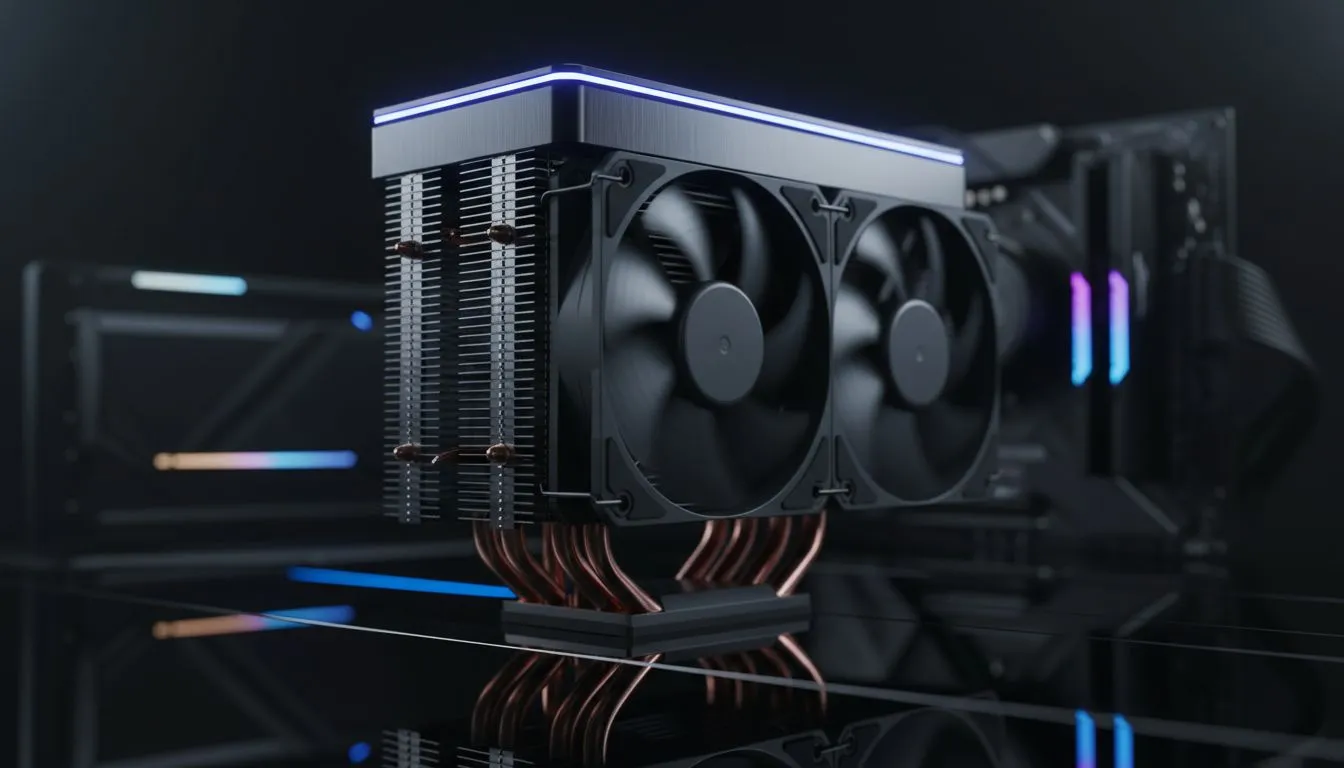
So, you’ve unboxed your shiny new processor, and the only thing standing between you and glorious PC gaming is that big, intimidating metal heatsink. Don’t stress! Learning how to install a tower CPU cooler is a rite of passage for every PC builder in South Africa. It’s easier than you think, and getting it right means lower temps, quieter operation, and better performance when the gaming action heats up. Let's get this done. 🔧
Before you even touch a screw, a little preparation goes a long way. A successful tower CPU cooler installation starts with checking a few key things to avoid a headache later.
First, the big one: will it actually fit? Tower coolers can be massive. Check your PC case specifications for maximum CPU cooler height. You also need to consider RAM clearance—some large coolers overhang the DIMM slots, which can be a problem if you have tall memory sticks. A quick check of the cooler’s spec sheet online will save you a world of frustration.
You don’t need a massive workshop, just the basics:
We know, we know... but this is important. The mounting hardware for Intel and AMD sockets is different, and each brand has its own system. Whether you've chosen one of the popular EINAREX air coolers or another brand, its manual is your single best friend for this process.
Alright, let's get hands-on. We'll assume your motherboard is already in the case, but the CPU is accessible. If you're starting a fresh build, it's often easier to do this before putting the motherboard in the case.
Your cooler will come with a backplate. You’ll need to align this with the holes on the back of your motherboard that surround the CPU socket. For some sockets, you might screw standoffs directly into the motherboard's integrated backplate. Gently hold it in place as you flip the motherboard back over (or simply reach around if it's already in the case).
Now, on the front side of the motherboard, secure the correct mounting brackets (Intel or AMD) over the CPU socket using the provided thumbscrews or standoffs. Don't overtighten them just yet—snug is good enough. This framework is what your heatsink will attach to.
If your cooler has thermal paste pre-applied, you can skip this. If not, it's time for the magic goo. Clean the top of your CPU with a dab of isopropyl alcohol on a lint-free cloth to remove any oils or dust.
Don't overthink it! For modern CPUs, the 'pea method' is foolproof. Squeeze a small, pea-sized dot of thermal paste directly onto the centre of the CPU's integrated heat spreader (IHS). The pressure from mounting the cooler will spread it evenly. Too little is bad, but a massive blob just makes a mess and can hinder performance.
This is the most crucial part of the install tower CPU cooler process. Carefully remove the plastic protector from the base of your cooler. Align the screws or mounting points on the cooler with the brackets you installed on the motherboard.
Place the tower down gently. Tighten the screws in a cross-pattern (like changing a car tyre), doing a few turns on one screw, then the one diagonally opposite it. This ensures even pressure across the CPU for optimal thermal transfer. Many of the most popular and effective 120mm air coolers use this simple, secure method.
Clip the fan onto the heatsink tower. Make sure the fan is oriented to push air through the heatsink fins and towards your case's rear exhaust fan. Look for small arrows on the fan's plastic frame indicating airflow direction. Finally, plug the fan's 4-pin PWM cable into the CPU_FAN header on your motherboard. ✨
You did it! But before you jump into a game, boot up your PC and go straight into the BIOS/UEFI. Find the hardware monitor section and check your CPU temperature. At idle, it should be somewhere between 30-45°C. If it’s climbing rapidly past 80°C at idle, shut down immediately and re-check your mount. A good mount on one of the many reliable Deepcool air coolers will give you peace of mind and excellent performance.
Once you're happy with your idle temps, boot into Windows and run a quick stress test to see how your new cooler performs under load. Congratulations, your CPU is now properly chilled and ready for anything you can throw at it! If you find your stock cooler isn't cutting it, exploring the wide world of aftermarket air coolers is your next logical step.
Ready to Tame Your Temps? A powerful CPU deserves powerful cooling. Now that you know how to install a tower CPU cooler, you're ready to pick the perfect one for your rig. Explore our massive range of CPU coolers and find the ideal match to unlock your PC's full potential.
Prepare the motherboard, apply thermal paste, position and secure the cooler, connect the fan header, then boot and check temps.
Usually a Phillips screwdriver and the cooler's mounting hardware; for some coolers you may need standoffs or a backplate adapter.
Use a pea-sized or small rice-grain amount in the CPU center to ensure proper spread and heat transfer after mounting.
Check CPU socket support, RAM clearance, case height, and manufacturer specs to confirm the tower cooler fits your build.
Common errors: uneven mounting, too much paste, ignoring clearance, loose screws, and skipping a post-install temperature test.
Boot to BIOS or use monitoring software, run a short stress test, and compare idle and load temps to expected ranges.
Yes, but clean old thermal paste, confirm socket compatibility, and inspect the mounting hardware before reinstalling.
Top RTX 5090 Under R5000 picks evaluated on performance, value & SA availability with current Rand pricing from Evetech.
Read more
Top Value RX 9070 XT Under R10,000 picks evaluated on performance, value & SA availability with current Rand pricing from Evetech.
Read more
Top RTX 5090 Under R4000 picks evaluated on performance, value & SA availability with current Rand pricing from Evetech.
Read more
Top RTX 5080 Under R15000 picks evaluated on performance, value & SA availability with current Rand pricing from Evetech.
Read more
Core i5-14400F + B760 + RX 7800 XT Build Under. Full parts list, Rand pricing & expected performance. Build confidently with SA-available components.
Read more
Top Budget RTX 5070 Ti Under R20,000 Gamers picks evaluated on performance, value & SA availability with current Rand pricing from Evetech.
Read more
Can RTX 4080 Super Run AI Workloads for SA Developers Detailed answer with SA data, expert analysis & practical recommendations for local buyers.

Can RTX 4090 Run AI Workloads for SA Developers Detailed answer with SA data, expert analysis & practical recommendations for local buyers.

Top Settings for Intel Arc B580 at Ultrawide 1440p picks evaluated on performance, value & SA availability with current Rand pricing from Evetech.
RX 7600 Overclocking Guide: Safe OC Settings for. Real-world benchmark data, FPS numbers & performance analysis. What SA gamers can actually expect.

RTX 4060 CS2 Low Settings at 1080p: FPS Results. Real-world benchmark data, FPS numbers & performance analysis. What SA gamers can actually expect.

Visual Artifacts: Possible GPU Issue Issue #1. Diagnosis steps, proven fixes & when to seek professional help. SA-specific support info included.

Can the RTX 4090 Handle 1440p 144Hz Gaming. Performance testing verdict with real data & practical recommendations for SA buyers.

Top ASUS GPU Under R15000 picks evaluated on performance, value & SA availability with current Rand pricing from Evetech.

GTA 6 Max Settings on RTX 5070. Tested & verified settings for best FPS and visual quality on SA hardware budgets.

Cyberpunk 2077 Max Settings on RTX 5080. Tested & verified settings for best FPS and visual quality on SA hardware budgets.

Starfield Max Settings on RTX 5070 Ti. Tested & verified settings for best FPS and visual quality on SA hardware budgets.
Top RTX 5090 Under R5000 picks evaluated on performance, value & SA availability with current Rand pricing from Evetech.