

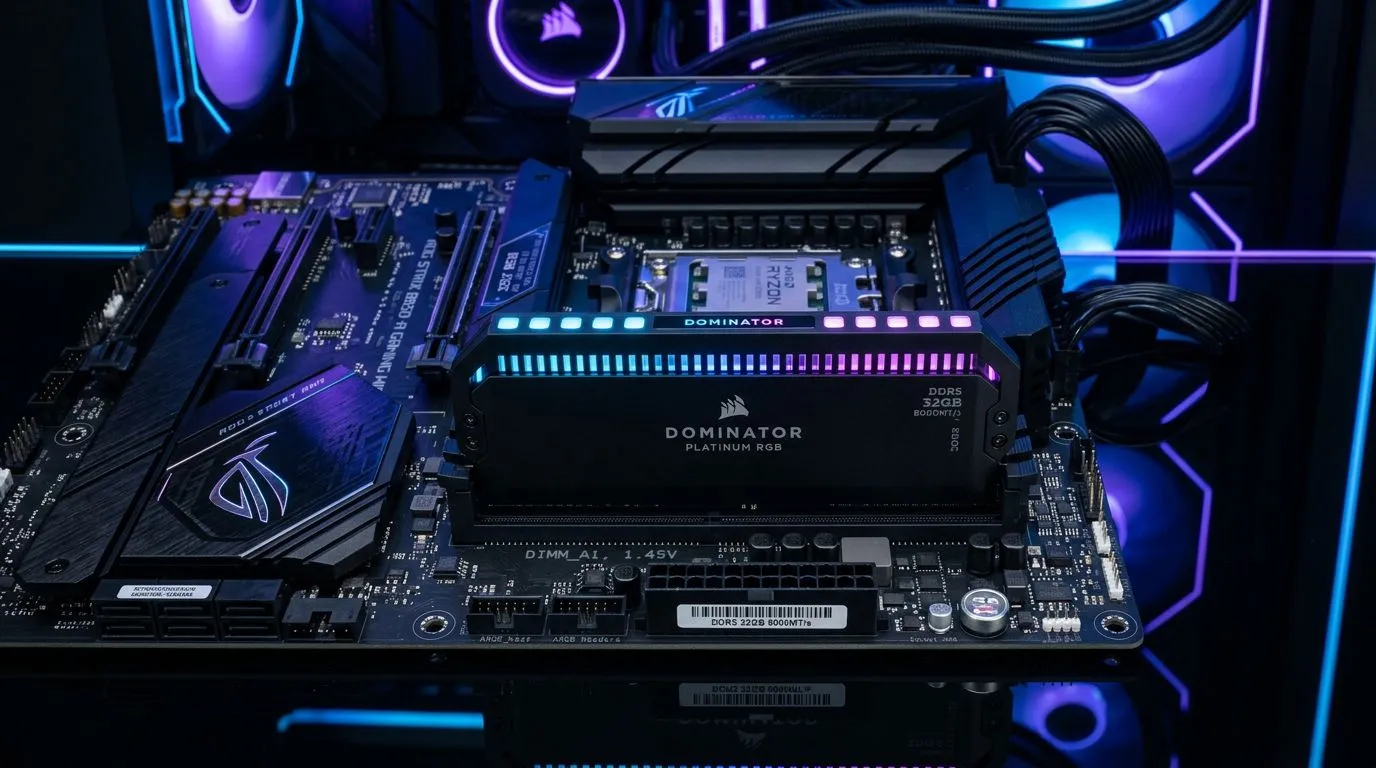
Overclock DDR5 Memory Beyond 8000 MT/s on AMD B850: A Pro Guide (Build Lab)
If you’ve ever stared at your DDR5 kit’s XMP/EXPO speeds and thought, “That’s not the ceiling… is it?”, you’re in the right place. 🔧 South African gamers building on AMD platforms want smooth, consistent frame times, not random crashes during test runs. And DDR5 tuning can help… when you do it the safe way. In this guide, we’ll walk through how to push DDR5 beyond 8000 MT/s on AMD B850 with a pro-style methodology that’s repeatable at home.
This is written for builders who want results, but also want stability on real gaming workloads.
Overclock DDR5 Memory Beyond 8000 MT/s on AMD B850: What You Need Before You Touch Anything
Before you touch timings, confirm the basics. ⚡ Overclocking DDR5 is mostly about the memory controller’s ability, board traces, BIOS maturity, and your kit’s IC quality.
Check these first (save yourself hours)
- Item
- Your RAM kit’s speed + voltage rating
- Item
- Item
If you’re choosing or comparing boards for AMD systems, start here for options that commonly fit performance-focused builds:
And if you’re building on Intel instead (or just comparing platform behaviour), Evetech also has a helpful overview:
Overclock DDR5 Memory Beyond 8000 MT/s on AMD B850: The Pro Tuning Method
Think of DDR5 tuning like tuning your car. You don’t crank everything at once. You change one variable, measure, then adjust.
Step 1: Update BIOS and load your vendor profile
Start with the simplest baseline: load your kit’s advertised profile (EXPO/XMP depending on your kit). On AMD systems, this gives you a known-good starting point before manual tuning.
Step 2: Raise speed in small increments
To go beyond 8000 MT/s, do it like this:
- Increase memory frequency gradually (for example, in 200 MT/s steps).
- After each step, boot and run quick stability checks.
- Stop when you hit instability, then back off slightly.
Why this works: the jump from “works” to “doesn’t” often comes from marginal signal integrity and memory controller limits.
Step 3: Set voltages cautiously (and understand why)
DDR5 stability usually improves with:
- DRAM voltage (within your kit’s rated limits)
- SoC / memory controller voltage (platform dependent)
But… higher isn’t always better. Too much voltage can increase heat and degrade long-term stability. Use conservative increments and monitor temps.
Productivity Pro Tip ⚡
On a new AMD RAM tuning session, keep a quick change log in Notes on your phone. Write down frequency, voltage tweaks, and the exact test results after each boot. When you finally find a stable sweet spot, you can replicate it after future BIOS updates without guesswork.
Step 4: Tighten timings only after you’re stable
Once you pass stability at the target speed, that’s when timings matter.
- Start with primary timings (CAS and related parameters).
- If instability appears after tightening, loosen the last change rather than starting over.
A lot of builders chase tighter timings first. That’s how you end up with hours of “boot-loops” and half-finished gaming rigs.
Overclock DDR5 Memory Beyond 8000 MT/s on AMD B850: Stability Testing That Actually Saves Money
The goal isn’t “runs for 5 minutes.” The goal is “runs long enough that you can trust it when life happens.”
A practical stability checklist (home-friendly)
- Boot test: confirm it retrains memory after a restart.
- Short test: run a quick memory stability test for 10 to 20 minutes.
- Long test: run a longer session (1 hour+).
- Item
If you’re building a performance-focused rig and you’re also watching your budget, Evetech carries board options that can still get you to strong tuning results without overspending. For a platform-building starting point, browse:
Overclock DDR5 Memory Beyond 8000 MT/s on AMD B850: Common Mistakes (And Fixes) 🚀
Here are the problems South African builders run into often, and what to do instead.
Mistake 1: Jumping straight to aggressive speed
Symptom: boot fails, or it resets to default. Fix: step up gradually. Stability first, speed second.
Mistake 2: Tight timings too early
Symptom: it boots, but crashes under load. Fix: stabilise the speed first, then tighten slowly.
Mistake 3: Ignoring heat
Symptom: works at first, then becomes unstable later. Fix: improve airflow, check case fans, and re-test after the system warms up.
Mistake 4: Not tracking BIOS changes
Symptom: you had a stable setup before, but now it’s unstable after an update. Fix: use your Notes log, reload profiles, and step back from your last known stable settings.
Overclock DDR5 Memory Beyond 8000 MT/s on AMD B850: What “Success” Looks Like
A successful DDR5 push beyond 8000 MT/s isn’t just a number on a BIOS screen. It’s:
- reliable restarts
- stable runs after 1+ hour tests
- no weird crashes while gaming
If you do it step-by-step, you get the best of both worlds. More responsiveness when it matters… without sacrificing reliability.
Ready to Dial It In? Let Evetech Help You Build It Right ✨
Overclocking can feel intimidating, but it gets easier once you treat it like a controlled experiment. If you want to move fast and avoid mismatched components, start by choosing the right motherboard platform first, then pair it with a DDR5 kit that’s designed for high-speed tuning.
Ready to Find Your Perfect Match? The Mac vs Windows debate is complex, but for maximum power, choice, and value in South Africa, Windows is hard to beat. Explore our massive range of laptop specials and find the perfect machine to conquer your world.











