

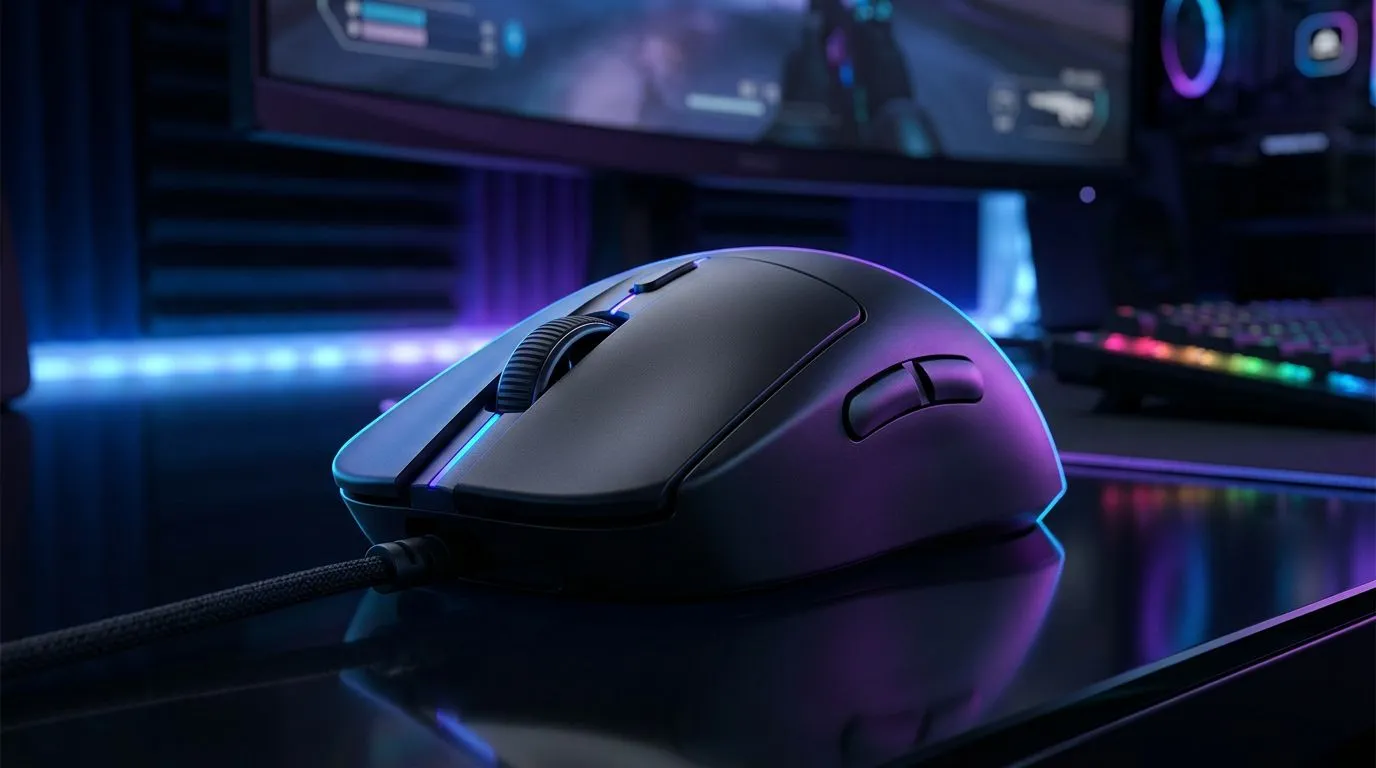
Set up gaming mouse on Windows: Beginner's guide
South African gamers: tired of jittery aim or awkward button layouts? This quick guide gets you from unboxed to match-ready in minutes — no overcomplicated jargon, just practical steps and local links to the right kit 🔧. Whether you’re building a budget rig in Cape Town or chasing pro-level feel in Jozi, the right setup on Windows makes a real difference.
Why a proper setup matters
A gaming mouse that's set up correctly is more consistent, faster to react, and kinder to your wrist during long sessions. Start by checking the hardware: sensor type, switch durability and cable vs wireless choice. To explore models and compare features, browse our gaming mice selection: https://www.evetech.co.za/components/gaming-mouse-117.aspx.
Gaming mouse settings on Windows: DPI, polling rate and macros
Step 1 — DPI and sensitivity
- Open Windows Settings > Devices > Mouse, then adjust pointer speed to a neutral midpoint before changing DPI in your mouse software.
- If your mouse has onboard DPI buttons, switch between 400–1600 for FPS and 800–3200 for MOBAs; test until aiming feels natural.
Step 2 — Polling rate and firmware
- Most gamers prefer 500–1000Hz polling. Update your mouse firmware for best stability; many Evetech listings show firmware support in product specs. Check current offers and deals here: https://www.evetech.co.za/best-gaming-mouse-deals/x/054.aspx ⚡
Quick Setup Tip 🎯
Before you tweak macros, create a Windows restore point. That way, if a driver or utility misbehaves, you can roll back quickly.
Software and profiles
Install the manufacturer software (e.g., Logitech G Hub, Razer Synapse, SteelSeries Engine) only if you need macros or RGB. For simple DPI and polling rate tweaks, many mice allow onboard adjustments without software, which keeps Windows lean and stable.
Optimise your gaming mouse on Windows: tips & troubleshooting
Ergonomics and surface
- Test on a low-friction mousepad. If you prefer wireless freedom, weigh battery life vs latency; see our wireless options here: https://www.evetech.co.za/buy-wireless-mouse/x/1597.aspx.
- For wired mice, inspect the cable and consider a bungee for smoother movement: browse wired options here: https://www.evetech.co.za/buy-wired-mouse/x/1596.aspx.
Common fixes
- If the cursor stutters, try different USB ports (rear ports on desktops are usually more reliable). Disable "Enhance pointer precision" in Windows to prevent aim inconsistency.
- For button double-clicking or lag, check driver updates, test on another PC, and consult accessory solutions like replacement switch kits or skates: https://www.evetech.co.za/buy-mouse-accessories/x/1595.aspx 🚀
Small story: a Cape Town player swapped from a high-DPI default to a lower, hardware-stored DPI profile and halved their adjustment time during clutch rounds. Tiny changes add up.
Final checks before you play
- Calibrate DPI to your sensitivity preference.
- Save profiles to the mouse if possible.
- Keep drivers and firmware current for stability.
Ready to Find Your Perfect Match? The Mac vs Windows debate is complex, but for maximum power, choice, and value in South Africa, Windows is hard to beat. Explore our massive range of laptop specials and find the perfect machine to conquer your world.











