

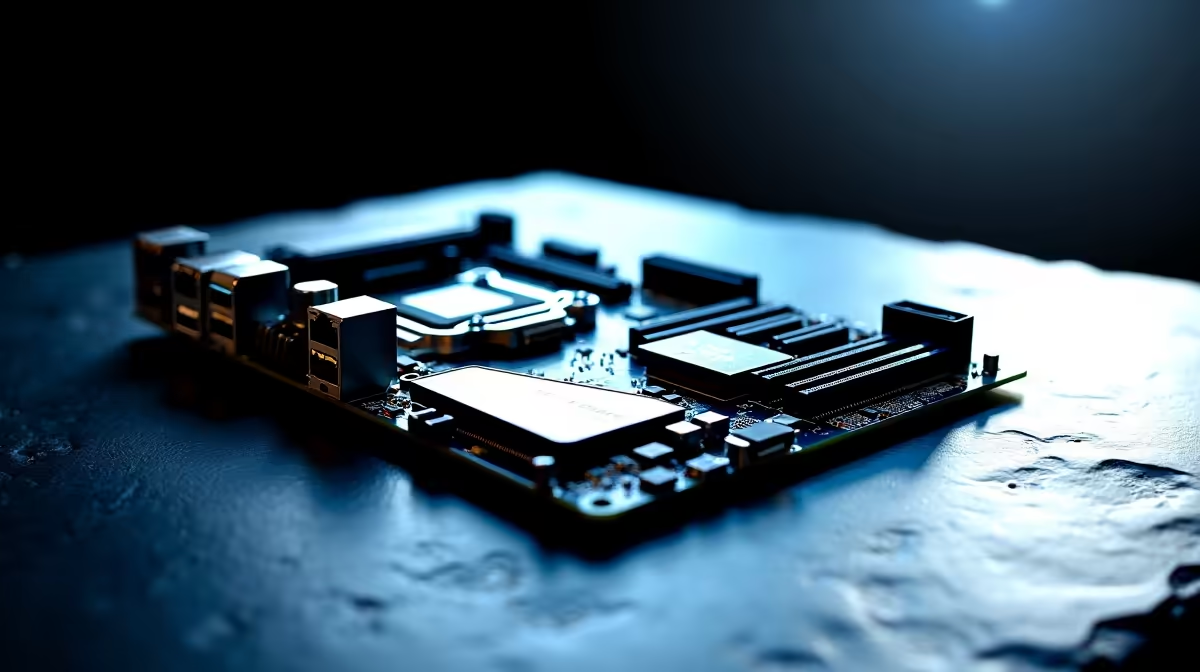
Building a top-tier rig in South Africa means spending your hard-earned ZAR wisely. Dropping serious cash on high-end parts is an investment. You want blistering speeds without bottlenecks. But when setting up DDR5, Wi-Fi 7 and triple M.2 on an ATX motherboard without wasting slots, things get tricky. PCIe lanes are strictly limited. Plug a drive into the wrong slot, and your graphics card might suffer. Let us fix that.
Understanding PCIe Lanes 🔧
Every modern processor has a finite number of PCIe lanes. Think of them as high-speed data highways. Your graphics card typically needs 16 of these lanes to perform at its peak.
If you plug an expansion card or a third NVMe drive into a slot that shares lanes with your primary PCIe x16 slot, your GPU bandwidth instantly drops to x8. That is a massive waste of performance. When you are browsing through premium motherboards for your build, always check the block diagram in the manual. Not all expansion slots are created equal.
Maximising Your Triple M.2 Storage Setup
Routing three M.2 NVMe drives requires careful planning. A modern Gen 5 drive can hit massive read speeds... but only with dedicated lanes.
Your first drive should always use CPU lanes. Your second and third drives should ideally route through the motherboard chipset. This prevents them from stealing precious bandwidth from your graphics card.
Storage Routing Tip ⚡
Always install your primary OS drive in the top M.2 slot closest to the CPU. This slot connects directly to the processor, bypassing the chipset entirely for the lowest latency and maximum read speeds.
Getting the Most Out of DDR5 Memory
Next up is memory. DDR5 runs at incredibly fast frequencies. Pushing past 6000MHz is the sweet spot for modern gaming processors.
However, populating all four DIMM slots can actually hurt your performance due to heavy memory controller strain. Signal integrity degrades rapidly with four sticks. For optimal stability and speed, stick to two high-capacity sticks. Grab a dual-channel setup from our latest high-speed memory kits and install them in slots A2 and B2.
Team Blue vs Team Red Configurations
Both Intel and AMD handle lane distribution slightly differently. You need to know your platform.
If you lean towards Team Blue, ASUS Intel motherboards offer excellent chipset routing. This makes adding extra storage seamless without choking your main components. For Ryzen fans, ASUS AMD motherboards provide massive PCIe Gen 5 support directly from the processor... perfect for future-proofing your build.
Bringing It All Together With Wi-Fi 7 🚀
Finally, we have wireless networking. Wi-Fi 7 brings features like Multi-Link Operation... allowing your PC to connect to multiple bands simultaneously. This slashes latency for competitive gaming.
But this tech requires serious bandwidth to hit those multi-gigabit speeds. Integrated Wi-Fi 7 boards handle this internally without stealing from your GPU. If you use a PCIe add-in card instead, place it in the bottom-most slot on your ATX board.
If balancing PCIe lanes sounds like too much manual reading, you can skip the headache entirely. Check out our best gaming PC deals for rigs that are perfectly configured out of the box.
Ready to Build Your Dream Rig? Getting your components to play nicely together is an art. For maximum power, choice, and value in South Africa, Evetech is your ultimate destination. Explore our massive range of PC components and find the perfect parts to conquer your next build.











