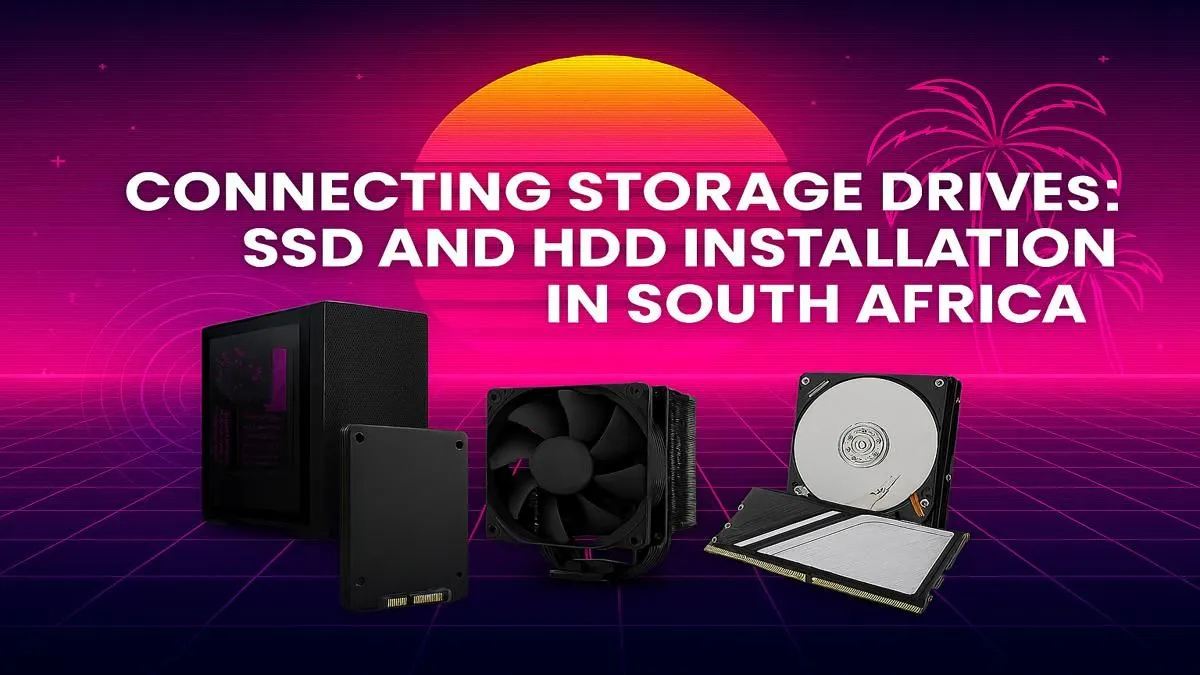
Is your gaming PC starting to feel sluggish? Are those game load times getting longer and longer? That dreaded "Disk Space Low" notification popping up mid-download is a certified vibe-killer. Don't stress, boet. A storage upgrade is one of the most effective ways to breathe new life into your rig. This step-by-step guide to SSD and HDD installation in South Africa will walk you through the entire process, getting you back in the game faster. 🚀
Your Pre-Installation Checklist
Before you even think about opening your PC case, a little prep work goes a long way. Getting this right ensures your SSD and HDD installation is smooth and trouble-free.
First, gather your tools. You'll likely only need a Phillips head screwdriver. Next, confirm what you're installing and where. Check your motherboard's manual (or look it up online) to see how many SATA ports and M.2 slots you have available. This is crucial for compatibility. Even many modern budget gaming PCs come with at least one super-fast M.2 slot.
Most importantly: back up your important data! Whether you're adding a new drive or replacing an old one, always save your crucial files to an external drive or cloud service first. You can't press undo on data loss.
SATA Port Speed ⚡
Not all SATA ports are created equal. On many motherboards, some ports (usually labelled SATA0 and SATA1) are controlled directly by the chipset for maximum speed. Always plug your primary boot drive (the one with Windows on it) into the fastest available port for the best performance.
The Physical SSD and HDD Installation Steps 🔧
Alright, with your PC powered down and unplugged, it's time to get hands-on. Remember to ground yourself by touching a metal part of the case to discharge any static electricity before you handle components.
For 2.5-inch SSDs and 3.5-inch HDDs (SATA Drives)
This is the most common type of drive installation, and it's super straightforward.
- Mount the Drive: Locate an empty drive bay in your PC case. Secure your new SSD or HDD in the bay using the screws that came with your case or drive.
- Connect the Data Cable: Take the SATA data cable (a thin, flat cable) and plug one end into the drive and the other into a free SATA port on your motherboard.
- Connect the Power Cable: Find a spare SATA power connector coming from your Power Supply Unit (PSU). It's wider than the data cable. Plug it firmly into the power port on the drive.
That's it! The physical part of your HDD installation is done. This simple upgrade can make even older machines feel much more responsive, and it's a standard feature in most great PCs under R20k.
For M.2 NVMe SSDs
These little gumstick-sized drives are incredibly fast and install directly onto the motherboard, eliminating cable clutter.
- Locate the Slot: Find the M.2 slot on your motherboard. It might be hidden under a metal heatsink, which you'll need to unscrew first.
- Insert the Drive: Gently slide the M.2 SSD into the slot at about a 30-degree angle. The gold contacts should disappear completely.
- Secure the Drive: Press the drive down so it's parallel with the motherboard. Use the tiny screw (it usually comes with your motherboard) to secure the other end of the drive. If you removed a heatsink, now's the time to put it back on.
Installing an NVMe is the single biggest upgrade for reducing game load times, which is why they're a must-have in all the best gaming PC deals.
Software Setup: Initialising Your New Drive
Plugging the drive in is only half the battle. Windows won't see it until you tell it what to do.
- Power your PC back on and log in to Windows.
- Right-click the Start button and select "Disk Management".
- A window should pop up asking you to initialise the new disk. Choose GPT (GUID Partition Table) as it's the modern standard.
- You'll now see your drive listed as "Unallocated". Right-click the unallocated space, select "New Simple Volume", and follow the wizard.
- Just click "Next" through the prompts, assign it a drive letter (like D: or E:), and give it a quick format.
Once the format is complete, your new drive will appear in "This PC", ready for games, files, and anything else you want to throw at it. This process is the same whether you're working on a budget build or one of the most high-performance rigs over R20k with multiple storage drives.
While this guide on SSD and HDD installation in South Africa makes the DIY route accessible, we get that not everyone wants to pop the hood on their machine. Sometimes, you just want a perfectly optimised PC that works flawlessly out of the box. If that sounds like you, exploring some expertly configured pre-built PC deals is a brilliant, hassle-free alternative. ✨
Ready for a Speed Boost?
The DIY route is rewarding, but sometimes you just want a perfectly optimised machine out of the box. For builds with blazing-fast storage configured by pros, Evetech has you covered. Explore our huge range of SSDs and HDDs and find the perfect upgrade for your rig today.