Is your gaming PC’s lighting a chaotic mess of clashing colours? You’ve invested in all this awesome RGB gear, but instead of a synchronised light show, it looks like a rainbow threw up in your case. Don’t worry, you’re not alone. Getting all your components to dance to the same beat can be tricky. This guide will show you exactly how to sync Corsair iCUE RGB effects and transform your rig from a disco disaster into a masterpiece. ✨
Understanding the Power of Corsair iCUE
Before we dive into the how-to, let's quickly cover the 'why'. Corsair's Intelligent Corsair Utility Engine, or iCUE, is more than just lighting software. It's a powerful command centre for your entire setup. While its main draw is the ability to sync Corsair iCUE RGB effects across all compatible hardware… from your RAM and fans to your keyboard and mouse… it also lets you monitor temperatures, control fan speeds, and create complex macros.
Think of it as the conductor of your PC's orchestra, ensuring every part works in perfect harmony.
A Step-by-Step Guide to Sync Your RGB Lighting
Ready to get everything in sync? It’s easier than you think. Follow these simple steps to master your rig’s aesthetic.
Step 1: Install the Latest iCUE Software
First things first. Head over to the official Corsair website and download the latest version of iCUE. Run the installer and give your PC a quick restart once it's done. This ensures the software can properly detect all your connected Corsair components. This is the foundational step to sync iCUE RGB lighting effectively.
Step 2: Let iCUE Detect Your Gear
Open iCUE. On the home screen, you should see tiles for all your compatible devices like your cooler, RAM, fans, and peripherals. If something is missing, check your physical connections. Is everything plugged in correctly? Sometimes a loose internal USB header is the culprit. Once all your gear appears, you’re ready for the fun part.
Go Beyond Your PC with Murals 🎨
For a truly immersive experience, check out the 'Murals' tab in iCUE. This feature lets you extend your lighting effects to the entire wall behind your setup using smart lighting like Philips Hue or Nanoleaf. You can create incredible, room-scale ambient effects that react to what's on your screen. It's a next-level way to synchronise your gaming space.
Step 3: Use Lighting Link for Instant Syncing
The quickest way to get a unified look is with Lighting Link. This feature applies a single lighting effect across all your iCUE devices simultaneously.
- In the iCUE software, look for "Lighting Effects" in the left-hand menu.
- Select one of the "Lighting Link" presets. Options like 'Rainbow Wave', 'Colour Pulse', or 'Visor' are popular choices.
- Click it, and watch as your entire setup instantly synchronises. Voila!
This is the simplest method to sync Corsair iCUE RGB effects for a stunning, cohesive look without deep customisation.
Expanding Your Luminous Ecosystem
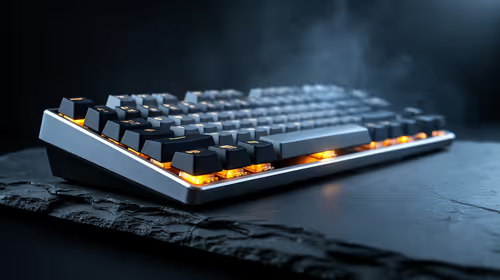
A fully synchronised battlestation goes beyond the components inside your case. Your keyboard, mouse, and headset are crucial touchpoints that complete the immersive experience. While Corsair offers a fantastic ecosystem, many gamers in South Africa mix and match their gear. For instance, many of the most vibrant RGB gaming keyboards have their own powerful software suites.
Some software, like ASUS Aura Sync, can even integrate with iCUE for broader compatibility. While you might not get the same granular control as a pure Corsair setup, it opens up possibilities. Many gamers find the aesthetic of top-tier Razer keyboards too good to pass up, and the same goes for the unique feel of Glorious gaming keyboards.
Ultimately, choosing a new gaming keyboard is a deeply personal choice that defines your gaming experience. Taking control of your PC’s lighting with iCUE is just the first step in creating a setup that is uniquely yours. 🚀
Ready to Build Your RGB Masterpiece? A perfectly synchronised lighting setup starts with the right components. From dazzling RAM to brilliant case fans and peripherals, we've got the gear to bring your vision to life. Explore our massive range of PC components and start building the ultimate rig today.