

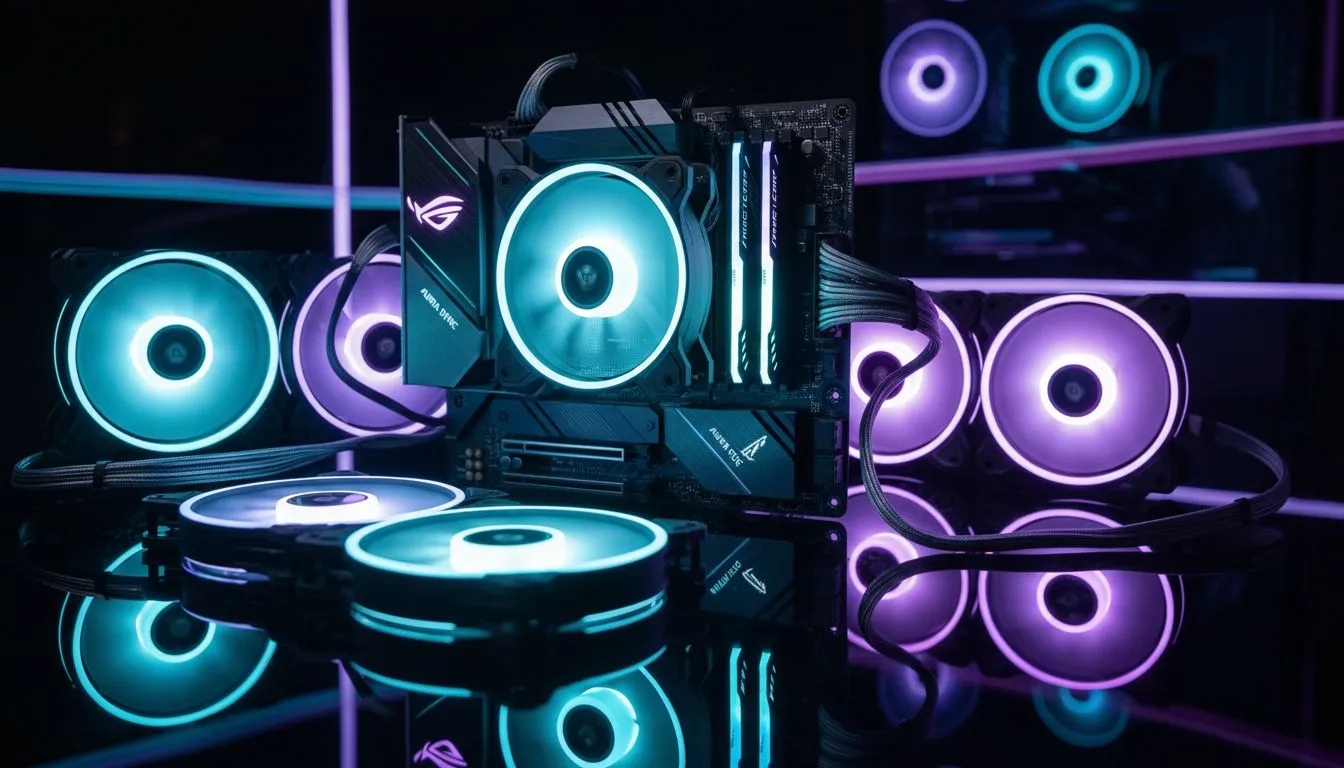
Sync RGB Fans: Quick start with Aura Sync and Mystic Light 🔧
If you want seamless lighting across your rig, learning to sync RGB fans with ASUS Aura Sync and MSI Mystic Light saves time and keeps your setup looking crisp. Start by checking motherboard RGB headers, fan-controller compatibility and which software your GPU prefers. Small wins here make big visual impact in-game and on stream. ✨
When picking a case, think about airflow and visible lighting. Browse Evetech’s full selection to compare sizes and front-panel layouts: shop PC cases that suit airflow and cable management needs. (For compact builds, prioritize front intake and a controller hub.)
Sync RGB Fans — Step-by-step setup for Aura Sync and Mystic Light
- Unpack and connect: plug your RGB fans into the correct 3-pin ARGB or 4-pin RGB headers. If the fans came with a controller, connect that to a SATA power cable and the motherboard RGB header.
- Install drivers: download Aura Sync from ASUS or Mystic Light from MSI. Run the installations, reboot, then open the apps to detect devices. Official motherboard software often identifies compatible headers automatically, but manual mapping helps with mixed-brand fans.
- Match frequencies: if you use PWM fan headers, control speeds in BIOS or via motherboard utilities to keep noise predictable while lighting runs independently.
If you’re unsure which case will show off your lighting best, Fractal Design cases favour minimal, refined interiors that highlight subtle lighting. See Fractal Design cases for sleek, understated builds that let RGB breathe.
Sync Tip ⚡
Keep the software minimal. If Aura Sync and Mystic Light both detect the same controller, decide on one to avoid conflicts. Disable competing startup services so only one RGB manager runs.
Sync RGB Fans — Troubleshooting and compatibility notes
Mixing ASUS and MSI ecosystems can cause conflicts. If a device won’t appear, check the connector type: ARGB 3-pin 5V and standard RGB 4-pin 12V are not interchangeable. Use splitters or a dedicated ARGB hub when connecting more than three fans. For budget RGB-forward cases that include controllers, Gamdias gaming cases often bundle useful hubs and cables to simplify setup. Explore Gamdias gaming cases for RGB-friendly builds.
If a hub or fan remains undetected after drivers are installed, try a different header, or connect the hub’s USB cable to an internal USB 2.0 header so the software can query it. For shoppers on a budget, there are good options under R1,500 — check Gamdias gaming cases filtered by price to see what’s available at that level.
Sync RGB Fans — Parts & local buying pointers 🚀
- Fans: pick models with clear specs on ARGB vs RGB; avoid guessing.
- Controller: prefer one with both SATA and USB headers for software detection.
- Case: choose a case with good cable routing and a visible window. Fractal Design and Gamdias both offer strong choices depending on taste and price.
For more case options and to balance airflow with lighting aesthetics, browse Evetech’s curated PC cases and compare features before you buy.
Ready to Find Your Perfect Match? The Mac vs Windows debate is complex, but for maximum power, choice, and value in South Africa, Windows is hard to beat. Explore our massive range of laptop specials and find the perfect machine to conquer your world.











