

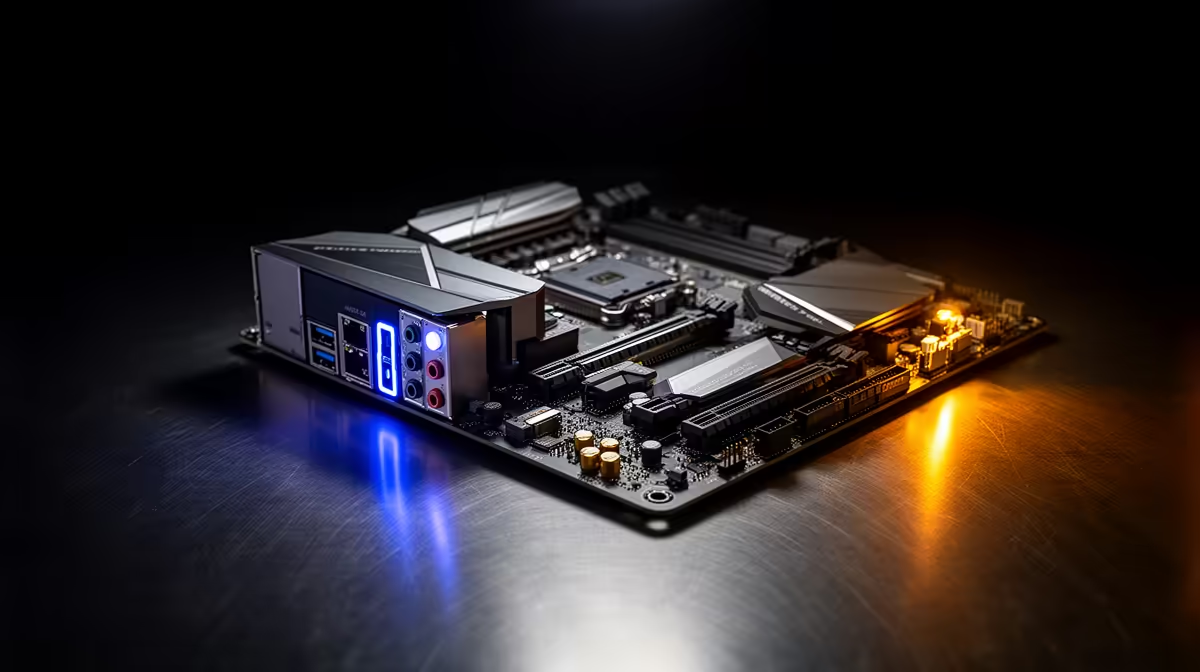
So, you've snagged a brand-new MSI X870E motherboard for your rig? Lekker! You're holding some serious next-gen power, ready for AMD's latest processors. But to unlock its full potential, you need to get that blisteringly fast USB4 port running correctly. Don't stress, we've got you. This guide provides a straightforward, step-by-step USB4 setup for your MSI X870E, getting you from the BIOS to full 40Gbps speeds in no time. 🚀
Why Your MSI X870E USB4 Setup Matters
Before we dive into the BIOS, let's quickly cover why this is worth your time. USB4 isn't just a faster version of USB 3.0; it's a massive leap forward. It integrates Thunderbolt 3 technology, offering a single port for ultra-fast data transfer (up to 40Gbps), connecting high-resolution displays, and even powering compatible devices.
For gamers and creators in South Africa, this means connecting external high-speed SSDs for your games library without a performance hit, or hooking up a 4K display and a docking station with just one cable. It’s a core feature of premium boards like the MSI MAG X870E TOMAHAWK MAX WIFI, and configuring it properly is essential.
Pre-flight Check: What You Need First
A smooth MSI X870E USB4 setup starts with a little preparation. Before you even think about rebooting your PC, make sure you have the following sorted:
- Latest BIOS/UEFI: Motherboard manufacturers frequently release updates that improve stability and compatibility. Grab the latest version from MSI's official website for your specific model.
- A Certified USB4 Cable: This is non-negotiable! Using an old USB-C cable will cap your speeds. You need a cable specifically rated for 40Gbps to get the performance you paid for.
- Correct Drivers: Once the BIOS is configured, you'll need to install the latest USB4/Thunderbolt drivers from MSI's support page within Windows.
Cable is King ⚡
Not all USB-C cables are created equal. For a successful USB4 setup on an MSI X870E board, you must use a certified USB4 40Gbps cable. Using a standard USB-C charging cable or an older Thunderbolt 3 cable might work, but you'll likely face connection drops or be limited to much slower speeds. Always check the cable's specifications!
Step-by-Step Guide to Configure USB4 on Your MSI X870E 🔧
Alright, let's get our hands dirty. Follow these steps carefully to enable USB4 in your motherboard's BIOS. The powerful X870E chipset is a flagship of modern AMD motherboards, and its BIOS offers deep customisation.
- Reboot and Enter BIOS: Restart your computer and repeatedly press the
DELorF2key as it boots up to enter the MSI Click BIOS. - Switch to Advanced Mode: If you're in the "EZ Mode" view, press
F7to switch to "Advanced Mode" for full access to all settings. - Navigate to Peripherals: Look for a menu item labelled
Settings>Advanced>Integrated Peripheralsor something similar. This is where the connectivity options live. - Locate Thunderbolt/USB4 Settings: Inside the peripherals menu, you should find an option for "USB4/Thunderbolt(TM) Support" or "Discrete Thunderbolt(TM) Configuration".
- Enable the Controller: Set the main "USB4/Thunderbolt(TM) Support" option to
Enabled. You may also see other settings related to security levels (Security Level - No Securityis fine for most home users) and reserved resources. For a basic setup, simply enabling the controller is enough. - Save and Exit: Once you've enabled the settings, press
F10to save your changes and exit the BIOS. Your PC will restart.
Finalising the Setup in Windows
Your BIOS is now ready, but the job isn't done. Once your PC boots back into Windows, you need to install the drivers to make the hardware accessible to the operating system.
Head over to the official support page for your MSI X870E motherboard and download the latest "Intel Thunderbolt Driver" (yes, even for AMD systems, as the controller technology originates from Intel). Run the installer and follow the on-screen prompts. After one final reboot, your USB4 port should be active and ready for your high-speed devices! ✨ This final driver step is crucial across all modern platforms, whether you're browsing our full selection of cheap Intel and AMD based motherboards or working with a top-of-the-line model.
You've now completed the USB4 setup on your MSI X870E! Plug in your gear and enjoy the incredible speed.
Ready to Build Your Ultimate Rig? Getting your USB4 setup on the MSI X870E is just the beginning. A powerful motherboard is the heart of any epic PC build. Explore our full range of AMD motherboards and find the perfect foundation for your next-gen gaming machine.











