

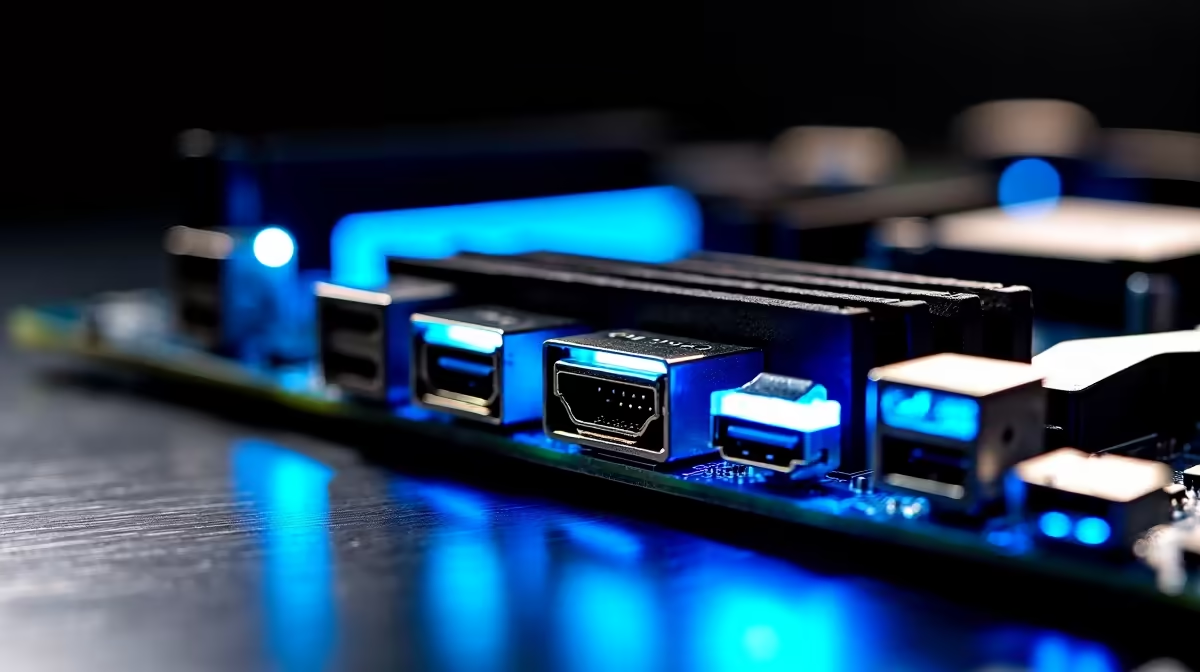
You just spent thousands of ZAR on a premium rig... only to find your screens stay black and your peripherals will not connect. It is incredibly frustrating when you find your USB4, Type-C and HDMI not working properly. Before you panic and assume your hardware is faulty, take a breath. Most dead ports come down to simple motherboard setup issues that cause problems... and they are surprisingly easy to fix.
Common Motherboard Setup Issues That Cause Problems
Modern PC building offers incredible connectivity. If you browse the latest motherboards available in South Africa, you will notice they feature ultra-fast I/O options. However, getting all these connections to play nicely requires the correct configuration. The ports on your back panel are not always plug-and-play. They rely on a complex web of hardware lanes and software instructions. When these elements fall out of sync, your ports simply stop responding.
The BIOS and Chipset Driver Dilemma 🔧
Your operating system cannot communicate with your hardware without the correct drivers. If your Type-C or USB4 ports are completely unresponsive, your chipset drivers are likely missing. This happens frequently on fresh Windows installations.
Whether you are running premium ASUS Intel motherboards or relying on the incredible multi-core performance of ASUS AMD motherboards, keeping your BIOS updated is absolutely crucial. Manufacturers regularly release BIOS updates to patch power delivery bugs, improve system stability, and resolve USB4 connection drops. A quick firmware flash can solve months of frustrating troubleshooting. It is always worth checking your manufacturer website for the latest software revisions before assuming your board is broken.
Troubleshooting Pro Tip ⚡
Always check Device Manager in Windows before tweaking your BIOS settings. If you spot a yellow warning triangle next to your Universal Serial Bus controllers, you usually just need a quick driver update from your motherboard manufacturer's official support page.
Why Motherboard HDMI Ports Show No Signal
Here is a classic mistake that trips up many local PC builders. You plug your expensive new gaming monitor directly into the motherboard HDMI port... and get absolutely no signal.
If your system has a dedicated graphics card installed, the motherboard automatically disables its onboard video ports. You must plug your display cable directly into the GPU to get an image. Furthermore, if your processor lacks integrated graphics, that motherboard HDMI port will never work. When you buy one of our pre-built gaming PCs, our technicians ensure everything is routed correctly to save you this exact headache.
Lane Sharing and Bandwidth Limits 🚀
High-speed connections like USB4 and Thunderbolt require massive data bandwidth to function properly. To manage this heavy traffic, motherboards often share PCIe lanes between your M.2 NVMe storage slots and your rear Type-C ports. If you install a fast solid-state drive into a shared slot, your motherboard might automatically disable the Type-C port entirely to prioritise storage speed. You should always consult your motherboard manual to understand these shared lanes before building.
System stability also plays a massive role in port functionality. Unstable RAM can actually cause peripheral dropouts, audio stuttering, and seemingly dead ports. Upgrading to reliable high-speed memory kits and ensuring your memory profiles are properly tuned in the BIOS will prevent random USB disconnects during your intense competitive gaming sessions.
Ready to Upgrade Your Setup? Dealing with dead ports and outdated hardware is frustrating. If you want maximum power, pristine connectivity, and the best value in South Africa, Evetech has you covered. Explore our massive range of PC components and build the ultimate machine to conquer your favourite games.











