

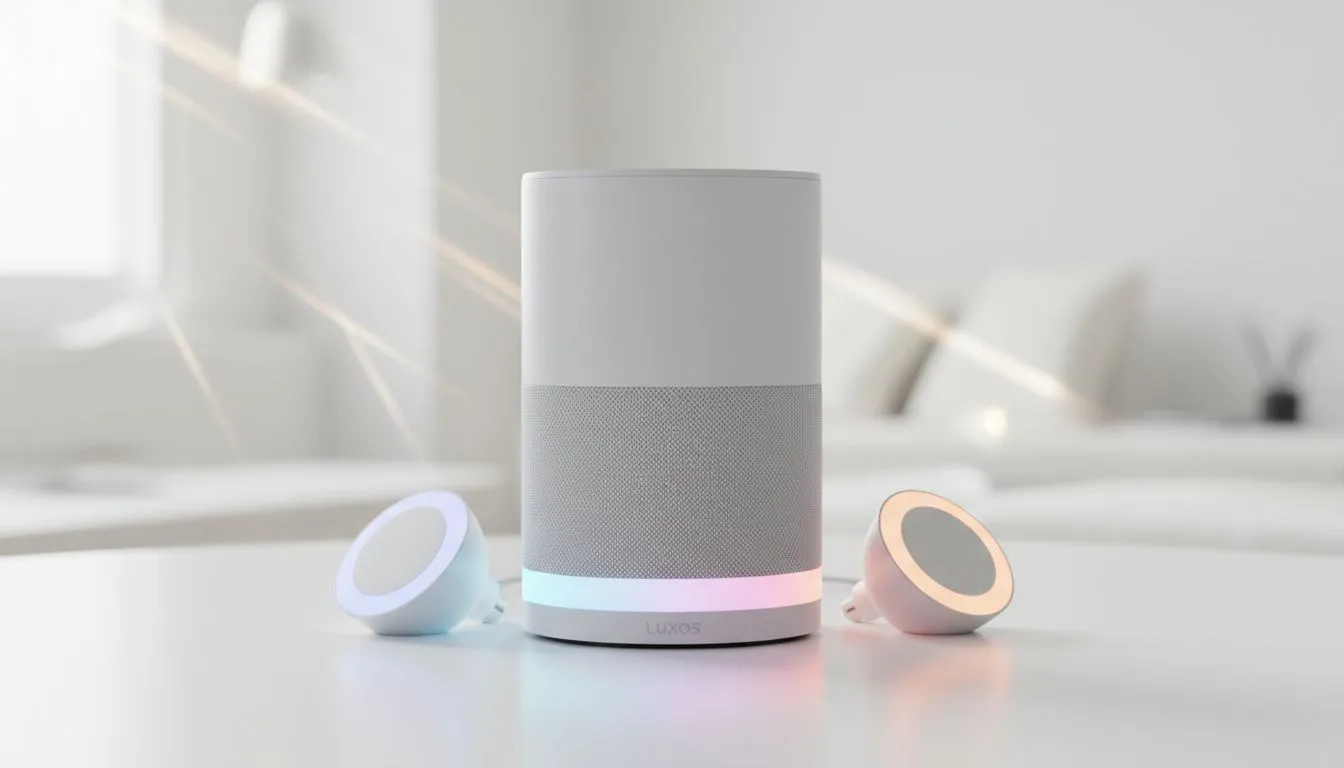
Transform Your Setup with Voice Controlled Lighting
Ever walked into your room and wished the lights would just... obey? In South Africa, our gaming setups are our sanctuaries. Whether you are grinding in Apex Legends or editing a 4K vlog, the right mood matters. Setting up voice controlled lighting with Alexa and Google Assistant turns a standard desk into a high-tech command centre. It is about more than just flair; it is about pure convenience 🚀.
Why Voice Control is the Ultimate Upgrade
Imagine finishing a late-night session and being too tired to reach for a switch. With a smart lighting setup, you simply speak your commands. Beyond the "cool factor", it allows you to adjust brightness levels to reduce eye strain during long raids. Before you start shouting commands at your ceiling, you need the right hardware. You can find a vast array of premium gaming accessories that support RGB integration right here at Evetech.
If you are on a budget, keep an eye on the latest gaming accessories deals. You can often snag smart bulbs or LED strips for under R500... making this a very affordable upgrade for any local gamer looking to optimise their space.
Setting Up Your Lighting with Alexa
Amazon’s Alexa is a favourite for many South Africans due to its snappy response times. To get started, ensure your smart lights are installed and powered on. Open the Alexa app on your smartphone and navigate to "Devices". Tap the plus icon and select "Add Device".
Once your lights are discovered, you can group them. Label your desk lights as "Battlestation" or "Gaming Rig". Now, saying "Alexa, turn the Battlestation to red" will instantly shift the vibe of your room. For those looking to build a complete ecosystem, browsing the comprehensive gaming accessories category will give you a better idea of what brands play nicely with your Echo devices.
Lighting Scene Tip ⚡
Use the 'Routines' feature in your Alexa or Google Home app to create a 'Gaming Mode'. With one command like 'Alexa, it is game time', you can dim the main lights, turn on your LED strips to deep purple, and even power up your PC if you have a smart plug.
Integrating Google Assistant for Seamless Control
If you prefer the Google ecosystem, the process is just as simple. Open the Google Home app and tap "Works with Google". Search for your lighting brand... whether it is Yeelight, Govee, or Philips Hue... and link your account.
Google Assistant excels at understanding natural language. You do not need to be precise. "Hey Google, make the room a bit warmer" works perfectly when you are transitioning from gaming to watching a movie. This level of control ensures your environment always matches your mental state ✨.
Final Touches for Your Build Lab
The key to a professional look is hiding the strips. Mount your LEDs behind your monitor or under the desk lip to create a soft glow rather than a harsh direct light. This "bias lighting" technique makes your screen colours pop and makes your setup look like a professional studio. 🔧
Ready to Brighten Your Build? Voice controlled lighting is the easiest way to add a premium feel to your setup without breaking the bank. Explore our massive range of gaming accessories and start building your dream smart room today.











