

You just dropped a few thousand ZAR on a lightning-fast new drive. You seat it perfectly on your motherboard, boot up, and... nothing. The drive is nowhere to be found. Figuring out why your PC isn't detecting an M.2 SSD and how to fix it properly can be incredibly frustrating. Don't panic. Before you assume you bought a dud, let us walk you through the most common culprits.
Check Your Motherboard Compatibility ⚡
Not all M.2 slots are created equal. Some older motherboards only support SATA M.2 drives. Newer ones support NVMe PCIe drives. If you slot a blazing-fast Gen 4 NVMe drive into a SATA-only slot, your system will remain completely blind to it. Always verify your motherboard specifications before purchasing. If you are browsing our best gaming PC deals, rest assured that our expert builders match every component perfectly.
Seating the Drive Correctly
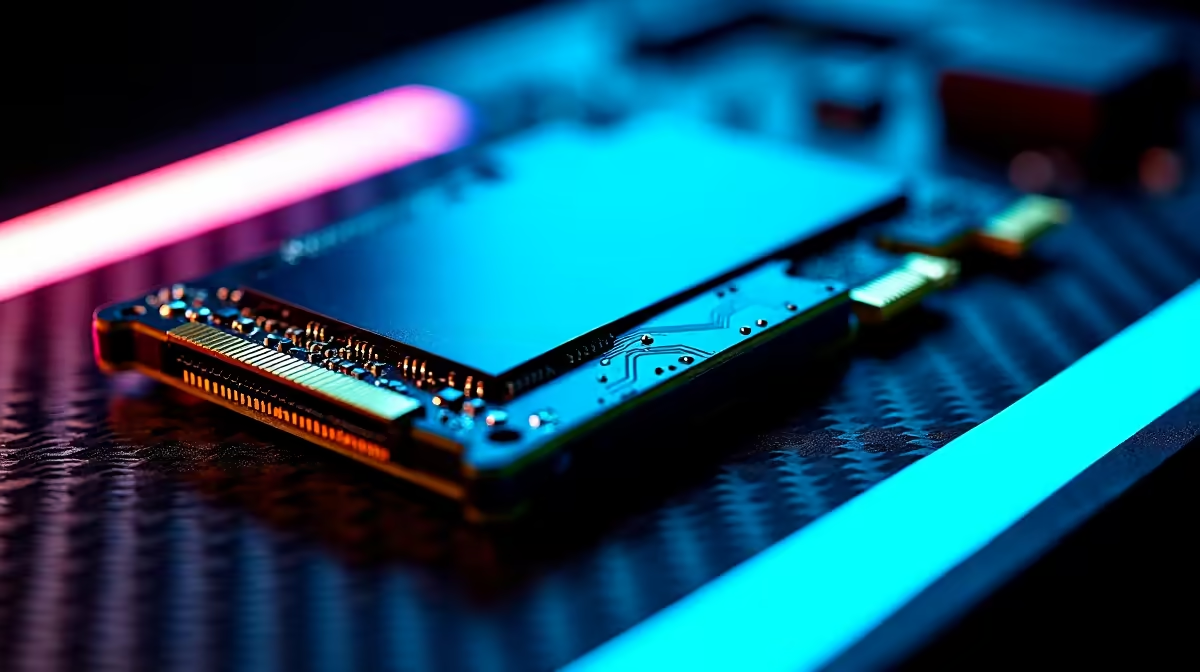
It sounds silly, but an improperly seated drive is a very common issue. The drive needs to slide into the slot at a 30-degree angle. Then, you press it down flat. If the gold connector pins are highly visible, push it in a little firmer. Secure it with the tiny standoff screw... but do not overtighten it. You could easily crack the delicate PCB.
Hardware Pro Tip 🔧
Always check your motherboard manual before installing. Some older boards disable specific SATA ports when an M.2 slot is populated. If your older hard drives suddenly vanish, try moving their SATA cables to different ports.
The BIOS and Storage Configuration
Sometimes, your motherboard needs a gentle nudge. Restart your machine and mash the DEL or F2 key to enter the BIOS. Navigate to your advanced storage settings. In some setups, the M.2 slot is disabled by default. This saves PCIe lanes for heavy graphics cards. You might need to manually enable the M.2 slot or switch the PCIe bandwidth configuration to recognise the drive.
Initialising the Drive in Windows 🚀
If you are upgrading one of the many premium notebooks for sale in South Africa, the BIOS might see the drive while Windows ignores it. This happens when a drive is completely raw. Right-click your Windows Start button and open Disk Management. If you see a black bar labelled 'Unallocated', right-click it. Select 'New Simple Volume'. Follow the straightforward prompts to format the drive and assign a letter.
Inspecting Device Manager for Errors ✨
Occasionally, Windows detects the physical hardware but fails to install the correct NVMe controller drivers. Press the Windows key and type 'Device Manager'. Look for a section called 'Storage controllers'. If you see a yellow triangle next to a controller, you have a driver conflict. Right-click the device and select 'Update driver'. Let Windows search for the correct software. A quick restart usually resolves this glitch instantly.
Firmware and Driver Updates
Still seeing no signs of life? Your motherboard might need a BIOS update to recognise newer NVMe technology. Head to the manufacturer's official support page on a separate device. Download the latest BIOS onto a flash drive. While you browse our latest specials, let the BIOS flash safely. Never interrupt a BIOS update midway. You risk permanently bricking your motherboard.
Ready to Build Your Dream Rig? Troubleshooting hardware is a great skill, but sometimes you just want a machine that works flawlessly out of the box. Explore our massive range of pre-built PCs and components and find the perfect hardware to conquer your gaming backlog.











