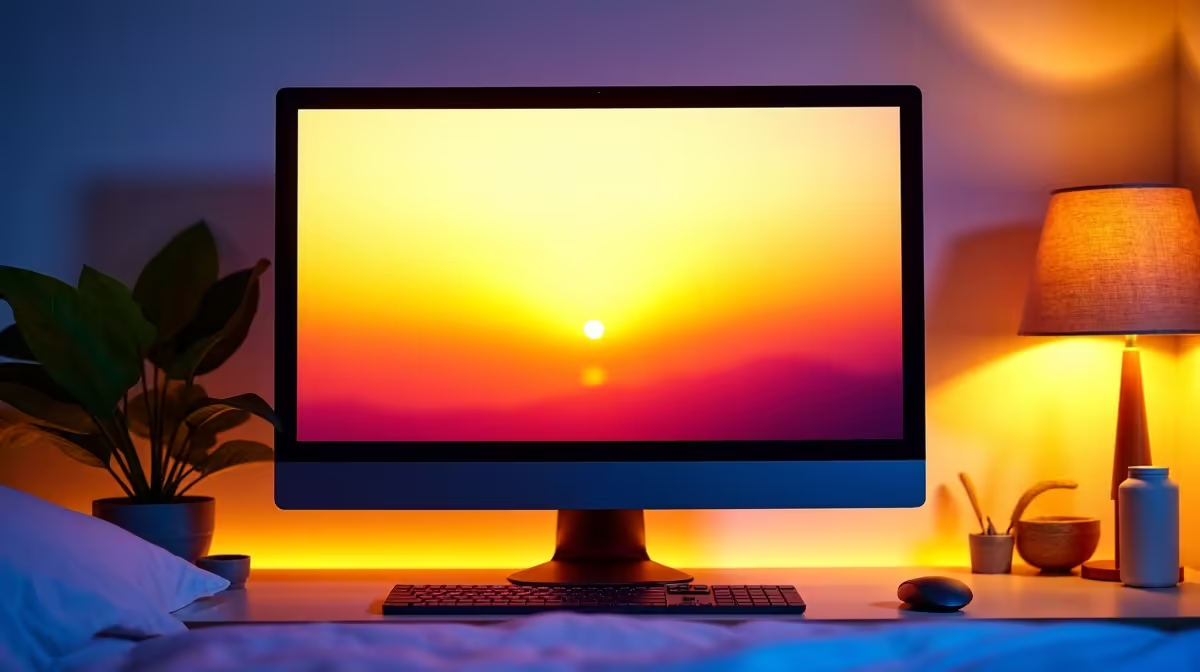
Staring at your screen after a marathon Valorant session, eyes burning, knowing sleep won't come easy? You're not alone. That bright, crisp display keeping you immersed is also blasting your brain with blue light, tricking it into thinking it's still midday. The good news? You can fight back without sacrificing your K/D ratio. Setting up a blue light filter schedule is a simple, automated trick to help your body wind down, leading to better sleep and sharper reflexes tomorrow. 😴
Why Your Screen is Sabotaging Your Sleep
It's all about a hormone called melatonin. Your brain naturally releases it when it gets dark, signalling that it's time to sleep. Blue light, which your monitor emits in large amounts, is a powerful melatonin suppressor. It essentially tells your brain, "Nope, still sunny outside, stay awake!"
This is why hours of late-night gaming can leave you feeling wired and tired at the same time. Over time, poor sleep quality can affect everything from your mood to your in-game reaction times. A modern screen from our huge range of PC monitors is the first step, but controlling its light output is the key.
Automatically Adjust Blue Light for Better Rest
The best way to combat this is to make the fix automatic. By setting up a blue light filter schedule, your screen will gradually shift to warmer, less stimulating colours as the evening progresses. You’ll barely notice the change, but your brain will.
For Windows Users (Night Light)
Windows has a brilliant built-in feature for this.
- Right-click your desktop and select Display settings.
- Toggle Night light to On.
- Click Night light settings.
- Here, you can schedule it to turn on at sunset or set your own custom hours (e.g., 9 PM to 7 AM). You can also adjust the strength of the warmth.
These settings apply to all connected displays, so even your secondary portable monitors will follow the schedule, creating a consistent, eye-friendly environment.
For macOS Users (Night Shift)
Apple users have a similar tool called Night Shift.
- Go to System Settings > Displays.
- Click the Night Shift... button.
- From the Schedule dropdown, choose Sunset to Sunrise or set a Custom time.
- Use the slider to control how warm you want the screen colour to become.
Protect Your Eyes with the 20-20-20 Rule 💡
reduce digital eye strain during long sessions, follow this simple rule: every 20 minutes, look at something 20 feet (about 6 metres) away for at least 20 seconds. This gives your eye muscles a much-needed break from focusing on the screen up close.
Beyond Software: Hardware-Level Protection
While software filters are great, many modern displays now come with built-in low-blue-light technology. These hardware solutions are often certified for eye comfort and can reduce harmful blue light without the dramatic yellow tint that software filters sometimes produce, preserving colour accuracy for content creation or cinematic games.
Whether you're after the total immersion of curved monitors that reduce eye travel or the pixel-perfect clarity of 5K and 4K monitors that make text easier to read, you'll find eye-care tech is becoming a standard feature. You can find these advanced features across nearly all gaming monitors available today. 🖥️
For a truly ergonomic and eye-friendly setup, consider pairing your new screen with the right monitor accessories like an adjustable arm to get the height and angle just right. Your eyes (and your sleep schedule) will thank you.
Ready for Healthier Gaming?
A great monitor is an investment in your performance and your well-being. Stop letting blue light dictate your sleep schedule. Explore our best PC monitor deals and find a screen that works as hard for your health as it does for your framerates.