


Headset Stock Levels in Bloemfontein: January 2026 Report
Headset Stock Levels in Bloemfontein: January. Current stock data & price tracking for SA buyers. See what is available and where prices are heading.
Read moreCore Ultra 9 285K Slow Gaming Performance: Bottleneck Check. Comprehensive coverage with SA insights, Rand pricing, and practical recommendations.
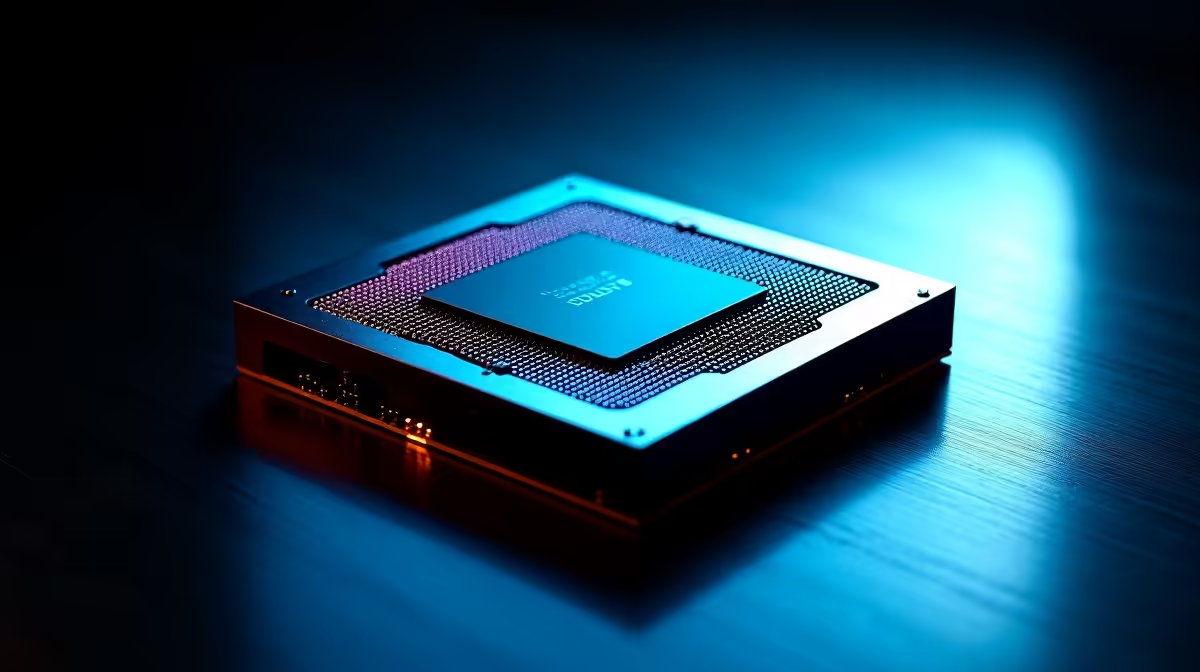
The Core Ultra 9 285K can exhibit slower-than-expected gaming performance due to its hybrid architecture, memory latency issues, or scheduler inefficiencies introduced by mixing P-cores and E-cores. Running a systematic bottleneck check covering CPU utilisation, memory speed, and GPU load will identify the root cause.
The Core Ultra 9 285K uses Intel's hybrid architecture with both high-performance P-cores and efficiency E-cores. In gaming workloads, the Windows thread scheduler must correctly assign game threads to P-cores and background tasks to E-cores. When this assignment goes wrong, games can run on E-cores with their lower clock speeds and IPC, causing frame rates to drop below what the hardware is capable of.
This is the first place to check if your 285K is delivering disappointing gaming numbers. Open Task Manager during a gaming session, look at the CPU tab, and check whether performance is unevenly distributed. Third-party tools like HWiNFO64 show individual core utilisation and frequencies. If P-cores are sitting at low utilisation while E-cores are pegged, the scheduler is misdirecting threads.
Updating Windows to the latest version is the fastest fix for scheduler issues, as Microsoft has shipped multiple updates specifically improving hybrid core scheduling for Intel CPUs. Intel also provides the Thread Director feature that communicates with the Windows scheduler to improve thread placement.
The Core Ultra 9 285K on LGA 1851 with a Z890 motherboard uses DDR5 memory. Running DDR5 at default JEDEC speeds (4800MHz) rather than its rated XMP/Intel XMP 3.0 speed is a common and significant source of underperformance. DDR5 at 4800MHz versus 6400MHz can cost 10 to 15 percent in gaming frame rates on this platform.
Open your BIOS and confirm XMP or Intel XMP 3.0 is enabled. The profile should set your RAM to its rated speed automatically. If your motherboard has stability issues with XMP, manually setting memory to 6000MHz with tight primary timings is an alternative.
Memory subtimings also matter on this platform. High latency DDR5 kits with loose secondary timings can underperform tighter kits at the same frequency. Tools like AIDA64's memory benchmark and latency test reveal whether your RAM is actually delivering the bandwidth and latency the 285K needs.
If your GPU is not near 99 percent utilisation during gaming, the CPU is the bottleneck rather than the GPU. Conversely, if the GPU is at 99 percent and the CPU is at 30 to 50 percent, you are GPU bound and adding more CPU performance will not help.
Check GPU utilisation using MSI Afterburner overlay or HWiNFO64. For a Core Ultra 9 285K, you should expect GPU utilisation near 99 percent at 1440p and 4K in GPU-limited games. If CPU utilisation is hitting 70 to 80 percent on the gaming threads and GPU is below 80 percent, look at in-game settings that can offload work to the GPU, or check for CPU-heavy game settings like draw distance, NPC density, and physics quality.
Also verify that your GPU is running at its full PCIe 5.0 x16 bandwidth. A misinstalled GPU or a BIOS setting may be running the slot at PCIe 3.0 x4, which can limit bandwidth in the most GPU-memory-intensive scenarios.
Why does my Core Ultra 9 285K perform worse than older Intel CPUs in some games? Some games are poorly optimised for hybrid architectures and do not benefit from Thread Director. In those titles the P-core count matters more than total core count, and the 285K may not schedule threads optimally without a Windows update. Arrow Lake also made architectural trade-offs that affected certain legacy workloads. Check for BIOS updates from your motherboard manufacturer, as many have shipped microcode updates improving gaming performance.
Does enabling XMP on the 285K actually improve gaming performance? Yes, significantly. Running DDR5 at JEDEC default speeds instead of the rated XMP speed can cost 10 to 15 percent in gaming frame rates. Always enable XMP or Intel XMP 3.0 in your BIOS as one of the first steps when setting up a new build.
Should I disable E-cores to improve gaming performance on the 285K? Disabling E-cores can help in specific titles that handle hybrid core scheduling poorly. However, Windows scheduling improvements in 2025 and 2026 have reduced the need to do this. Test with E-cores enabled first. If you see erratic performance or high E-core usage in the game thread, disable E-cores in BIOS as a diagnostic step.
Ready to Find Your Perfect Match? Explore the full CPU range at Evetech, including Intel Core Ultra processors for high-performance gaming builds.
Core Ultra 9 285K Slow Gaming Performanc available at Evetech.co.za with local warranty.
Core Ultra 9 285K Slow Gaming Performanc - check Evetech for latest stock.
Depends on use case. Core Ultra 9 285K Slow Gaming good value at current Rand pricing.
Headset Stock Levels in Bloemfontein: January. Current stock data & price tracking for SA buyers. See what is available and where prices are heading.
Read more
iMac for Medical Practice: Patient Management. SA-focused analysis with local pricing data, real-world insights & actionable buying advice.
Read more
RTX 5060 Fortnite Ultra Settings at 1080p: FPS. Real-world benchmark data, FPS numbers & performance analysis. What SA gamers can actually expect.
Read more
Headset Stock Levels in Cape Town: August Report. Current stock data & price tracking for SA buyers. See what is available and where prices are heading.
Read more
Eskom Load Shedding During Video Call: Solutions. SA-focused analysis with local pricing data, real-world insights & actionable buying advice.
Read more
LoL Performance on Extreme Gaming PC. Real-world benchmark data, FPS numbers & performance analysis. What SA gamers can actually expect.
Read more
MacBook Pro for Machine Learning in 2026: Can Apple Silicon Compete Detailed answer with SA data, expert analysis & practical recommendations for local buyers.

Choose the Right SATA SSD for machine learning. Step-by-step instructions with SA-specific tips, common pitfalls to avoid & expert recommendations.

Overwatch 2 Competitive Settings Servers. Tested & verified settings for best FPS and visual quality on SA hardware budgets.

League of Legends Settings for 144Hz Gaming. Tested & verified settings for best FPS and visual quality on SA hardware budgets.

Every AMD CPU Ranked for Gaming: Tier List. SA-focused analysis with local pricing data, real-world insights & actionable buying advice.

Easter Family Bundles: Monitors. Hand-picked gift ideas at every budget tier. SA pricing & Evetech availability included.

Ryzen 7 9800X3D Running 100 Degrees: Cooler. Diagnosis steps, proven fixes & when to seek professional help. SA-specific support info included.

Most Affordable Laptops : Starting from R8,000. Full parts list, Rand pricing & expected performance. Build confidently with SA-available components.

HBADA Chairs : Range and Pricing. Complete product range with SA pricing, key specs & recommendations for different budgets.

Ryzen 7 9800X3D for Music Production: Performance. Real-world benchmark data, FPS numbers & performance analysis. What SA gamers can actually expect.

Winter Cooling Management: Headsets. SA-focused analysis with local pricing data, real-world insights & actionable buying advice.

AKRacing Gaming Chair Range: Which Model Is Right. Complete product range with SA pricing, key specs & recommendations for different budgets.