Quick Answer
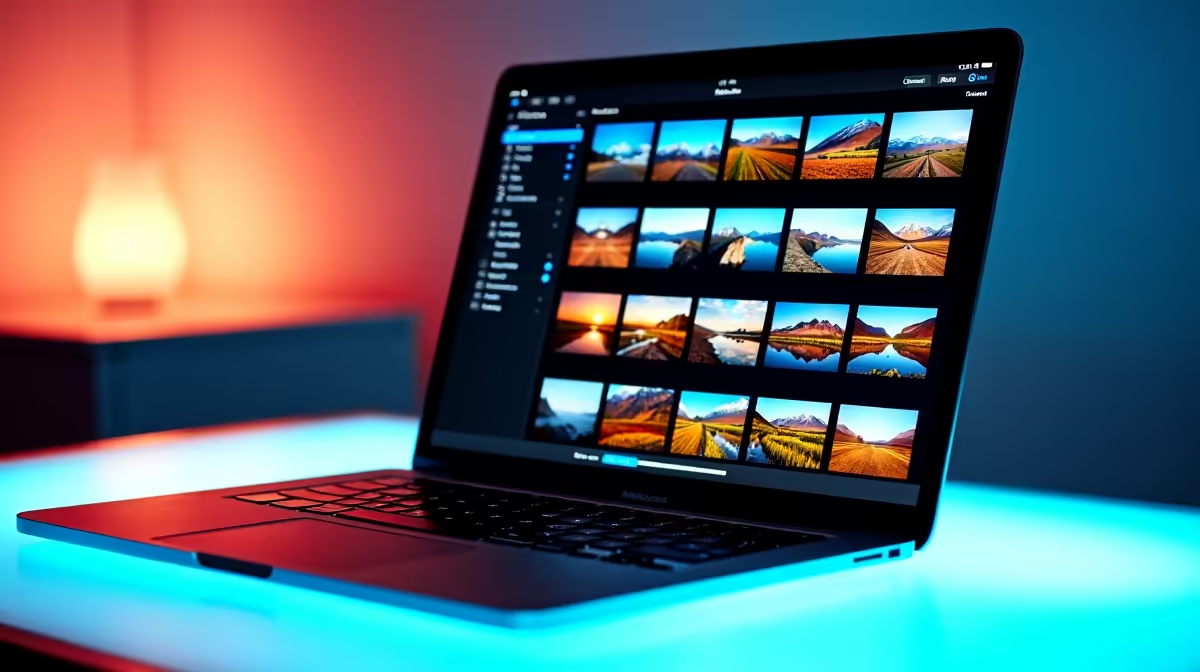
The fastest way to cull thousands of photos on a Mac is to use a dedicated culling application like Lightroom Classic or Photo Mechanic rather than macOS Photos or Finder. These tools let you rate, flag, and reject images using keyboard shortcuts at full speed without waiting for previews to load.
Why Standard Mac Tools Are Slow for Culling
MacOS Photos and Finder are not designed for high-volume culling workflows. When you shoot a professional event, a landscape trip, or a street photography session, you can come home with 2,000 to 8,000 raw files. macOS Photos imports everything and rebuilds previews in the background, making it sluggish to navigate. Finder's Quick Look is better but still requires manual keyboard navigation and offers no rating or flagging system that integrates with a post-processing workflow. For serious culling on a Mac, you need a tool built for the job. ## The Fastest Culling Workflow on Mac
Photo Mechanic is the industry standard for fast culling and the tool of choice for sports and event photographers. It ingests raw files by reading embedded JPEG previews rather than decoding the full raw file, which means images appear instantly even on large batches. The workflow is simple: navigate images with arrow keys, press 1 through 5 to assign a star rating or press T to tag keepers, then filter by rating and export your selects to Lightroom or Capture One for editing. A 3,000-image shoot can be culled to a manageable 300 selects in under an hour. Lightroom Classic is a strong alternative if you already own it through an Adobe subscription. Use the Library module with the Survey or Compare view. Enable Smart Previews during import to speed up browsing, then use P to pick, X to reject, and U to unflag. Run the Delete Rejected Photos command at the end to clear your workspace. Lightroom is slower than Photo Mechanic on import but integrates editing and culling in one application, which suits many photographers. ## Hardware That Makes Culling Faster
On the Mac side, culling speed depends heavily on RAM and storage performance. If you are culling from an external drive over USB 3.0, you are likely bottlenecked by read speed. Move files to your internal SSD before culling whenever possible, or use a fast external NVMe enclosure connected via Thunderbolt. MacBook Pro models with Apple Silicon and unified memory handle culling workflows smoothly because of their fast internal storage bandwidth. If you are on an older Intel Mac with 8GB of RAM and a spinning hard drive for your photo library, upgrading to a system with an M-series chip and 16GB or more of unified memory will transform your culling speed. ## Frequently Asked Questions
Does Photo Mechanic work on Apple Silicon Macs? Yes, Photo Mechanic Plus runs natively on Apple Silicon Macs as of recent versions. Performance on M-series chips is excellent, and the ingestion speed advantage over Lightroom is even more pronounced on these machines. What is the fastest keyboard-only culling workflow in Lightroom Classic? Use Auto-Advance (Caps Lock on) combined with P for Pick and X for Reject. Lightroom automatically moves to the next image after each keystroke, letting you cull at a pace limited only by how fast you can assess each shot. This is the single biggest speed improvement for new Lightroom users. Should I cull from an external SSD or copy files to internal storage first? Copy to internal storage first if time allows. Internal NVMe storage in a modern Mac reads at 5,000 to 7,000 MB/s, while even a good USB-C external SSD peaks around 1,000 MB/s. The difference is significant when loading raw files from a high-resolution sensor.