


Headset Stock Levels in Bloemfontein: January 2026 Report
Headset Stock Levels in Bloemfontein: January. Current stock data & price tracking for SA buyers. See what is available and where prices are heading.
Read moreFix sticky or unresponsive keys on a mechanical gaming keyboard with a clear step-by-step guide. Follow practical tests, cleaning tips, and switch checks to restore reliable input ✅🔧
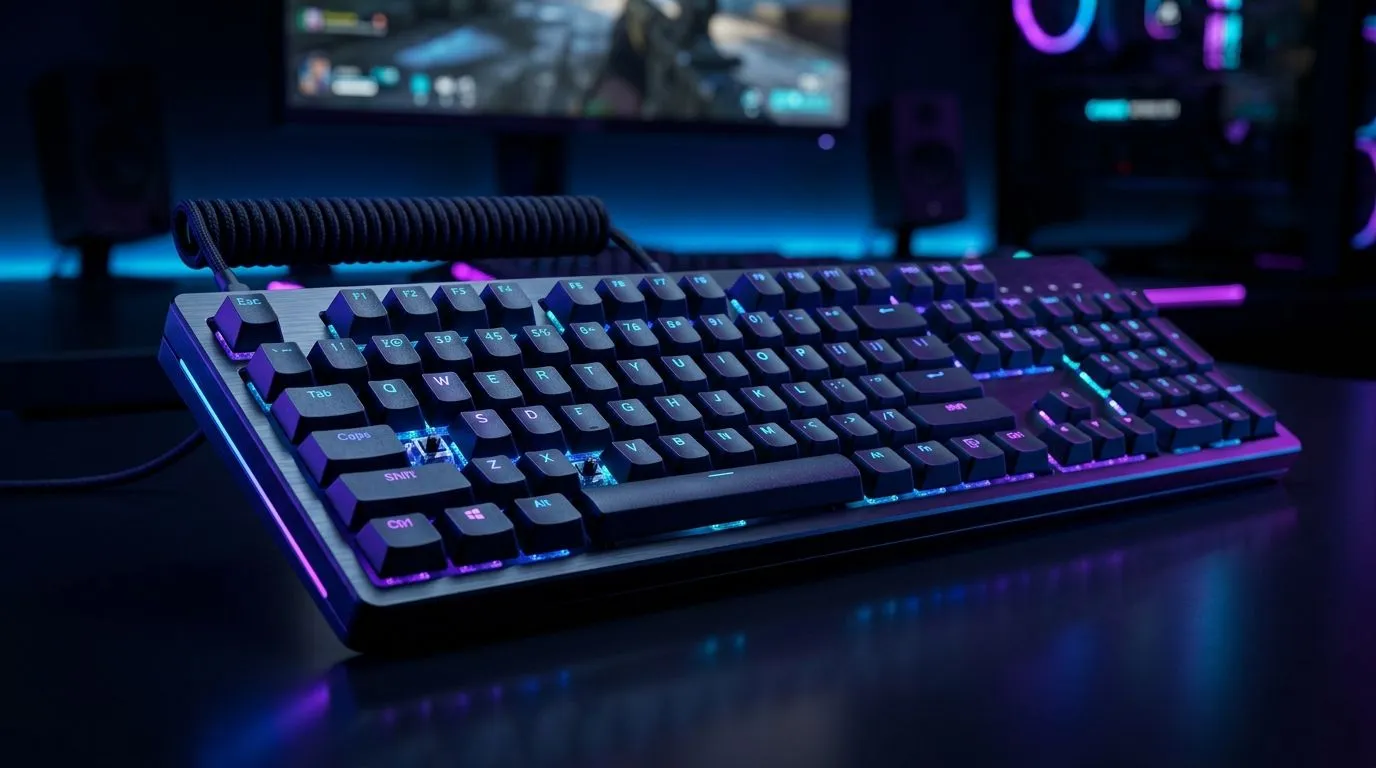
If your mechanical keyboard suddenly starts ignoring keypresses… or keys feel “sticky”, your focus dies fast. For South African gamers, that’s brutal during ranked queues and raid nights. 🔧 The good news? Most issues are fixable at home with a few careful steps.
In this Daily Drop guide, we’ll walk you through how to Fix Sticky or Unresponsive Keys on a Mechanical Keyboard safely, fast, and without damaging switches. You’ll also learn when it’s time to upgrade to a better keyboard setup from Evetech.
Sticky or unresponsive keys usually come from one of these:
Evetech stocks a wide range of gaming keyboards, so if you’re troubleshooting while considering an upgrade, it’s worth comparing switch types and connectivity options before you buy. ✨
Here’s the safe process.
If you’ve spilled liquid: stop and let everything dry fully before reconnecting. If you rush it, you can make the issue worse.
Press the exposed switch stem a few times with your fingertip (no tools).
Common sign: only large keys are affected, and they feel uneven.
On Windows, record a quick screen of the keyboard tester (or your favourite key-mapper) so you can compare behaviour before and after cleaning. If a key is still missing inputs after cleaning, it’s a strong sign of switch failure rather than debris.
Sometimes a keyboard is past simple cleaning. If:
…a switch replacement (if your keyboard supports it) or a new keyboard is often the best route.
If you’re shopping in South Africa right now, Evetech’s keyboard deals make upgrades easier to justify. You can browse:
Prefer a bundle that’s ready for play? Consider a keyboard and mouse combo: grab a keyboard mouse combo from Evetech
And if you just want the broadest choice to compare prices and switch styles: see Evetech’s cheapest gaming keyboard list in South Africa
This is where choosing the right switch matters. If you’re fed up with stickiness, look for designs known for smooth actuation and dust resistance. Evetech’s product filters help you compare fast (especially when you’re buying under ZAR constraints).
Once your keys behave again, a few habits prevent repeats:
Small maintenance beats big downtime.
Ready to Find Your Perfect Match? The Mac vs Windows debate is complex, but for maximum power, choice, and value in South Africa, Windows is hard to beat. Explore our massive range of laptop specials and find the perfect machine to conquer your world.
Common causes include debris under keycaps, dirty switch contacts, worn switches, or software/firmware issues after updates. Try cleaning and key testing first.
Remove the keycap, inspect for crumbs, clean the switch area gently, and test again. Avoid harsh solvents that can damage switch components.
Check the keycap seating, test the switch, and verify the port/cable. If it still fails, the switch may need cleaning or replacement.
Yes. Keyboard remapping, accessibility options, or keyboard firmware/app conflicts can mimic hardware faults. Reset settings and retest before opening the keyboard.
Use careful, targeted cleaning around the switch area after removing the keycap. Keep liquids minimal and let everything dry fully before testing.
Replace the switch if cleaning and basic troubleshooting fail, if the key registers inconsistently, or if you confirm mechanical damage or contact wear.
Swap keycaps to isolate keycap issues, and test the switch by removing it or using switch-level checks. This helps confirm whether the fault is hardware-related.
Start with a cable/connection check, verify remap settings, remove and clean the keycap, test the switch area, then consider firmware reset if needed.
Headset Stock Levels in Bloemfontein: January. Current stock data & price tracking for SA buyers. See what is available and where prices are heading.
Read more
iMac for Medical Practice: Patient Management. SA-focused analysis with local pricing data, real-world insights & actionable buying advice.
Read more
RTX 5060 Fortnite Ultra Settings at 1080p: FPS. Real-world benchmark data, FPS numbers & performance analysis. What SA gamers can actually expect.
Read more
Headset Stock Levels in Cape Town: August Report. Current stock data & price tracking for SA buyers. See what is available and where prices are heading.
Read more
Eskom Load Shedding During Video Call: Solutions. SA-focused analysis with local pricing data, real-world insights & actionable buying advice.
Read more
LoL Performance on Extreme Gaming PC. Real-world benchmark data, FPS numbers & performance analysis. What SA gamers can actually expect.
Read more
MacBook Pro for Machine Learning in 2026: Can Apple Silicon Compete Detailed answer with SA data, expert analysis & practical recommendations for local buyers.

Choose the Right SATA SSD for machine learning. Step-by-step instructions with SA-specific tips, common pitfalls to avoid & expert recommendations.

Overwatch 2 Competitive Settings Servers. Tested & verified settings for best FPS and visual quality on SA hardware budgets.

League of Legends Settings for 144Hz Gaming. Tested & verified settings for best FPS and visual quality on SA hardware budgets.

Every AMD CPU Ranked for Gaming: Tier List. SA-focused analysis with local pricing data, real-world insights & actionable buying advice.

Easter Family Bundles: Monitors. Hand-picked gift ideas at every budget tier. SA pricing & Evetech availability included.

Ryzen 7 9800X3D Running 100 Degrees: Cooler. Diagnosis steps, proven fixes & when to seek professional help. SA-specific support info included.

Most Affordable Laptops : Starting from R8,000. Full parts list, Rand pricing & expected performance. Build confidently with SA-available components.

HBADA Chairs : Range and Pricing. Complete product range with SA pricing, key specs & recommendations for different budgets.

Ryzen 7 9800X3D for Music Production: Performance. Real-world benchmark data, FPS numbers & performance analysis. What SA gamers can actually expect.

Winter Cooling Management: Headsets. SA-focused analysis with local pricing data, real-world insights & actionable buying advice.

AKRacing Gaming Chair Range: Which Model Is Right. Complete product range with SA pricing, key specs & recommendations for different budgets.