

Case Spec Sheet Decoder: Airflow, Form Factor and Drive Bays
Case Spec Sheet Decoder: Airflow, Form Factor and Drive Bays. Comprehensive coverage with SA insights, Rand pricing, and practical recommendations.
Read morei5-14400F Slow Gaming Performance: Bottleneck Check. Comprehensive coverage with SA insights, Rand pricing, and practical recommendations.
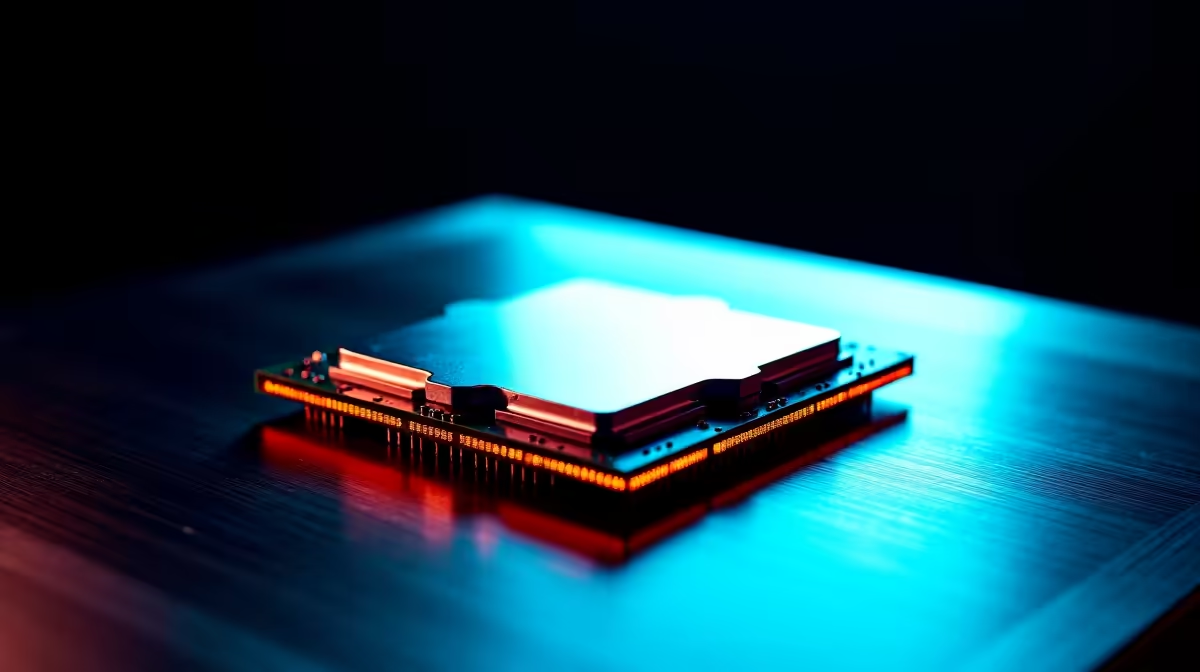
Slow gaming performance on an i5-14400F is most commonly caused by a bottleneck from insufficient RAM speed, a pairing with a GPU that exceeds the CPU's throughput, or background processes consuming CPU resources. The i5-14400F is a capable processor and rarely the primary cause of poor performance when properly paired and configured.
The Intel Core i5-14400F is a 10-core processor (6 P-cores and 4 E-cores) that represents excellent gaming value in the South African market, typically priced in the R3,000 to R4,500 range. If you are seeing unexpectedly slow performance, the issue usually lies elsewhere in the system - RAM configuration, GPU pairing, thermals, or software. Here is how to systematically identify the bottleneck.
The single most common cause of underperformance on the i5-14400F is running DDR4 memory at its default XMP-disabled speed of 2133MHz or 2400MHz instead of the rated speed of 3200MHz or higher. Intel's 14th Gen platform supports DDR4 up to 3200MHz officially and beyond with XMP profiles.
If your RAM kit is rated at 3200MHz but your system is running at 2133MHz, you could be losing 15 to 25 percent of gaming performance purely from memory latency. To check, open Task Manager, go to Performance, then Memory - it will show you the current operating speed. If it shows 2133MHz and your kit is rated higher, go into your BIOS and enable XMP or Intel Extreme Memory Profile.
Also check that you are running RAM in dual-channel configuration - two sticks in the correct slots (typically A2 and B2 on most motherboards). Running a single stick or incorrectly paired slots halves available memory bandwidth and is a significant bottleneck for gaming.
Download HWInfo64 or MSI Afterburner with RivaTuner to display CPU and GPU usage as an on-screen overlay while gaming. Watch these values during gameplay:
If GPU usage is consistently at 95 to 100 percent and CPU usage is below 80 percent, your GPU is the limiting factor - the i5-14400F is not the problem. Upgrading the GPU or reducing graphics settings will help.
If CPU usage is at 90 to 100 percent and GPU usage is below 70 percent, the processor is bottlenecking the GPU. This is more likely in games with heavy simulation, AI, or physics like strategy games or open-world titles rather than in GPU-bound titles like Apex Legends or Cyberpunk at high settings.
The i5-14400F is most commonly CPU-bottlenecked in esports titles at very high frame rates (above 200 FPS) where the CPU's per-core performance becomes the limiting factor at 1080p with a fast GPU like an RTX 4070.
If your i5-14400F is running above 90 degrees Celsius under sustained gaming load, it will throttle clock speeds to protect itself, causing frame rate drops. Check temperatures using HWInfo or Core Temp. The i5-14400F has a standard TDP of 65W but can boost higher - ensure your cooler is adequate for sustained loads.
A stock Intel cooler is marginal for the 14400F under gaming loads. If you are on the stock cooler and hitting high temperatures, an aftermarket air cooler in the R500 to R900 range will eliminate thermal throttling and restore full performance. Also check that thermal paste is properly applied if you have recently reseated the cooler.
Q: Is the i5-14400F good enough for gaming in 2026? A: Yes. The i5-14400F handles 1080p and 1440p gaming well with a matching GPU. It becomes a bottleneck in specific scenarios - very high frame rate 1080p gaming with a top-tier GPU, or heavily CPU-simulated games. For most mainstream gaming it performs excellently.
Q: What GPU should I pair with an i5-14400F? A: The i5-14400F pairs well with GPUs up to an RTX 4070 or RX 7700 XT at 1080p and 1440p. Pairing it with an RTX 4080 or above will result in measurable CPU bottlenecking in CPU-sensitive titles at 1080p.
Q: Why is my i5-14400F gaming performance inconsistent with frame drops? A: Frame drops rather than consistently low FPS often point to RAM running at default non-XMP speed, background process interference, or Windows power plan set to Balanced instead of High Performance. Check all three before assuming a hardware fault.
Ready to Find Your Perfect Match? Explore gaming PC builds and component deals featuring Intel Core processors at Evetech.
i5-14400F Slow Gaming Performance: Bottl available at Evetech.co.za with local warranty.
i5-14400F Slow Gaming Performance: Bottl - check Evetech for latest stock.
Depends on use case. i5-14400F Slow Gaming Performa good value at current Rand pricing.
Case Spec Sheet Decoder: Airflow, Form Factor and Drive Bays. Comprehensive coverage with SA insights, Rand pricing, and practical recommendations.
Read more
RTX 3060 Hogwarts Legacy at 1080p: FPS Benchmark & Optimal Settings. Comprehensive coverage with SA insights, Rand pricing, and practical recommendations.
Read more
Samsung R95H Micro RGB TV: First-Ever Samsung Micro LED Consumer TV. Comprehensive coverage with SA insights, Rand pricing, and practical recommendations.
Read more
PSU Price Index South Africa: July 2026 Report. Comprehensive coverage with SA insights, Rand pricing, and practical recommendations.
Read more
Amazfit for gym training: Is It the Right Choice. Detailed answer with SA-specific data, expert analysis, and practical recommendations.
Read more
Valorant Low FPS: Cooling Bottleneck. Detailed answer with SA-specific data, expert analysis, and practical recommendations.
Read more
AMD RX 9050 XT: Rumoured Specs, Price & Release. SA-focused analysis with local pricing data, real-world insights & actionable buying advice.

Can RTX 4080 Super Run AI Workloads for SA Developers Detailed answer with SA data, expert analysis & practical recommendations for local buyers.

Can RTX 4090 Run AI Workloads for SA Developers Detailed answer with SA data, expert analysis & practical recommendations for local buyers.

Top Settings for Intel Arc B580 at Ultrawide 1440p picks evaluated on performance, value & SA availability with current Rand pricing from Evetech.

RTX 4060 CS2 Low Settings at 1080p: FPS Results. Real-world benchmark data, FPS numbers & performance analysis. What SA gamers can actually expect.

Visual Artifacts: Possible GPU Issue Issue #1. Diagnosis steps, proven fixes & when to seek professional help. SA-specific support info included.

Can the RTX 4090 Handle 1440p 144Hz Gaming. Performance testing verdict with real data & practical recommendations for SA buyers.

Top ASUS GPU Under R15000 picks evaluated on performance, value & SA availability with current Rand pricing from Evetech.

GTA 6 Max Settings on RTX 5070. Tested & verified settings for best FPS and visual quality on SA hardware budgets.

Cyberpunk 2077 Max Settings on RTX 5080. Tested & verified settings for best FPS and visual quality on SA hardware budgets.

Starfield Max Settings on RTX 5070 Ti. Tested & verified settings for best FPS and visual quality on SA hardware budgets.

Top RTX 5090 Under R5000 picks evaluated on performance, value & SA availability with current Rand pricing from Evetech.