


Headset Stock Levels in Bloemfontein: January 2026 Report
Headset Stock Levels in Bloemfontein: January. Current stock data & price tracking for SA buyers. See what is available and where prices are heading.
Read moreMonitor Flickering: Refresh Rate Incompatibility. Compatibility matrix for SA buyers. Avoid mismatched parts and buy the right combination first time.
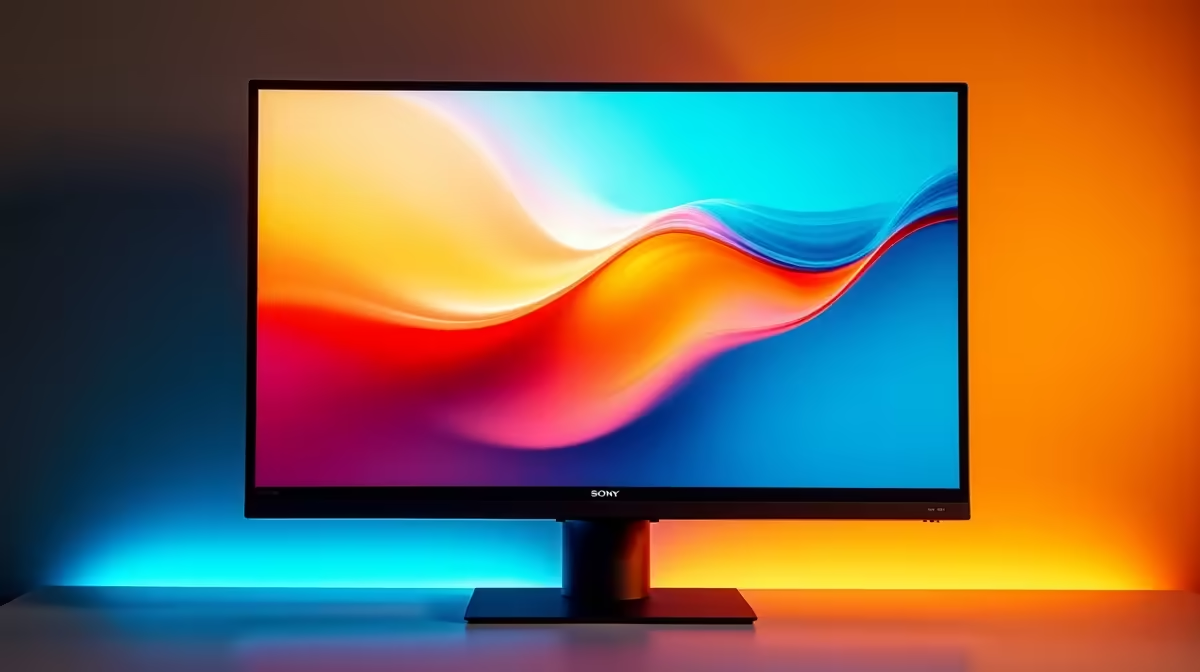
Monitor flickering from refresh rate incompatibility happens when your GPU outputs a rate the panel can't sync to, often after a Windows update or cable swap. Force the native refresh rate in Display Settings, disable VRR if your panel is older, and verify your DisplayPort cable supports the bandwidth you're pushing.
Most flickering on modern monitors traces back to three causes: a refresh rate set above the panel's certified spec, FreeSync or G-Sync misbehaving in the low-framerate window, or a cable that can't handle the bandwidth. A 1440p 165Hz panel pushed over a HDMI 1.4 cable, for example, will flicker or fall back to 60Hz. Adaptive Sync technologies can also cause flicker when frame rates dip below 48fps in certain games.
Open Settings, then System, then Display, then Advanced display. Confirm the refresh rate matches what your monitor is rated for. If you see flicker at 165Hz, drop to 144Hz and watch for 10 minutes. Next, in your GPU control panel (NVIDIA Control Panel or AMD Adrenalin), toggle G-Sync or FreeSync off, reboot, and re-test. If the flicker disappears, it's a VRR compatibility issue, not a hardware fault. Update your monitor firmware via the manufacturer's tool if one exists.
The budget HDMI cable that came in the box is often the culprit. For 1440p 165Hz or 4K 120Hz, you need DisplayPort 1.4 or HDMI 2.1 certified cables, ideally under 2 metres. Cheap unbranded cables sold at flea markets routinely fail bandwidth certification even when the labels claim otherwise. Switching to a certified cable resolves a surprising percentage of flicker complaints.
If flicker only appears right after a power-on, your PSU or surge protector might be feeding noisy power to the monitor. A decent line-interactive UPS protects both the PC and the display, and stops the brief brownouts that can desync a panel during stage 4 loadshedding.
Set it to exactly 144Hz, not 143 or 165. Custom refresh rates above the rated spec are the fastest way to introduce flicker. Match your in-game frame cap to roughly 3fps below the panel rate for the smoothest VRR experience.
That's usually VRR in the low-framerate window. Enable Low Framerate Compensation in your GPU driver, or cap the game above 48fps to keep the panel inside its certified Adaptive Sync range.
Yes, persistent flickering at the rated refresh rate is a warranty fault. Local retailers like Evetech process claims directly, so you skip the international RMA pain.
Ready to Find Your Perfect Match? Need a flicker-free upgrade? Browse monitors at Evetech
Monitor Flickering: Refresh Rate Incompa available at Evetech.co.za with local warranty and fast delivery.
Monitor Flickering: Refresh Rate Incompa - check Evetech for latest stock and SA pricing.
Depends on your use case. Monitor Flickering: Refresh Ra offers good value at current Rand pricing.
Headset Stock Levels in Bloemfontein: January. Current stock data & price tracking for SA buyers. See what is available and where prices are heading.
Read more
iMac for Medical Practice: Patient Management. SA-focused analysis with local pricing data, real-world insights & actionable buying advice.
Read more
RTX 5060 Fortnite Ultra Settings at 1080p: FPS. Real-world benchmark data, FPS numbers & performance analysis. What SA gamers can actually expect.
Read more
Headset Stock Levels in Cape Town: August Report. Current stock data & price tracking for SA buyers. See what is available and where prices are heading.
Read more
Eskom Load Shedding During Video Call: Solutions. SA-focused analysis with local pricing data, real-world insights & actionable buying advice.
Read more
LoL Performance on Extreme Gaming PC. Real-world benchmark data, FPS numbers & performance analysis. What SA gamers can actually expect.
Read more
MacBook Pro for Machine Learning in 2026: Can Apple Silicon Compete Detailed answer with SA data, expert analysis & practical recommendations for local buyers.

Choose the Right SATA SSD for machine learning. Step-by-step instructions with SA-specific tips, common pitfalls to avoid & expert recommendations.

Overwatch 2 Competitive Settings Servers. Tested & verified settings for best FPS and visual quality on SA hardware budgets.

League of Legends Settings for 144Hz Gaming. Tested & verified settings for best FPS and visual quality on SA hardware budgets.

Every AMD CPU Ranked for Gaming: Tier List. SA-focused analysis with local pricing data, real-world insights & actionable buying advice.

Easter Family Bundles: Monitors. Hand-picked gift ideas at every budget tier. SA pricing & Evetech availability included.

Ryzen 7 9800X3D Running 100 Degrees: Cooler. Diagnosis steps, proven fixes & when to seek professional help. SA-specific support info included.

Most Affordable Laptops : Starting from R8,000. Full parts list, Rand pricing & expected performance. Build confidently with SA-available components.

HBADA Chairs : Range and Pricing. Complete product range with SA pricing, key specs & recommendations for different budgets.

Ryzen 7 9800X3D for Music Production: Performance. Real-world benchmark data, FPS numbers & performance analysis. What SA gamers can actually expect.

Winter Cooling Management: Headsets. SA-focused analysis with local pricing data, real-world insights & actionable buying advice.

AKRacing Gaming Chair Range: Which Model Is Right. Complete product range with SA pricing, key specs & recommendations for different budgets.