

Core Ultra 5 245K Gaming Performance: Full Optimization
Core Ultra 5 245K Gaming Performance: Full. Real-world benchmark data, FPS numbers & performance analysis. What SA gamers can actually expect.
Read moreRTX 5060 Ti Driver Rolling Back on Restart. SA-focused analysis with local pricing data, real-world insights & actionable buying advice.
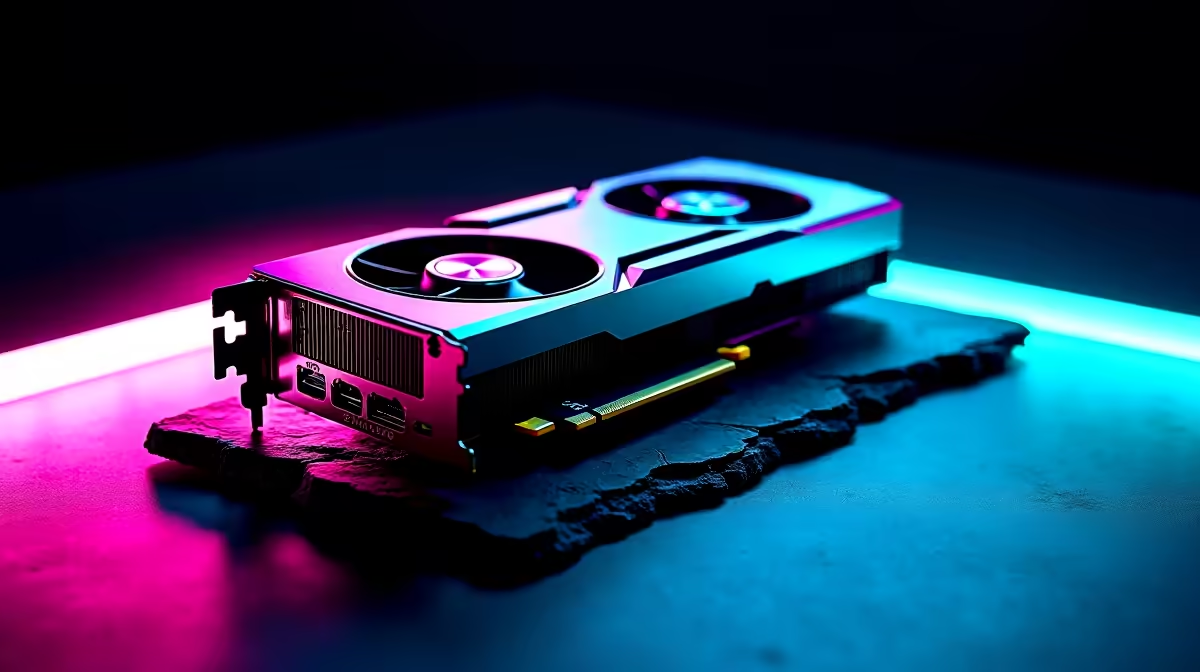
You just dropped some serious ZAR on a new setup. You install the latest NVIDIA drivers and restart your PC. Then... disaster strikes. Windows has secretly downgraded your display driver. If your RTX 5060 Ti driver rolling back on restart is driving you crazy, you are not alone. Let us fix this frustrating Windows quirk so you can get back to gaming.
Windows Update tries to be helpful. It often downloads hardware drivers in the background. Sometimes it replaces your newer NVIDIA driver with an older, verified version. This is incredibly common on modern systems. It happens frequently on desktop rigs and high-end gaming laptops.
The operating system assumes its cached driver is more stable. It overwrites your fresh installation during the boot sequence. This leaves you with terrible frame rates and missing features.
To stop this endless loop, you must block Windows from updating hardware drivers automatically. Here is the most effective method for Windows 11 and 10.
First, press the Windows key and type "Advanced system settings". Hit Enter. Navigate to the Hardware tab. Click on "Device Installation Settings". A prompt will ask if you want to automatically download manufacturers apps and custom icons. Select "No" and save your changes.
This simple tweak stops Windows from messing with your latest graphics cards. Your chosen driver will now stay exactly where it belongs.
Always use Display Driver Uninstaller (DDU) in Safe Mode before installing new display drivers. It wipes away leftover registry keys and prevents nasty software conflicts that ruin your frame rates.
Now that Windows is blocked from interfering, you need a clean slate. Download the newest driver directly from NVIDIA. Disconnect your PC from the internet just to be safe. Run your driver installation as an administrator.
If you are building custom gaming PCs, this step is vital for stability. Choose the "Custom" installation option. Always tick the box that says "Perform a clean installation".
This process is identical whether you built the rig yourself or bought one of our pre-built desktop systems. Once the installation finishes, reconnect to the internet and restart your PC.
Your system should now boot with the correct driver version. You can finally enjoy the full power of your GPU without unexpected downgrades. Keep an eye on your GeForce Experience app for future updates.
Hardware issues can be a massive headache. We know how important it is to get the best value for your hard-earned rands. Upgrade your setup without the stress by checking out our tech specials for unbeatable local deals.
Ready to Upgrade Your Gaming Experience? Dealing with driver issues is frustrating, but playing on outdated hardware is worse. For maximum power, choice, and value in South Africa, Evetech is hard to beat. Explore our massive range of PC deals and find the perfect machine to conquer your world.
RTX 5060 Ti Driver Rolling Back on Resta available at Evetech.co.za with local warranty and fast delivery.
RTX 5060 Ti Driver Rolling Back on Resta - check Evetech for latest stock and SA pricing.
Depends on your use case. RTX 5060 Ti Driver Rolling Bac offers good value at current Rand pricing.
Core Ultra 5 245K Gaming Performance: Full. Real-world benchmark data, FPS numbers & performance analysis. What SA gamers can actually expect.
Read more
Huawei MatePad Range : Which Model Should You Buy. Complete product range with SA pricing, key specs & recommendations for different budgets.
Read more
Are Wireless Gaming Peripherals as Good as Wired in 2026 Detailed answer with SA data, expert analysis & practical recommendations for local buyers.
Read more
Are Big And Tall Gaming Chairs Good for Long Gaming Sessions Detailed answer with SA data, expert analysis & practical recommendations for local buyers.
Read more
PCIe Bandwidth Saturation: Multiple GPU Issue. Diagnosis steps, proven fixes & when to seek professional help. SA-specific support info included.
Read more
Intel Keyboard: Value. SA-focused analysis with local pricing data, real-world insights & actionable buying advice.
Read more
MacBook Pro for Machine Learning in 2026: Can Apple Silicon Compete Detailed answer with SA data, expert analysis & practical recommendations for local buyers.

Choose the Right SATA SSD for machine learning. Step-by-step instructions with SA-specific tips, common pitfalls to avoid & expert recommendations.

Overwatch 2 Competitive Settings Servers. Tested & verified settings for best FPS and visual quality on SA hardware budgets.

League of Legends Settings for 144Hz Gaming. Tested & verified settings for best FPS and visual quality on SA hardware budgets.

Every AMD CPU Ranked for Gaming: Tier List. SA-focused analysis with local pricing data, real-world insights & actionable buying advice.

Easter Family Bundles: Monitors. Hand-picked gift ideas at every budget tier. SA pricing & Evetech availability included.

Ryzen 7 9800X3D Running 100 Degrees: Cooler. Diagnosis steps, proven fixes & when to seek professional help. SA-specific support info included.

Most Affordable Laptops : Starting from R8,000. Full parts list, Rand pricing & expected performance. Build confidently with SA-available components.

HBADA Chairs : Range and Pricing. Complete product range with SA pricing, key specs & recommendations for different budgets.

Ryzen 7 9800X3D for Music Production: Performance. Real-world benchmark data, FPS numbers & performance analysis. What SA gamers can actually expect.

Winter Cooling Management: Headsets. SA-focused analysis with local pricing data, real-world insights & actionable buying advice.

AKRacing Gaming Chair Range: Which Model Is Right. Complete product range with SA pricing, key specs & recommendations for different budgets.