

Core Ultra 5 245K Gaming Performance: Full Optimization
Core Ultra 5 245K Gaming Performance: Full. Real-world benchmark data, FPS numbers & performance analysis. What SA gamers can actually expect.
Read moreRTX 5080 Thermal Throttling: Temperature Fix. What SA warranty coverage actually looks like, how to claim & common pitfalls to avoid.
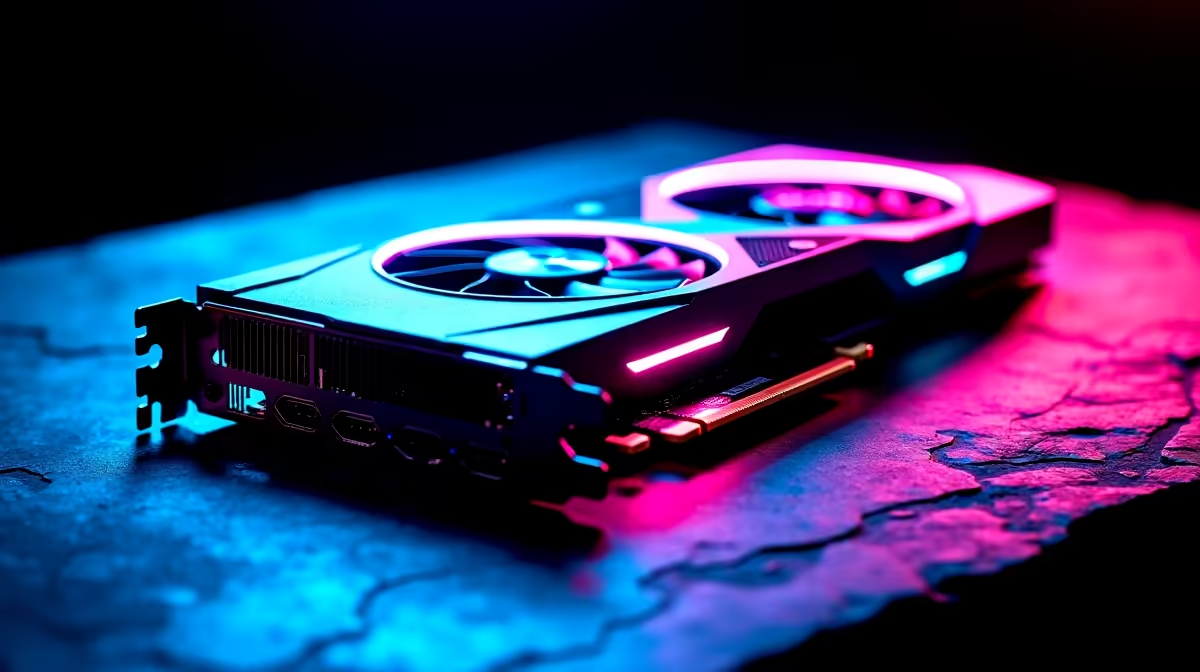
RTX 5080 thermal throttling occurs when the GPU''s junction temperature exceeds safe thresholds, causing the card to reduce its clock speeds to protect hardware. Fixes include improving case airflow, reseating the GPU, replacing thermal pads, undervolting, and ensuring the card has adequate clearance for its cooling system.
The RTX 5080 is one of NVIDIA''s most powerful consumer GPUs, and like any high-TDP card it generates substantial heat under sustained gaming or rendering loads. Thermal throttling - where the GPU automatically reduces clock speeds to stay within safe temperature limits - directly impacts performance. If your RTX 5080 is throttling, here is how to diagnose and fix it.
The first step is confirming that throttling is actually occurring rather than assuming it. GPU monitoring software allows you to observe GPU core clock, temperature, and throttle state simultaneously during a demanding workload. If your core clock drops noticeably while temperature climbs to high levels, thermal throttling is the likely cause. The RTX 5080 has a junction temperature limit - sustained operation near or at this limit triggers clock speed reductions. Watching these metrics in real time during a benchmark or demanding game session gives you the data you need to assess severity and identify when throttling begins. Note the temperature at which clocks begin to drop, as this helps distinguish genuine thermal throttling from normal boost clock behaviour.
In the majority of thermal throttling cases, inadequate case airflow is the root cause. A powerful GPU like the RTX 5080 exhausts significant heat, and if that hot air cannot escape the case efficiently, ambient temperatures inside the chassis rise - the GPU''s fans then draw in pre-heated air, reducing their cooling effectiveness. Check that your case has enough intake and exhaust fans, that intake filters are not clogged with dust, and that cable management is not blocking airflow paths around the GPU. Repositioning fans to a positive pressure configuration - more intake than exhaust - can meaningfully reduce thermal issues in many mid-tower cases. Dust buildup on GPU fans and heatsink fins is also a common contributing factor that a can of compressed air can address quickly. SA environments can accumulate dust faster than expected, particularly in homes near open windows or in dryer inland climates.
For RTX 5080 cards that throttle even in well-ventilated cases, thermal interface material degradation can be a factor - particularly in cards that have seen heavy sustained workloads over time. The thermal pads between the GPU die and heatsink, and between VRAM chips and the backplate, can dry out or lose contact pressure. Replacing thermal pads is a moderately advanced procedure that requires disassembling the GPU cooler - if you are comfortable with this, using quality thermal pads of the correct thickness can recover several degrees of thermal headroom. Reseating the GPU in the PCIe slot and ensuring the card is fully secured at the bracket also eliminates flex-related contact issues that occasionally affect thermal performance in large, heavy triple-fan cards like the RTX 5080.
Q: What temperature should the RTX 5080 run at under gaming load? A: Under sustained gaming load, temperatures in the 70–85°C range on the hotspot are typical depending on cooler design and case airflow. Consistently approaching the card''s maximum thermal limit indicates a cooling improvement is needed.
Q: Does undervolting the RTX 5080 help with thermal throttling? A: Yes - undervolting reduces power consumption and heat output while often maintaining similar performance levels. It is one of the most effective and reversible interventions for reducing GPU temperatures and eliminating thermal throttling without voiding warranty.
Q: Can a bad PCIe power connection cause RTX 5080 throttling? A: Power delivery issues can cause instability and performance drops that resemble throttling. Ensure all required PCIe power connectors are fully seated and that the PSU is providing stable, sufficient wattage for the card''s rated TDP.
Ready to Find Your Perfect Match? Shop RTX 5080 graphics cards and PC cooling solutions at Evetech - South Africa''s leading gaming and tech retailer.
RTX 5080 Thermal Throttling: Temperature available at Evetech.co.za with local warranty and fast delivery.
RTX 5080 Thermal Throttling: Temperature - check Evetech for latest stock and SA pricing.
Depends on your use case. RTX 5080 Thermal Throttling: T offers good value at current Rand pricing.
Core Ultra 5 245K Gaming Performance: Full. Real-world benchmark data, FPS numbers & performance analysis. What SA gamers can actually expect.
Read more
Huawei MatePad Range : Which Model Should You Buy. Complete product range with SA pricing, key specs & recommendations for different budgets.
Read more
Are Wireless Gaming Peripherals as Good as Wired in 2026 Detailed answer with SA data, expert analysis & practical recommendations for local buyers.
Read more
Are Big And Tall Gaming Chairs Good for Long Gaming Sessions Detailed answer with SA data, expert analysis & practical recommendations for local buyers.
Read more
PCIe Bandwidth Saturation: Multiple GPU Issue. Diagnosis steps, proven fixes & when to seek professional help. SA-specific support info included.
Read more
Intel Keyboard: Value. SA-focused analysis with local pricing data, real-world insights & actionable buying advice.
Read more
MacBook Pro for Machine Learning in 2026: Can Apple Silicon Compete Detailed answer with SA data, expert analysis & practical recommendations for local buyers.

Choose the Right SATA SSD for machine learning. Step-by-step instructions with SA-specific tips, common pitfalls to avoid & expert recommendations.

Overwatch 2 Competitive Settings Servers. Tested & verified settings for best FPS and visual quality on SA hardware budgets.

League of Legends Settings for 144Hz Gaming. Tested & verified settings for best FPS and visual quality on SA hardware budgets.

Every AMD CPU Ranked for Gaming: Tier List. SA-focused analysis with local pricing data, real-world insights & actionable buying advice.

Easter Family Bundles: Monitors. Hand-picked gift ideas at every budget tier. SA pricing & Evetech availability included.

Ryzen 7 9800X3D Running 100 Degrees: Cooler. Diagnosis steps, proven fixes & when to seek professional help. SA-specific support info included.

Most Affordable Laptops : Starting from R8,000. Full parts list, Rand pricing & expected performance. Build confidently with SA-available components.

HBADA Chairs : Range and Pricing. Complete product range with SA pricing, key specs & recommendations for different budgets.

Ryzen 7 9800X3D for Music Production: Performance. Real-world benchmark data, FPS numbers & performance analysis. What SA gamers can actually expect.

Winter Cooling Management: Headsets. SA-focused analysis with local pricing data, real-world insights & actionable buying advice.

AKRacing Gaming Chair Range: Which Model Is Right. Complete product range with SA pricing, key specs & recommendations for different budgets.