


Headset Stock Levels in Bloemfontein: January 2026 Report
Headset Stock Levels in Bloemfontein: January. Current stock data & price tracking for SA buyers. See what is available and where prices are heading.
Read moreStreaming Software Killing Game Performance. Real-world benchmark data, FPS numbers & performance analysis. What SA gamers can actually expect.
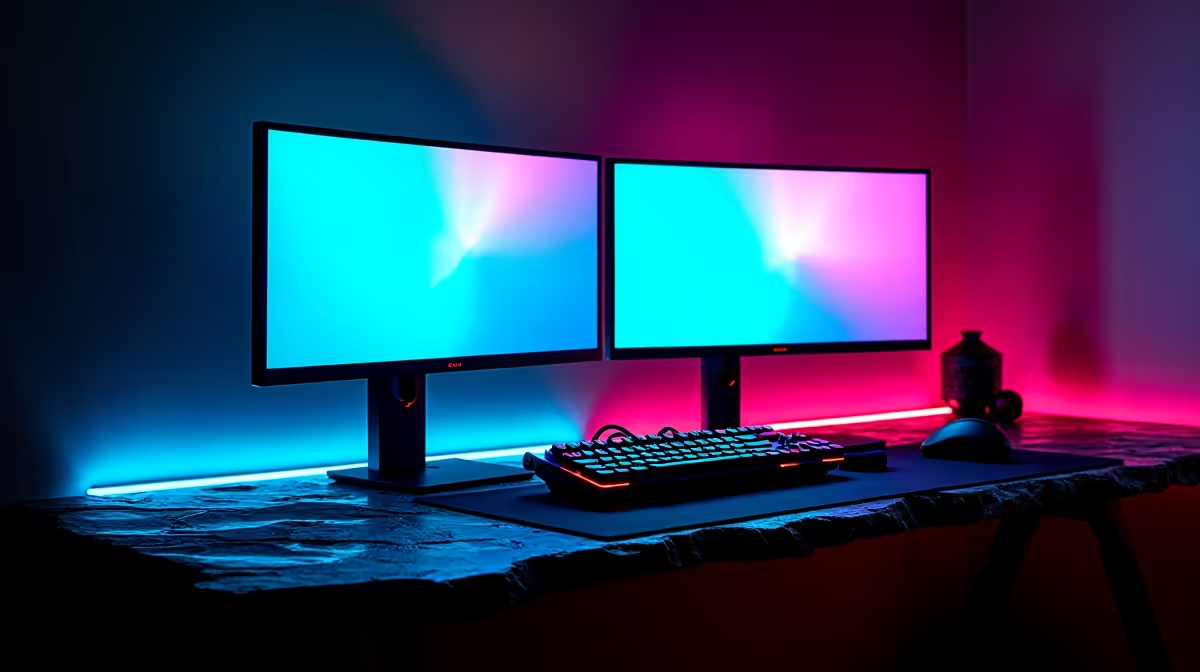
Streaming software can drop in-game frame rates by 10-40% if not configured correctly. The impact depends on your CPU, encoder choice, and software settings. Understanding these variables lets you stream without sacrificing playable performance.
Streaming software like OBS Studio or Streamlabs runs alongside your game and needs CPU or GPU resources to encode the outgoing video stream in real time. When you use software encoding (x264), the CPU handles this work, stealing processing time from the game. When you use hardware encoding (NVENC, AMF, QuickSync), the encoder is offloaded to a dedicated chip on your GPU, reducing the CPU burden significantly.
The problem most streamers encounter is using software encoding on a mid-range CPU that cannot handle both the game simulation and the encode workload simultaneously. This results in frame drops, stuttering, and degraded in-game performance that shows up in your frame time graphs.
Switching from x264 software encoding to NVENC (for Nvidia GPUs) or AMF (for AMD GPUs) is the single highest-impact change you can make. Modern hardware encoders produce quality comparable to x264 medium preset while consuming a small fraction of system resources. On an RTX card, NVENC runs on dedicated silicon that does not interfere with game rendering.
NSFAS students and budget builders who are streaming on older CPUs without a discrete GPU face the toughest tradeoff. Integrated graphics encoders (QuickSync on Intel) provide a middle path but at lower output quality than dedicated GPU encoders.
How you capture the game matters. Game capture mode in OBS is far more efficient than display capture or window capture for most games. It hooks directly into the game's render pipeline and avoids redundant compositing work. Monitor capture should be a last resort, used only when game capture does not work with a specific title.
Scene complexity also matters. Multiple browser sources, animated overlays, and video playback sources all add CPU load on top of encoding. Simplifying your scene layout reduces this overhead meaningfully.
Reduce your stream output resolution to 1080p60 or 720p60 rather than streaming at your native game resolution. Use NVENC or AMF hardware encoding. Set your encoder preset to Quality or Balanced rather than Max Quality. Cap your in-game frame rate slightly below your monitor's maximum to give the system headroom for the encode workload. These changes collectively recover the majority of lost performance.
Yes, marginally. Lower bitrate reduces the data the encoder needs to process per second, but the improvement is small compared to switching encoder types. Encoder choice (hardware vs software) has far greater impact.
A dedicated streaming PC is the ultimate solution for zero performance impact on your gaming rig. It captures via capture card and handles encoding entirely independently. This setup is common for serious streamers but requires a second full PC investment.
Yes, particularly for systems using integrated graphics for encoding, where RAM acts as VRAM. On discrete GPU setups, RAM speed has minor influence on stream encoding but affects overall system responsiveness.
Ready to Find Your Perfect Match? Upgrade to a gaming PC that handles streaming without compromise. Browse Gaming PCs
Streaming Software Killing Game Performa available at Evetech.co.za with local warranty and fast delivery.
Streaming Software Killing Game Performa - check Evetech for latest stock and SA pricing.
Depends on your use case. Streaming Software Killing Gam offers good value at current Rand pricing.
Headset Stock Levels in Bloemfontein: January. Current stock data & price tracking for SA buyers. See what is available and where prices are heading.
Read more
iMac for Medical Practice: Patient Management. SA-focused analysis with local pricing data, real-world insights & actionable buying advice.
Read more
RTX 5060 Fortnite Ultra Settings at 1080p: FPS. Real-world benchmark data, FPS numbers & performance analysis. What SA gamers can actually expect.
Read more
Headset Stock Levels in Cape Town: August Report. Current stock data & price tracking for SA buyers. See what is available and where prices are heading.
Read more
Eskom Load Shedding During Video Call: Solutions. SA-focused analysis with local pricing data, real-world insights & actionable buying advice.
Read more
LoL Performance on Extreme Gaming PC. Real-world benchmark data, FPS numbers & performance analysis. What SA gamers can actually expect.
Read more
Is a Ultra Short Throw Projector Good for Gaming?. Diagnosis steps, proven fixes & when to seek professional help. SA-specific support info included.

Is a Short Throw Projector Good for Gaming? Input. Diagnosis steps, proven fixes & when to seek professional help. SA-specific support info included.

Top Mouse Settings for Competitive FPS: Sensitivity picks evaluated on performance, value & SA availability with current Rand pricing from Evetech.

Top Speakers for MacBook Desk Setup picks evaluated on performance, value & SA availability with current Rand pricing from Evetech.

Is a Ergonomic Chair Better Than a Standard Office Chair for Gaming Detailed answer with SA data, expert analysis & practical recommendations for local buyers.

Use Spotlight Search Like a Pro on macOS. Step-by-step instructions with SA-specific tips, common pitfalls to avoid & expert recommendations.

wireless keyboard Fan Noise Too Loud: Quiet. Everything you need to know with SA pricing, step-by-step instructions & expert recommendations.

Connection Timeout: Troubleshooting Guide #2. Diagnosis steps, proven fixes & when to seek professional help. SA-specific support info included.
Headset Stock Levels in Bloemfontein: January. Current stock data & price tracking for SA buyers. See what is available and where prices are heading.
iMac for Medical Practice: Patient Management. SA-focused analysis with local pricing data, real-world insights & actionable buying advice.
RTX 5060 Fortnite Ultra Settings at 1080p: FPS. Real-world benchmark data, FPS numbers & performance analysis. What SA gamers can actually expect.
Headset Stock Levels in Cape Town: August Report. Current stock data & price tracking for SA buyers. See what is available and where prices are heading.