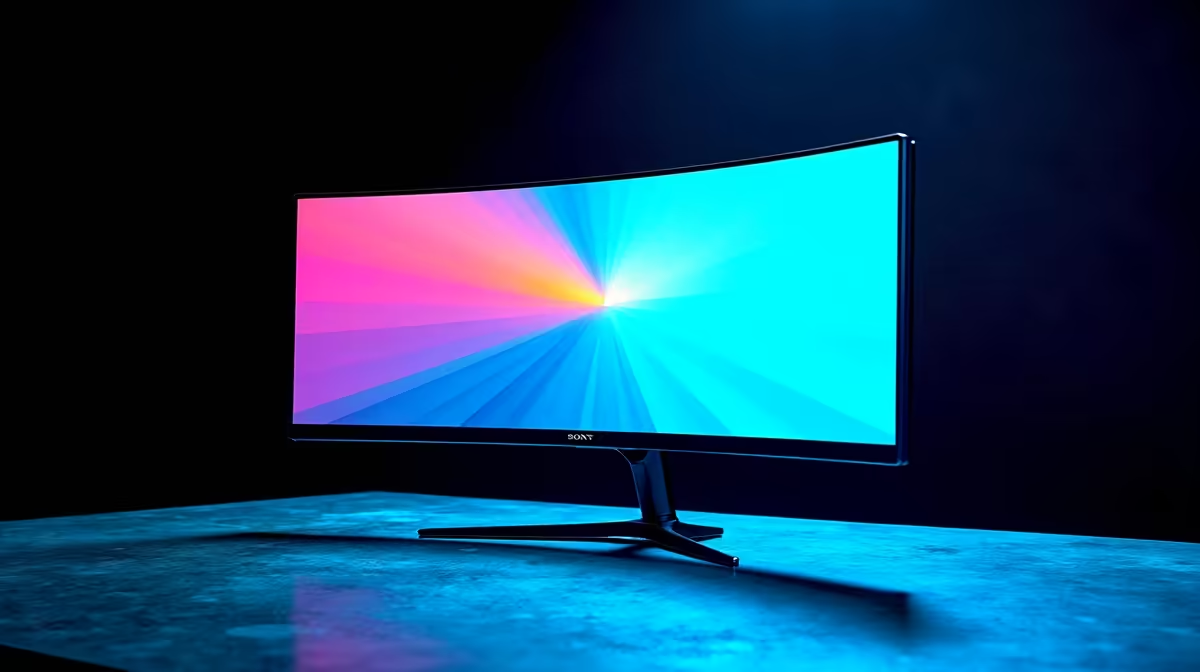
An ultrawide monitor that your PC refuses to detect - or detects but locks to the wrong resolution - is one of the more frustrating hardware issues you can encounter, especially after spending a significant amount on a premium display. The good news is that most ultrawide detection and resolution problems trace back to a short list of causes, all of which are fixable without replacing any hardware.
Quick Answer
Ultrawide monitors fail to detect or display correct resolutions due to incompatible cables (HDMI 1.x can't carry 21:9 at high refresh rates), incorrect GPU driver settings, missing custom resolutions, or faulty monitor firmware. Start by replacing the cable with DisplayPort or HDMI 2.0+, then update your GPU drivers and add a custom resolution if needed.
🔌 Step 1: Cable and Port Compatibility
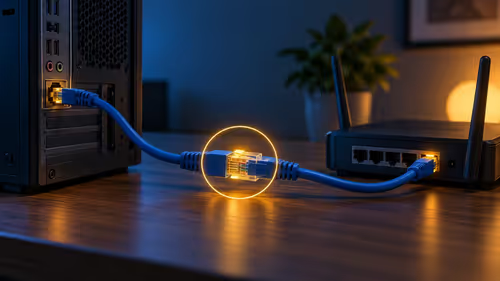
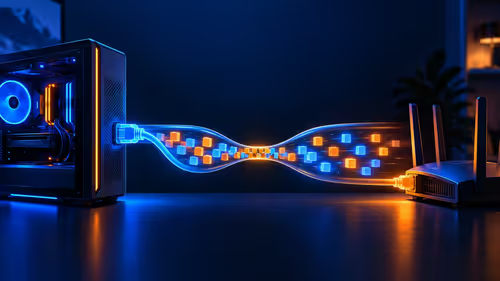
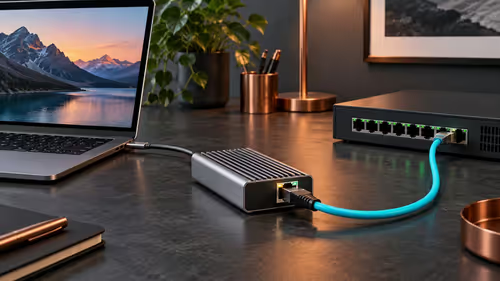
HDMI 1.4 - the cable bundled with many monitors and older GPU boxes - cannot carry 3440×1440 at 100Hz or above. If your ultrawide is detected but stuck at a lower resolution or refresh rate, the cable is the first suspect. Replace it with either DisplayPort 1.4 (supports 3440×1440 at 165Hz+) or HDMI 2.0 (supports 3440×1440 at up to 100Hz). HDMI 2.1 is preferred for 4K ultrawide. Always use the cable directly from GPU to monitor - avoid KVM switches or cheap adapters for ultrawide resolutions, as they introduce compatibility issues. If your GPU lacks a DisplayPort output, a certified active adapter is required, not a passive one.
🖥️ Step 2: Driver Settings and Custom Resolution
After fixing the cable, open your GPU control panel - NVIDIA Control Panel or AMD Adrenalin - and check Display > Change Resolution. If 3440×1440 (or your monitor's native resolution) does not appear, add it manually using the Custom Resolution option. In NVIDIA Control Panel: Display > Change Resolution > Customize > Create Custom Resolution. Enter your monitor's exact native resolution and refresh rate from its spec sheet. In AMD Adrenalin: Display > Custom Resolutions. Apply and confirm. If Windows still displays incorrectly, right-click the desktop, go to Display Settings, and set Resolution and Refresh Rate manually to match. Updating your GPU drivers to the latest stable release often resolves detection issues - stale drivers are a common cause of monitors appearing at limited resolutions after Windows updates.
⚙️ Step 3: Monitor Firmware and Windows Display Settings
Some ultrawide monitors - particularly from brands that release regular firmware updates - have known detection bugs fixed in newer firmware. Check the manufacturer's support page and apply any available updates via the monitor's USB port or OSD menu. In Windows, navigate to Settings > System > Display and scroll to Advanced Display Settings to verify that Windows is reading the correct refresh rate. If the monitor appears as a generic display rather than by its model name, Windows may be using a generic driver - manually install the monitor's INF driver file from the manufacturer's website to resolve this. If issues persist on a new GPU or after a clean Windows install, test the monitor on a different PC to rule out panel defects.
❓ FAQ
Q: Why does my ultrawide show 1920×1080 instead of 3440×1440?
A: This usually means your cable does not support the higher resolution (HDMI 1.4 limitation), your GPU driver needs updating, or Windows has not yet detected the monitor's native EDID. Replace the cable with DisplayPort 1.4 and update your drivers first.
Q: Does DisplayPort work better than HDMI for ultrawides?
A: Generally yes for high refresh rates. DisplayPort 1.4 supports 3440×1440 at up to 165Hz without compression, while HDMI 2.0 caps at around 100Hz for the same resolution. For competitive gaming at 144Hz+, DisplayPort is the better choice.
Q: My ultrawide is detected but the image is stretched - how do I fix it?
A: Set the monitor's aspect ratio to "Auto" or "Wide" in its OSD menu, then confirm in your GPU control panel that the output resolution matches the native panel resolution exactly. Scaling options in Windows or the GPU control panel may also be forcing an incorrect aspect ratio.
Shop All Monitors and Graphics Card Deals at Evetech for fast delivery across South Africa.