

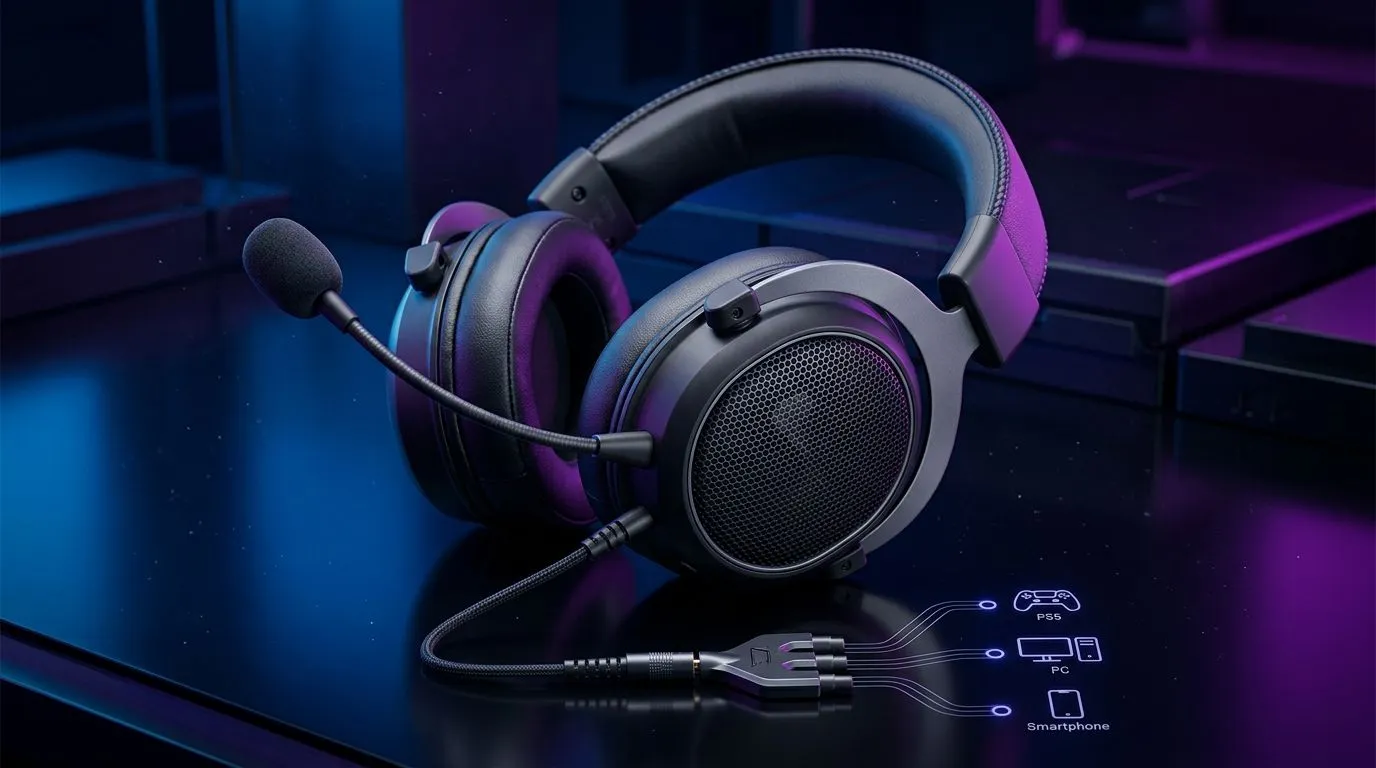
3.5mm Gaming Headset Compatibility: PS5, PC & Mobile in SA (What Actually Works)
If you’ve ever plugged a 3.5mm headset into your controller, laptop, or phone and thought “why is the mic silent?”, you’re not alone. South African players juggle PS5 sessions, PC Discord nights, and mobile ranked… often with the same headset. The good news? 3.5mm is still one of the most universal connections. The trick is understanding how PS5, PC, and mobile treat headset plugs differently. 🎧✨
In this Deep Dives guide, we’ll break down what to look for before you buy, how to test quickly at home, and which Evetech headset options fit real-world compatibility.
3.5mm Gaming Headset Compatibility: PS5, PC & Mobile on the Right Hardware
PS5: 3.5mm works, but mic depends on the plug type
On PS5, 3.5mm support is typically straightforward for audio, but headsets with separate mic and audio plugs (often colour-coded) can be a problem if you only have a single combined port. Many controllers use one 3.5mm connection that expects a combined headset (audio + mic) format. If your headset is wired for separate jacks, you’ll likely need the correct splitter or an adapter… or you’ll get audio only.
What to check before buying: does the listing specify one 3.5mm headset plug (for audio + mic) versus separate plugs? If the product page mentions compatibility details, use that.
PC: Pick the correct audio jack mode and device
On PC, compatibility is usually easier because you can choose input/output devices in Windows settings. The moment your headset shows up as both a speaker and microphone device, you’re golden. If not, it can be a jack mapping issue.
A quick rule of thumb: audio goes to the headset output, and the mic must be set as the active input device in Windows.
Mobile: TRRS vs TRS matters more than people think
Many mobile phones and tablets accept 3.5mm headsets, but mic support depends on plug type. A TRRS headset can carry mic data and audio on one connector. A TRS-only headset may give audio but no mic. So if Discord on mobile matters to you, prioritise headsets described as supporting microphone on mobile.
3.5mm Gaming Headset Compatibility: PS5, PC & Mobile buying tips (so you don’t regret it) 🔧
Before you take the leap, do this mini-checklist. It takes two minutes and saves days of troubleshooting:
Compatibility Pro Tip 🔧
On your Windows PC, open Sound settings and confirm both the headset output and microphone are selected. If the mic shows as a separate device, set it as the default input before you join Discord. This fixes most “audio works, mic doesn’t” moments fast.
Also, if you’re shopping in-store or online, read the product page’s “connectivity” section carefully. Evetech listings usually highlight what a headset supports, which is the safest path for PS5 and PC buyers.
Recommended Evetech headsets to start your search
If you want a clear place to begin, browse Evetech’s headset range and compare the connection details per model:
- If you’re specifically looking at wireless with clear spec detail, start here: Razer Barracuda X Chroma (Wireless) Phantom White.
- Want broader options across Razer’s line-up? Check Razer headphones and headsets.
- Or filter by category for 3.5mm-friendly choices on the Evetech shelves: Headphone headsets.
And if you’re building a sharper audio setup for PC gaming, consider how audio modes impact your experience:
- For advanced audio configurations, see Headphone headsets (7.1).
- Prefer simpler, clean stereo for competitive play? Start with Headphone headsets (Stereo).
3.5mm Gaming Headset Compatibility: PS5, PC & Mobile quick test at home ⚡
Here’s a no-stress test sequence you can do tonight:
- PS5 test: plug in, play game audio, then record a short voice note in a party. If mic fails, it’s usually plug type or headset expectation.
- PC test: connect to the correct 3.5mm port, then select the headset mic in Windows Sound input devices.
- Mobile test: test both mic and audio in the app you’ll actually use. If audio works but mic doesn’t, the headset may not be TRRS-compatible for your phone.
If you follow those steps, you’ll know in minutes whether the headset fits your life… or if it’s a “works on one device” disappointment.
Ready to Find Your Perfect Match? The Mac vs Windows debate is complex, but for maximum power, choice, and value in South Africa, Windows is hard to beat. Explore our massive range of laptop specials and find the perfect machine to conquer your world.











