

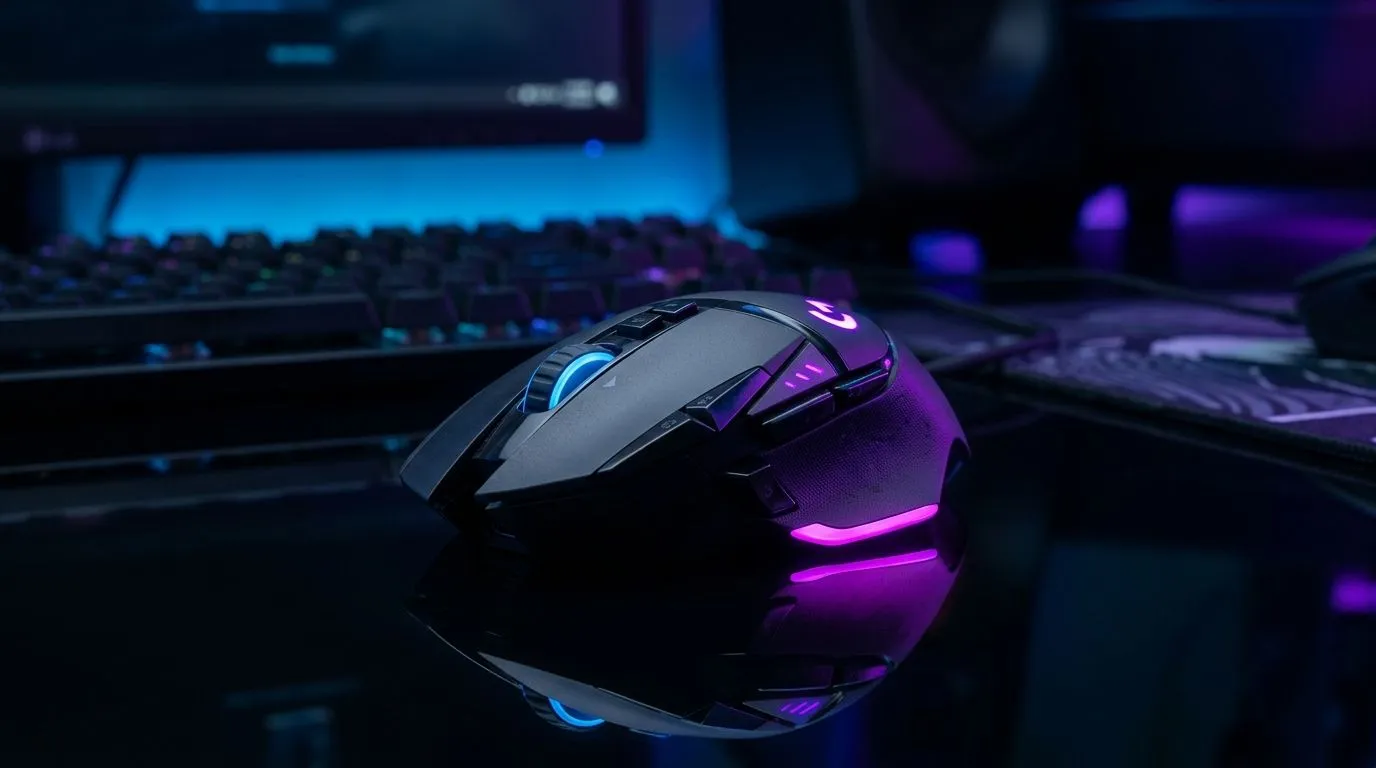
3D RGB Mouse Lighting Zones: Start Strong for a Cleaner Desk (and a Faster Setup)
If your mouse RGB looks like a random disco, you’re not alone. In South Africa, loadshedding days and late-night ranked sessions turn “small annoyances” into big mood killers. The good news? 3D RGB Mouse Lighting Zones: Step-by-Step Setup Guide makes your lighting feel intentional. 🔥 In this guide, you’ll set up zone control, fix common sync issues, and get lighting that actually matches your game… and your setup.
3D RGB Mouse Lighting Zones: Step-by-Step Setup Guide (From Unboxing to Zones)
Before you touch software, do this quick sanity check:
- Place your mouse on a stable surface.
- Connect it directly to your PC (avoid hubs for the first test).
- Install the latest driver/software for your specific RGB mouse model.
Step 1: Install the right software for zone control 🔧
Open the manufacturer app (or your mouse’s control software). Then:
- Confirm the mouse profile is detected.
- Check whether “Lighting Zones” or “3D Lighting” is listed.
- Turn off any “Auto” or “Demo” modes so your settings stop overriding manually-made zones.
Step 2: Map zones to your game habits 🎮
Zone mapping should be practical. Try this:
- Left side zone: your movement keys (helps you spot strafing instantly).
- Middle zone: skills you spam during fights.
- Scroll wheel zone: reload and weapon swaps.
- Logo/under-glow zone: your “ready state” colour.
Step 3: Create 2–3 profiles, not 12 ✨
Most gamers change settings per game, not per day. Create:
- FPS profile (low brightness, steady colours)
- MOBA/RPG profile (slightly brighter, distinct skill cues)
- Desktop profile (calm tones for work)
Step 4: Save, sync, and test in motion ⚡
Save your profiles, then test:
- DPI change while moving
- Button press while in clutch moments (yes, you will do it)
- Alt-Tab and relaunching the control app
If colours reset after reboot, you likely need “hardware lighting” enabled (if supported) or a “start with Windows” toggle in the software.
Productivity Pro Tip ⚡
On Windows, keep your mouse software and game launches organised. Create a dedicated “RGB” desktop folder, then pin the mouse control app to your taskbar. When you switch profiles, you’ll be able to apply changes in seconds after driver updates or new patches.
3D RGB Mouse Lighting Zones: Choose the Right Mouse (Wired vs Wireless)
Zone control only feels good if the mouse itself is reliable. If you’re buying new, start with how you play:
- Wired mouse: best for consistent latency and fewer pairing surprises. Browse wired options here: Wired gaming mice.
- Wireless mouse: great freedom, but you must manage battery habits. Browse wireless options here: Wireless gaming mice.
Need advice based on your grip and sensor preferences? Use Evetech’s mouse listings: Gaming mouse components and options or check current price pressure here: Best gaming mouse deals.
And if you’re upgrading the look of your whole setup, add matching accessories: Buy mouse accessories.
3D RGB Mouse Lighting Zones: Common Problems (and Quick Fixes)
Problem: zones don’t match the 3D model Fix: update the mouse control software and reselect the correct mouse profile in the app.
Problem: lighting flickers after reconnecting Fix: plug into a different USB port, avoid unpowered hubs, and disable conflicting RGB apps.
Problem: colours reset after sleep Fix: enable “save on device” (if available) or ensure the control software starts with Windows.
When you dial this in, RGB stops being “background noise” and starts being feedback. That’s where zone lighting shines… especially in South African tournament practice sessions and weekend league nights.
Ready to take your setup seriously? Let’s match the right mouse to your zones
If you want 3D RGB Mouse Lighting Zones: Step-by-Step Setup Guide results that actually last, you need hardware that’s consistent, software that’s stable, and a profile system that fits how you play. Start browsing, then set up your first two profiles this weekend. 🚀
Ready to Find Your Perfect Match? The Mac vs Windows debate is complex, but for maximum power, choice, and value in South Africa, Windows is hard to beat. Explore our massive range of laptop specials and find the perfect machine to conquer your world.











