

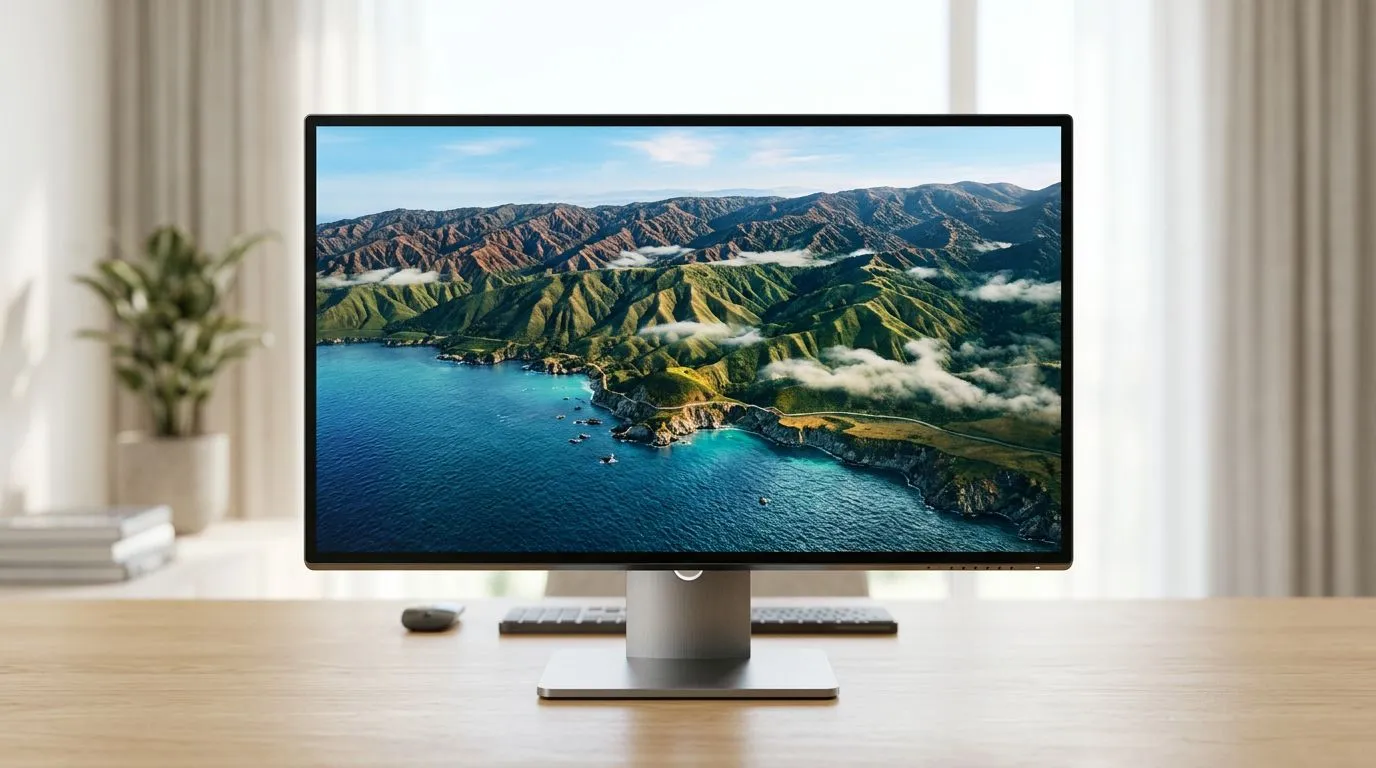
4K Monitor Calibration Settings: the fastest route to a cleaner, sharper image (for South African gamers)
You’ve tuned your GPU, bumped your refresh rate… but your 4K still looks “off”. Maybe whites are too blue. Maybe darks are crushed. Or maybe HDR is washing everything out. 🔧
Good news: 4K Monitor Calibration Settings: Get the Best Picture Quality isn’t locked behind expensive lab gear. With a few correct settings and a quick test pattern, you can get a picture that looks right in games, movies, and desktop work. ✨
In this Deep Dives guide, we’ll cover the practical calibration flow, what to change first, and how to avoid the common mistakes that make 4K feel less “premium” than it should.
Start with the right monitor mode (and don’t fight it) for best 4K results
Before you touch sliders, set the monitor to a mode designed for accurate picture. On most displays, that means sRGB or Standard for SDR. For gaming, you might see “Game” or “FPS”, but those often push contrast too far.
What to do first
- Disable dynamic contrast (it can crush detail during motion).
- Turn off image “enhancers” (sharpness boosting and “super resolution” often add halos).
- Set Gamma to 2.2 (typical for SDR in Windows workflows).
- Confirm the input signal format matches your GPU output (especially if you use HDMI 2.1).
If you want to shop around for a monitor that supports the basics (and gives you control), check current picks here:
- Browse gaming monitor options: https://www.evetech.co.za/all-gaming-monitors/x/1587.aspx
4K Monitor Calibration Settings: essential SDR tweaks (brightness, contrast, and colour) for better detail
Once your mode is sane, we calibrate the big three: brightness, contrast, and colour temperature.
Brightness (black level) to avoid crushed shadows
Use a test image with visible near-black detail (not pure black). If you can’t see subtle steps in the dark bars, raise brightness slightly. If blacks look grey, lower it.
A common mistake in South Africa’s bright rooms (especially in summer) is setting brightness too high. You end up losing contrast in dark scenes. So keep it comfortable for your lighting.
Contrast to keep highlights from blowing out
Contrast affects how “bright” highlights can get without clipping. Set it so bright areas still show detail.
Colour temperature to reduce the “blue or yellow” look
Many monitors offer Warm / Neutral / Cool presets. For SDR viewing:
- Start with Warm or Neutral
- Use RGB sliders only if you know what you’re doing (you can ruin skin tones quickly)
For buying options in a price-friendly range, you can also compare monitor deals here:
Quick test pattern routine (takes 10 to 20 minutes) for consistent 4K calibration
You don’t need a week of tinkering. A short, repeatable routine works.
Step-by-step routine
- Pick your SDR mode (Standard/sRGB).
- Turn off HDR temporarily (so you’re not mixing systems).
- Item
- Switch to a colour test (skin-tone and primary colours).
- Re-check gamma and text clarity.
If your Windows scaling is off, you might interpret a “soft” image as a colour problem. So make sure scaling is correct for your resolution.
Productivity Pro Tip 🔧
On Windows, set Display colour settings to “Use the display’s calibration” if you’ve created an ICC profile, and always recalibrate after driver updates. Small changes in GPU output can shift whites, making your 4K look slightly ‘washed’ again.
HDR on 4K monitors: calibration settings that stop the washout (and improve immersion)
HDR is where things get tricky, because it changes the tone mapping pipeline. Many people flip HDR on and then complain the game looks grey.
The practical HDR checklist
- Use HDR in the game (not just desktop) where possible.
- Adjust HDR brightness until whites don’t clip and shadows still show detail.
- If you use “HDR Game” modes, treat them like their own calibration profile.
If you’re shopping specifically for panels that handle HDR well, this is a good place to compare:
Choose the right monitor type for calibration success (flat vs curved, portable vs 4K)
Not all monitor shapes behave the same in motion and contrast perception.
Curved monitors
Curved screens can help with immersion and reduce perceived distortion at the edges. Just remember: your calibration should still be done in the monitor’s SDR/HDR modes, not “based on feel”. 🚀
- Explore curved monitor options: https://www.evetech.co.za/buy-curved-monitors/x/1588.aspx
Portable monitors
Portable models are convenient, but brightness and colour consistency can vary more between units. For calibration, aim for repeatable modes and avoid heavy “enhancement” features.
- Portable monitor options: https://www.evetech.co.za/buy-portable-monitors/x/1590.aspx
4K Monitor Calibration Settings: don’t forget accessories that affect the signal (yes, really) ✨
Calibration depends on the signal chain. If the cable or adapter limits bandwidth, you may get reduced chroma, wrong colour space, or HDR issues.
Cable and connection basics
- Prefer high-quality HDMI/DisplayPort cables matched to your monitor and GPU.
- Avoid cheap adapters for HDR workflows.
- If you switch ports or use a dock, re-check your settings.
If you want the right gear around your setup, start here:
4K vs 5K vs “it looks the same”: what to know before you chase settings
Sometimes the “picture problem” is resolution perception plus panel quality, not calibration.
- If you’re curious about higher-resolution buying options, compare this category: https://www.evetech.co.za/buy-5k-4k-monitors/x/1591.aspx
A good panel with decent calibration control will feel better even before you fine-tune. A weak panel can still be improved, but you’ll hit a ceiling sooner.
Wrap-up: your calibration plan (SDR first, HDR second) to keep 4K looking its best
Here’s the simplest approach that works for most South African gamers:
- Calibrate SDR first using the monitor’s accurate mode.
- Fix brightness and contrast before you touch colour.
- Keep enhancements off.
- Then handle HDR separately, and expect more variables.
Once you’ve got a profile that looks good across menus, you’ll notice it immediately in-game: clearer targets, better shadow detail, and fewer “why does this look washed?” moments. ✨
Ready to Find Your Perfect Match? The Mac vs Windows debate is complex, but for maximum power, choice, and value in South Africa, Windows is hard to beat. Explore our massive range of laptop specials and find the perfect machine to conquer your world.











