

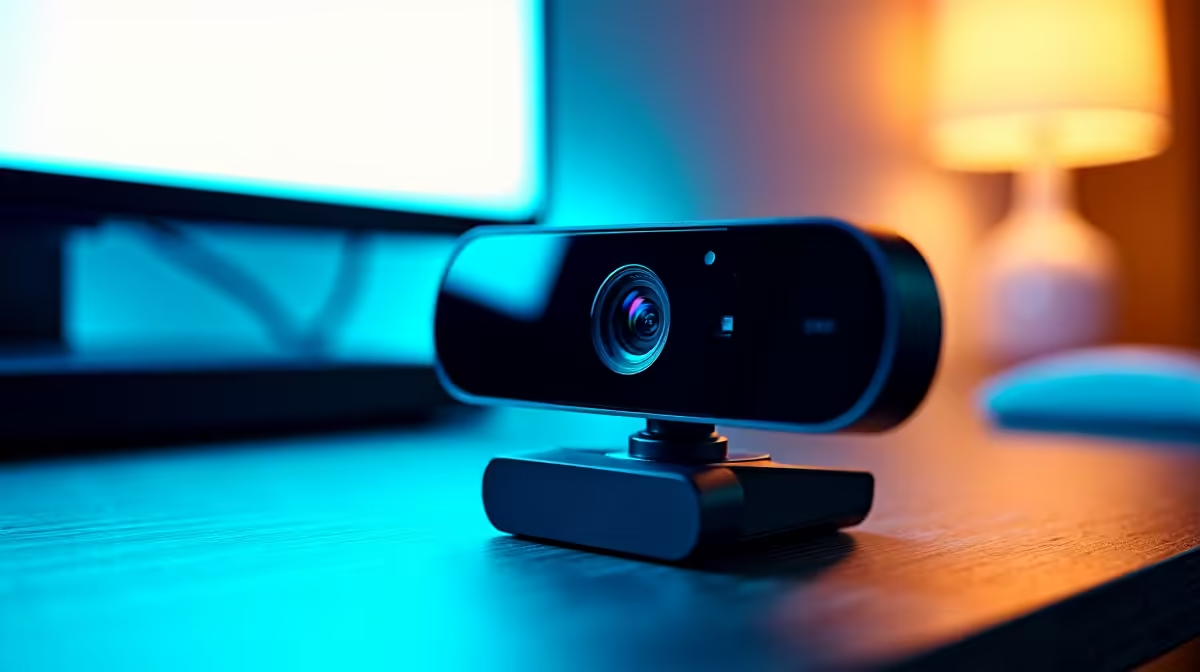
Are you tired of looking like a pixelated potato on your streams? Upgrading to ultra-high definition is the ultimate flex for South African content creators. But simply plugging in a new camera won't magically make you look like a Hollywood star. Welcome to our 4K webcam setup and configuration complete tutorial... where we turn that blurry feed into a crystal-clear masterpiece.
The Hardware Foundation 🔧
Processing four times the pixels of standard HD demands serious hardware. If you are running an ancient rig, your system will quickly bottleneck. To handle the massive encoding overhead without dropping frames, you need modern silicon. Exploring the best gaming PC deals ensures your processor can easily keep up with the intense data rate. Alternatively, if you want a hassle-free streaming studio, our pre-built PC deals offer tested configurations that are perfect for high-res broadcasting.
You cannot forget the GPU. Modern graphics cards feature dedicated hardware encoders like NVIDIA's NVENC. This brilliant technology offloads the heavy video processing from your CPU... keeping your gameplay buttery smooth while you broadcast in glorious 4K.
Mastering Your Environment 💡
Even a premium 4K sensor looks terrible in a dark room. Good lighting is the true secret to any professional 4K webcam setup. Position a strong key light at a 45-degree angle to your face. Keep your background softly lit to create a cinematic depth of field.
If you usually broadcast from a portable machine, relying on the built-in camera is a massive mistake. Most modern laptops still ship with basic 720p sensors that struggle in low light. Mounting your new 4K camera at eye level on a proper stand transforms your professional image instantly.
Step-by-Step Software Configuration
Now for the actual 4K webcam configuration tutorial. Open OBS Studio or your preferred broadcasting software. First, set your base canvas resolution to 3840x2160. Next, add your new video capture device to your scene.
Right-click the camera source and select Properties. Change the resolution type to 'Custom'. Manually select 4K and set your frame rate to 30fps or 60fps... depending entirely on your specific camera model.
Always turn off auto-exposure and auto-white balance in the camera control settings. Manual adjustments prevent your lighting from shifting wildly when you move your hands.
Lighting Pro Tip ✨
Always match your webcam's white balance to your room's lighting temperature. If you use daylight LED bulbs, set your white balance around 5600K. This stops your skin tone from looking unnatural during those late-night streaming sessions.
Bandwidth and Final Checks 🚀
Pushing 4K video across the internet requires serious upload speeds. You need at least 25Mbps of stable upload bandwidth for a crisp, artefact-free stream. If your local fibre line drops during load shedding, consider recording locally in 4K and uploading your content later.
Looking for a budget-friendly way to complete your studio setup? Keep a close eye on our weekly specials for massive discounts. Saving a few hundred ZAR on ring lights, green screens, and premium audio gear makes a huge difference. Every single piece works together to elevate your content.
Ready to Build Your Dream Streaming Studio? A flawless 4K stream requires power, reliability, and top-tier components. Whether you need a massive GPU upgrade or a whole new rig, Evetech has the hardware to make your channel shine. Explore our massive range of PC components and start broadcasting like a true professional today.











