

RTX 4060 Ti Throttling Under Load: SA Temperature Guide
RTX 4060 Ti Throttling Under Load: Temperature. Everything you need to know with SA pricing, step-by-step instructions & expert recommendations.
Read more512GB NVMe SSD filling up too fast? 🚀 Learn how to free space, manage files, and keep performance smooth without losing what matters.
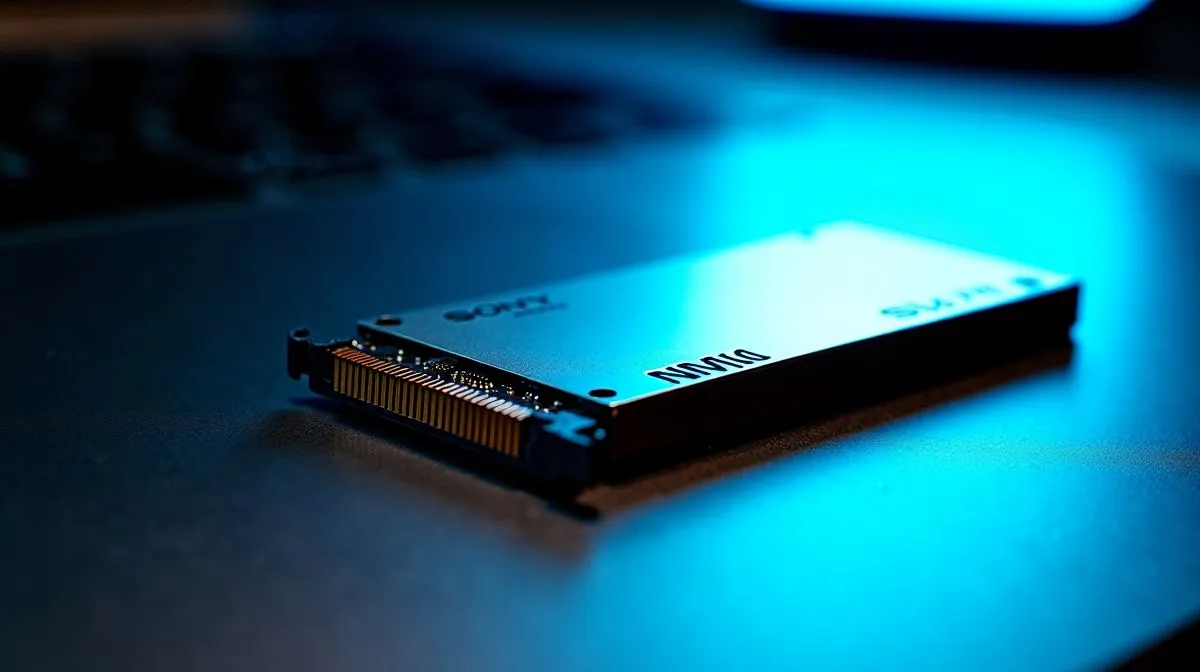
Is your local disk glowing red in Windows Explorer? We have all been there. You try downloading the latest update... and your PC begs for mercy. Running out of room on a half-terabyte drive is a modern gaming nightmare. Luckily, we have the best 512GB NVMe SSD storage tips to free up space fast. Keep your rig running smoothly without spending a single Rand.
A 512GB drive is incredibly quick. But modern AAA titles easily consume over 100GB each. Add your operating system and some essential apps... and your storage vanishes. Windows also creates hidden backup files that silently eat away at your capacity. Before you start looking to buy new solid state drives, let us clean up your current setup. South African gamers often keep games installed just to avoid redownloading them. This habit clogs up your system very quickly.
The first step is emptying your digital trash. Windows Storage Sense is a built-in tool that automatically clears temporary files. Turn it on in your system settings to instantly reclaim gigabytes of lost space. It empties your recycle bin and clears out old update files automatically.
Next, consider moving your media. Videos and high-resolution photos do not need lightning-fast load times. Moving them to a secondary drive is a smart play. Reliable ADATA SSDs are excellent for storing older games and media files. This keeps your primary drive completely clear for demanding applications.
You must also be ruthless with your game library. Uninstall titles you have not played in three months. You can always reinstall them later when you actually want to play. If you need a dedicated boot drive instead, snappy Kingston drives offer brilliant value for your ZAR.
Use TreeSize Free or WinDirStat to see exactly which folders are hogging your space. It is the easiest way to track down forgotten downloads or massive leftover update files hiding deep inside your local app data.
Did you know that drives slow down when they get too full? High-performance Corsair NVMe options thrive when they have at least 15% free space. Keep your drive lean to maintain those rapid read and write speeds. A cluttered drive has to work much harder to find empty blocks.
You can also disable Windows hibernation. This feature creates a massive hidden file on your C-drive. The hibernation file equals roughly 75% of your total installed RAM. Open your command prompt as an administrator and type "powercfg.exe /hibernate off" to delete it instantly. This simple trick often frees up over 10GB of precious room.
Sometimes... no amount of cleaning will save you. New games keep getting larger every single year. If you are tired of juggling installs every weekend, it might be time for a permanent fix. Skipping the smaller tiers and upgrading to massive 2TB SSDs ensures you never have to delete a favourite game again.
Ready to Expand Your Digital Horizon? ✨ Constantly deleting games is exhausting. When you are ready to stop compromising and start downloading, Evetech has the best deals in South Africa. Explore our massive range of NVMe SSDs and find the perfect drive to supercharge your setup.
Delete temp files, move media to another drive, uninstall unused apps, and use Windows Storage Sense to reclaim space quickly.
Games, updates, cached files, and large media libraries use space fast. Windows and app caches can also grow over time.
Keep at least 15 to 20 percent free to help maintain SSD performance and avoid slowdowns from a nearly full drive.
Yes, if you use trusted tools or built-in Windows cleanup options. Avoid deleting system files unless you know they are safe.
Games, videos, downloads, photo libraries, and app data usually take the most space on a 512GB NVMe SSD.
If you play many large titles, moving less-used games to another drive is a smart way to manage 512GB SSD storage.
Use Windows settings, storage reports, or a disk analyzer to find large folders and see what is consuming space.
RTX 4060 Ti Throttling Under Load: Temperature. Everything you need to know with SA pricing, step-by-step instructions & expert recommendations.
Read more
Apex Legends Max Settings on RTX 4080. Tested & verified settings for best FPS and visual quality on SA hardware budgets.
Read more
GPU Buying Guide. Everything you need to know with SA pricing, step-by-step instructions & expert recommendations.
Read more
GPU Terms Guide. Everything you need to know with SA pricing, step-by-step instructions & expert recommendations.
Read more
AMD Adrenalin Download & Setup Guide: GPU. Clear setup instructions with SA-specific considerations, troubleshooting tips & recommended components.
Read more
Back-to-School GPU Buying Guide. Everything you need to know with SA pricing, step-by-step instructions & expert recommendations.
Read more
Can RTX 4080 Super Run AI Workloads for SA Developers Detailed answer with SA data, expert analysis & practical recommendations for local buyers.

Can RTX 4090 Run AI Workloads for SA Developers Detailed answer with SA data, expert analysis & practical recommendations for local buyers.

Top Settings for Intel Arc B580 at Ultrawide 1440p picks evaluated on performance, value & SA availability with current Rand pricing from Evetech.
RX 7600 Overclocking Guide: Safe OC Settings for. Real-world benchmark data, FPS numbers & performance analysis. What SA gamers can actually expect.

RTX 4060 CS2 Low Settings at 1080p: FPS Results. Real-world benchmark data, FPS numbers & performance analysis. What SA gamers can actually expect.

Visual Artifacts: Possible GPU Issue Issue #1. Diagnosis steps, proven fixes & when to seek professional help. SA-specific support info included.

Can the RTX 4090 Handle 1440p 144Hz Gaming. Performance testing verdict with real data & practical recommendations for SA buyers.

Top ASUS GPU Under R15000 picks evaluated on performance, value & SA availability with current Rand pricing from Evetech.
RTX 4060 Ti Throttling Under Load: Temperature. Everything you need to know with SA pricing, step-by-step instructions & expert recommendations.
Apex Legends Max Settings on RTX 4080. Tested & verified settings for best FPS and visual quality on SA hardware budgets.
GPU Buying Guide. Everything you need to know with SA pricing, step-by-step instructions & expert recommendations.
GPU Terms Guide. Everything you need to know with SA pricing, step-by-step instructions & expert recommendations.