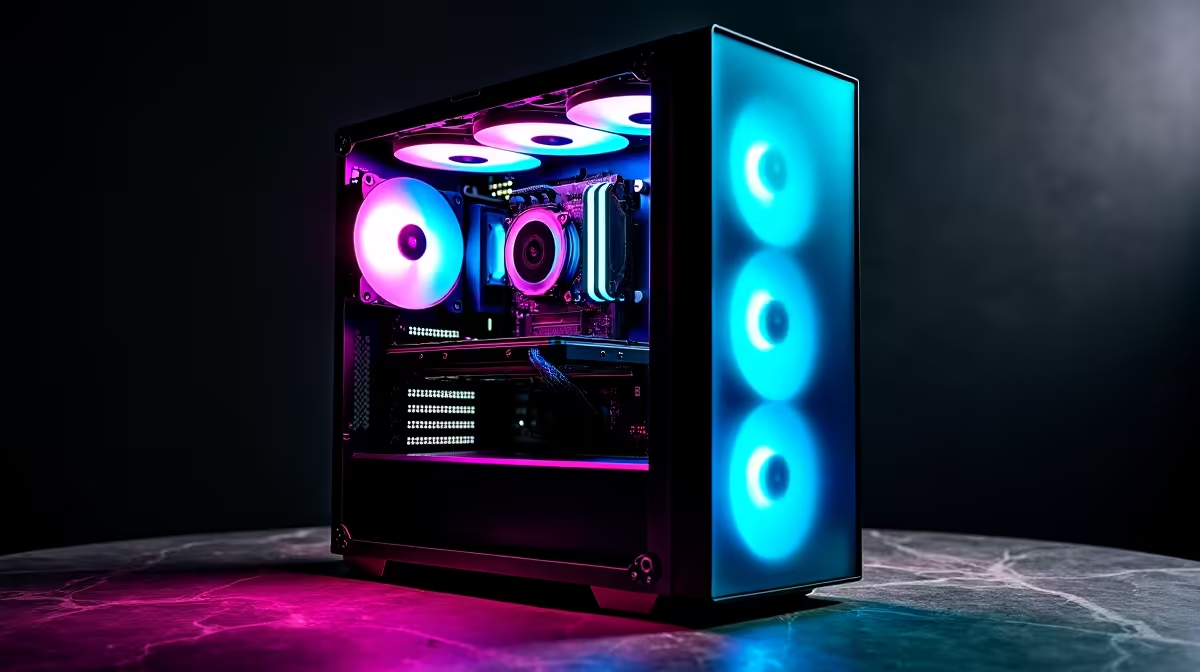
So, you’ve built your rig, installed your games, but that performance hunger is still gnawing at you. You see benchmarks online and think… “can my PC do that?” Welcome, fellow South African enthusiast, to the thrilling world of overclocking. This advanced overclocking guide isn't just about numbers; it's about unlocking the hidden power you already own, squeezing every last drop of performance from your hardware, and pushing your PC to its absolute limit for that competitive edge. 🚀
Understanding the Basics: Overclocking 101
Before we dive into the deep end, let's get the basics straight. Overclocking is the process of forcing your computer's components—usually the CPU or GPU—to run at a higher clock speed than the manufacturer’s default settings. Think of it as tuning a car engine. More speed means more calculations per second, which translates directly to higher frame rates in games and faster processing times for demanding tasks.
However, this extra performance comes with a trade-off: increased heat and power consumption. Pushing your hardware too far without proper cooling can lead to system instability or, in worst-case scenarios, permanent damage. It's a high-stakes, high-reward process that requires patience and the right gear. While you can sometimes get a little extra juice from budget gaming PCs, the best results come from hardware designed for it.
The Essential Toolkit for Advanced Overclocking
Jumping into an advanced overclocking guide without the right tools is like trying to fix a car with a spork. You won't get far. Here’s what you absolutely need before you start pushing your PC to the limit in SA:
- An Unlocked CPU: Look for Intel CPUs with a "K" or "KF" suffix (e.g., Core i7-14700K) or any AMD Ryzen CPU. These are designed with overclocking in mind.
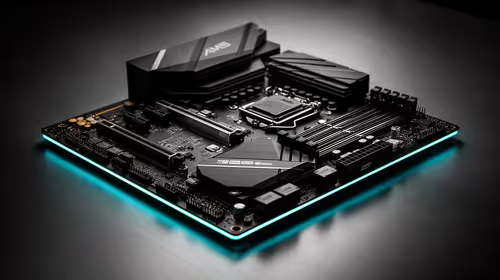
- A Capable Motherboard: You'll need a motherboard with a high-quality Voltage Regulator Module (VRM) and a robust BIOS/UEFI. Chipsets like Intel's Z-series (e.g., Z790) or AMD's X-series (e.g., X670) are built for this.
- Serious Cooling: The stock cooler won't cut it. A high-performance air cooler or, even better, an All-in-One (AIO) liquid cooler is essential to manage the extra heat. Many of the best high-performance PCs over R20k come equipped with these right out of the box.
- Item
A Step-by-Step Advanced Overclocking Guide
Ready to get your hands dirty? 🔧 Remember: proceed with caution, and make small, incremental changes. Every chip is different, so your results may vary.
Step 1: Establish Your Baseline
Before you change anything, you need to know your starting point. Run a benchmark like Cinebench and a stress test for 15-20 minutes. Note your maximum temperature and score. This is your "stock" performance.
Step 2: Enter the BIOS/UEFI
Restart your PC and press the designated key (usually Del, F2, or F12) to enter the BIOS. This is your command centre. Familiarise yourself with the layout, but only change what you intend to. Look for settings related to CPU frequency and voltage.
Safety First! ⚡
Before you start tweaking, find the "Load Optimized Defaults" option in your BIOS. This is your safety net. If your PC fails to boot after a change, you can use your motherboard's Clear CMOS jumper or button to reset everything back to this stable default.
Step 3: Increase the CPU Multiplier
Find the "CPU Core Ratio" or "Multiplier" setting. It's often set to "Auto." Change it to manual control and increase the multiplier by one step (e.g., from 45 to 46, representing 4.6 GHz). Save, reboot, and run a quick stability test. If it's stable, head back to the BIOS and repeat the process. Eventually, you'll hit a wall where Windows won't boot or the system crashes during a test.
Step 4: Add a Touch of Voltage
When you hit that stability wall, it's time to carefully increase the CPU Core Voltage (Vcore). Add a tiny amount, like 0.01v. This gives the CPU the extra power it needs to maintain the higher clock speed. Be extremely careful here—excessive voltage is what can damage a chip. Many powerful PCs under R20k offer a great platform to learn these fundamentals without breaking the bank.
Step 5: The Final Stress Test
Once you've found a speed and voltage combination you're happy with, it's time for the final exam. Run a prolonged stress test for at least an hour (some purists say 24 hours!). If your PC passes without crashing and temperatures stay below 90°C, congratulations! You've successfully overclocked your system.
The Payoff vs. The Risk
Pushing your PC to the limit is an incredibly rewarding experience. You gain a deeper understanding of your hardware and unlock performance you didn't know you had. But is it for everyone? If you'd rather spend your time gaming than tweaking settings in a BIOS, there's no shame in that. The peace of mind and professional warranty that come with expertly tuned systems can be invaluable. You can find incredible performance straight out of the box with some of the best gaming PC deals available today.
Ultimately, the choice is yours. For tinkerers and performance junkies, this advanced overclocking guide is your gateway to a new level of power. For those who just want to play, exploring professionally built systems might be the smarter move. In fact, many gamers find the perfect balance of performance and reliability in our pre-built PC deals, which are optimised for stability from day one.
Ready to Unleash Maximum Power?
Overclocking is a rewarding journey, but if you want guaranteed, stable performance without the risk, a professionally built rig is the ultimate solution. Explore our massive range of gaming PC deals and find the perfect machine to dominate the competition.