

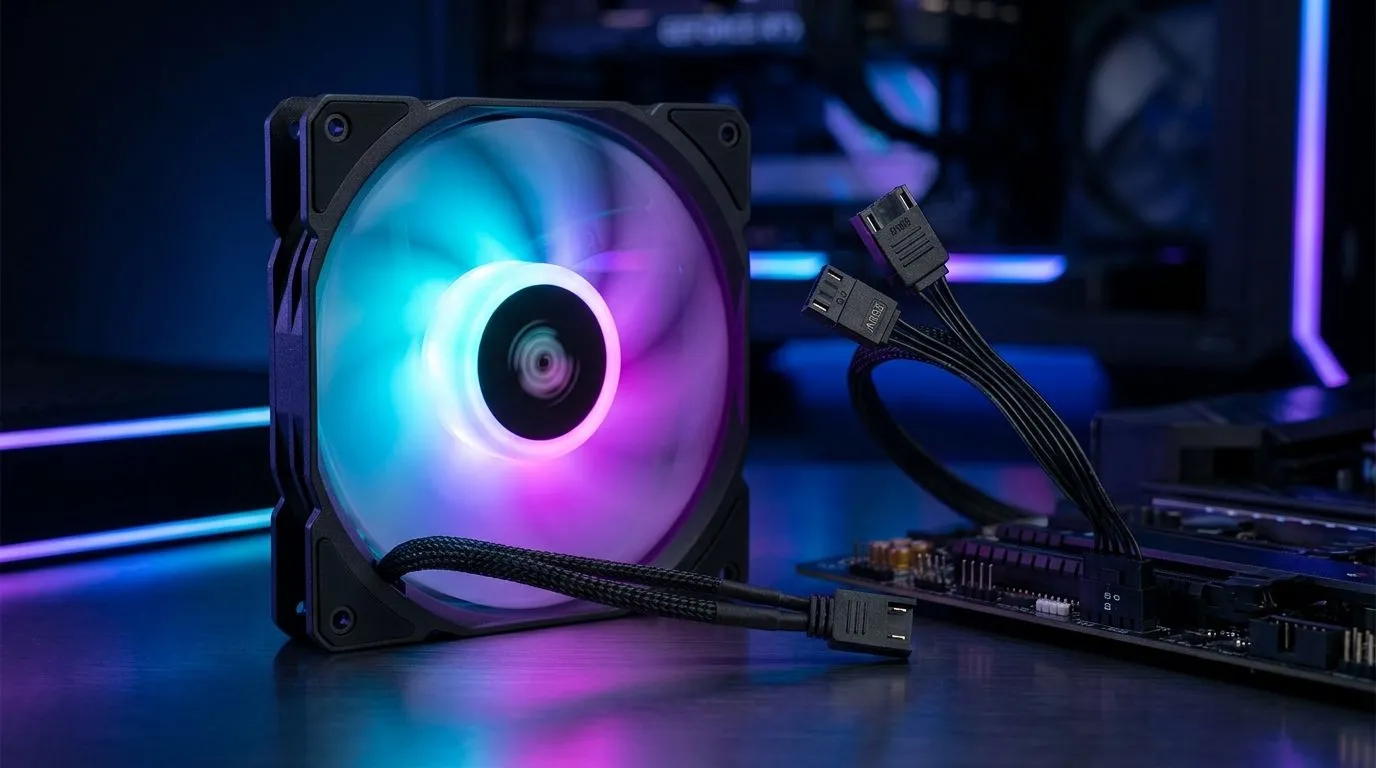
ARGB Case Fan Setup Guide: Sync Lighting with Motherboard (South Africa edition)
If your PC looks amazing but your fans light up like a disco that forgot the beat… you’re not alone. ✨ Many South African gamers build with ARGB fans, then hit the “why isn’t it syncing?” wall after assembly. The fix is usually simple: correct fan connectors, correct controller pins, and matching software profiles. In this guide, we’ll walk you through a clean, reliable ARGB case fan setup so your lighting follows your motherboard sync.
What you need before ARGB Case Fan Setup Guide: Sync Lighting with Motherboard
Before we touch any cables, confirm three things. 🔧
1) Your ARGB needs the right header (5V vs 12V)
ARGB (addressable RGB) is typically 5V data (5V-D-G), while standard RGB is 12V. Plugging the wrong type into the wrong header can damage components or at least produce weird results. If you’re shopping, Evetech lists ARGB/RGB options clearly on their case fan range, so it’s worth double-checking the product details as you choose fans.
Browse case fans here:
2) You need an “ARGB (5V)” motherboard header or an ARGB controller
Most modern boards include one or more ARGB headers. If you don’t have enough ports, an ARGB hub/controller can help, but you still need to feed it from the correct motherboard header.
If you’re specifically building with a popular ecosystem, these Evetech-filtered pages can help you narrow the right fan type:
3) Fan size matters for airflow and aesthetics
ARGB sync doesn’t care about 120mm vs 140mm, but your layout does. Measure your case front, roof, and rear mounting points to avoid “nearly fits” mounting drama.
Use Evetech’s sizing filters to match your case:
How to do ARGB Case Fan Setup Guide: Sync Lighting with Motherboard (step-by-step)
Now let’s wire it and sync it properly. ⚡ The order below prevents most headaches.
Step 1: Install fans and confirm airflow direction
Most fans have an arrow on the frame. Rear and top usually exhaust, while front usually intakes. If airflow is reversed, your temperatures will rise even with perfect lighting.
Step 2: Connect each fan’s lighting cable
- If your fans are addressable, they’ll have a 3-pin ARGB plug.
- Connect fan lighting cables to the correct motherboard 5V ARGB header (or an ARGB hub that is powered and connected correctly).
- Avoid forcing connectors. Align pins carefully.
If you’re buying a specific lighting type, Evetech’s filters help keep it consistent:
Step 3: Cable management for reliability
Keep ARGB cables away from fan blades and high-heat GPU zones. A loose wire can cause a short, or worse, a constantly rebooting lighting effect.
ARGB Productivity Pro Tip 🔧
On Windows, use a board manufacturer’s lighting software only after you confirm the cables are correct in BIOS. If effects look duplicated or flicker, remove any extra hubs, reseat the 3-pin connector, and test one fan first. This isolates the issue fast, saving you an hour of guesswork.
Sync lighting effects: software, profiles, and what “good” looks like
Once Windows boots, install your motherboard’s lighting utility (or use BIOS if your board supports it). The key is matching the correct header profile and mapping the right fan channel order.
Here’s what “good sync” usually means in a gaming rig:
- All ARGB fans change colours together.
- Speed and pattern match (breathing, rainbow, static).
- No flicker when you restart.
If you only get partial syncing:
- One fan might be connected to a different controller channel.
- Fan order may be mixed if your ARGB is daisy-chained.
- Your software might be set to a different lighting mode for that channel.
Quick troubleshooting checklist (the stuff that actually works)
- Power cycle: shut down, reseat the ARGB 3-pin, power on.
- One fan test: connect just one ARGB fan to the header, then add others.
- BIOS sanity check: confirm ARGB header is enabled if your board has that toggle.
Ready to choose the right ARGB case fan setup for your build
The cleanest builds are the ones where the wiring matches the lighting ecosystem. Get your headers right, keep your cable routes tidy, and you’ll get that satisfying “all lights in sync” look every time you boot. 🚀
Ready to Find Your Perfect Match? The Mac vs Windows debate is complex, but for maximum power, choice, and value in South Africa, Windows is hard to beat. Explore our massive range of laptop specials and find the perfect machine to conquer your world.











