

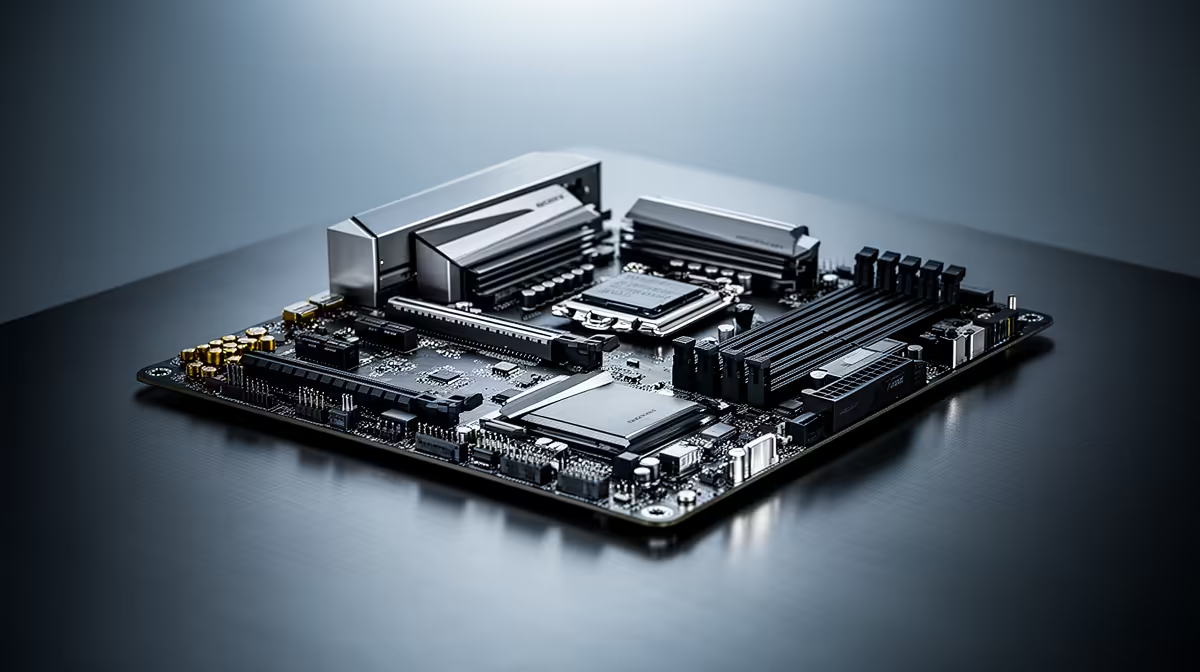
Just unboxed your shiny new ASRock Z890 motherboard? Lekker! Before you jump into your first game, there's one crucial step: diving into the BIOS. It sounds intimidating, but mastering a few key ASRock Z890 BIOS settings is the secret to unlocking your PC's true power. This guide will walk you through the essentials, no complex jargon, just pure performance gains. Let’s get your rig running at its absolute best. 🚀
Accessing and Navigating Your ASRock Z890 BIOS
First things first, you need to get into the BIOS. When you power on your new PC, repeatedly tap the Delete or F2 key on your keyboard until a new interface appears. Welcome to your motherboard's command centre.
You'll likely land in 'EZ Mode', a simplified dashboard showing your PC's vital stats. It's great for a quick health check. For the real magic, you'll want to press F6 to switch to 'Advanced Mode'. This is where we'll find the powerful ASRock Z890 BIOS settings you need to tweak. Don't worry, it's less scary than it looks. Getting the right foundation for your PC is step one; optimising it is step two.
Essential ASRock Z890 BIOS Settings for Peak Performance
For 99% of gamers and builders, only a handful of settings need your attention. Focusing on these will give you the biggest performance and stability improvements without risking your system.
Unlocking Your RAM: XMP Profiles
This is the most important setting to change. If you bought fast DDR5 RAM (e.g., 6000MHz), it won't run at that speed out of the box. It defaults to a much slower, safer speed.
- Navigate to the
OC Tweakertab. - Find the
DRAM Profile Configurationor a similarly named option. - Select
XMP Profile 1. - Save and exit.
That's it! Your RAM is now running at its advertised speed, giving you a noticeable boost in games and applications. This is especially true for modern Intel motherboards like the Z890 series, which are designed to push memory speeds for maximum performance.
Don't Lose Your Work! 💾
After you've dialled in your perfect settings, always save them to a user profile in the BIOS. This lets you load your stable configuration with one click if a future BIOS update resets everything to default. You can even save profiles to a USB stick for extra peace of mind!
Smart Fan Control for a Cool & Quiet Rig 🔧
Does your PC sound like a jet engine under load? You can fix that. Head over to the H/W Monitor tab. Here you'll find ASRock's 'FAN-Tastic Tuning' tool.
This utility lets you set custom fan curves for each fan connected to your motherboard. You can tell your fans to stay quiet during light tasks like browsing and only ramp up when temperatures rise during an intense gaming session in Helldivers 2. A quiet and cool PC is a happy PC.
Boot Priority: Getting into Windows Faster
Your PC needs to know which drive has your operating system on it. If it's guessing, it can slow down your boot time.
- Go to the
Boottab. - Look for
Boot Option #1. - Make sure your primary NVMe SSD or SATA SSD (the one with Windows installed) is selected.
This simple check ensures your PC boots up as quickly as possible every single time.
Exploring Advanced ASRock Z890 BIOS Settings
Feeling brave? The ASRock Z890 BIOS has deeper settings for enthusiasts. In the OC Tweaker section, you can find options for manual CPU overclocking (like CPU Core Ratio and Voltage settings) and enabling features like Resizable BAR for a small GPU performance uplift.
A word of caution: tread carefully here. Incorrect voltage settings can potentially damage your hardware. Unless you're following a detailed guide for your specific CPU, it's often best to leave these on 'Auto'. While the terminology might differ, the core concepts of careful tweaking are similar across platforms, including modern AMD motherboards.
Mastering these basic ASRock Z890 BIOS settings explained in this guide will ensure your new build is stable, cool, and performing at its full potential. Happy gaming! ✨
Ready to Build Your Foundation? Taming the BIOS is the final step, but it all starts with the right board. A great motherboard is the heart of any powerful PC. Explore our massive range of motherboards and find the perfect foundation for your next legendary build.











