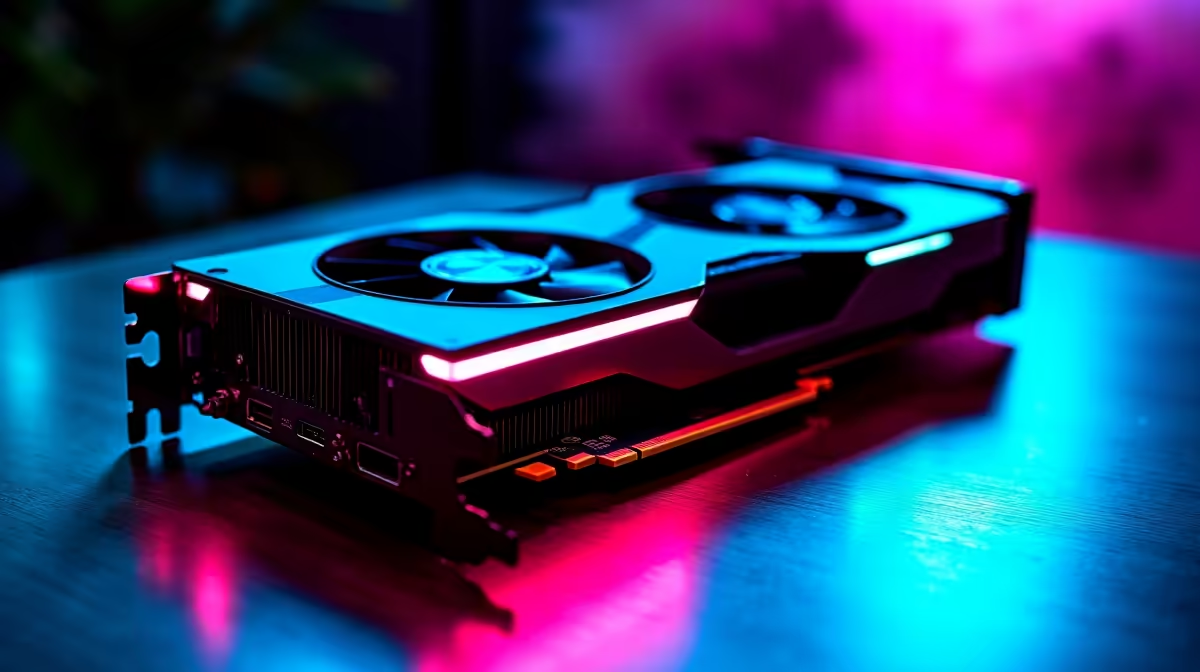
Ever had your laptop battery die mid-match or your PC's fans suddenly roar to life while you're just browsing? It’s frustrating. What if your machine could intelligently manage its own energy, giving you power when you need it and silence when you don’t? That’s not science fiction; it’s the reality of using auto-adaptive power settings for truly seamless tech performance. Let's dive into how you can make your tech work smarter, not just harder. ⚡
Understanding Auto-Adaptive Power Settings
So, what are these smart power settings? Think of them as your PC's or laptop's built-in efficiency expert. Instead of you manually flipping between "High Performance" and "Power Saver" modes, your operating system (like Windows 11) constantly analyses what you're doing.
Editing a 4K video? It allocates more power to the CPU and GPU. Just reading an article? It dials everything back to save energy and reduce heat. This dynamic adjustment is the key to a responsive yet efficient system, giving you a smooth experience without the constant fan noise or a rapidly draining battery.
Why Smart Power Management Ensures Seamless Performance
For South African gamers and creators, the benefits are huge. Imagine you're in a tense final circle in Apex Legends. The system automatically boosts performance for maximum frames. Once you're back in the lobby, it throttles down, letting your system cool off. This prevents stuttering during crucial moments and keeps your rig running quietly the rest of the time. 🚀
Of course, this software intelligence is only half the battle, especially for laptop users. It relies on a steady, reliable stream of power. A quality charger ensures your device receives the clean energy it needs to perform these quick adjustments. You can find fantastic chargers for under R1000 that provide that essential stability.
How to Optimise Your Power Settings 🔧
Getting the most out of your device's adaptive power features is easier than you think. You don't need to dig through complex menus. Windows has simplified this into a user-friendly tool that anyone can use.
Windows Power Slider Pro-Tip
In Windows 10 or 11, just click the battery icon in your taskbar. You'll see a power slider. Moving it towards 'Best performance' tells the OS to prioritise speed, while 'Best power efficiency' prioritises battery life. It's the simplest way to influence your device's auto-adaptive power settings on the fly.
Even having a reliable backup power source is a smart move. A faulty or weak charger can cause performance throttling, no matter how optimised your settings are. Keeping a spare is an affordable way to guarantee performance, and there are solid options available for under R500.
The Hardware That Supports Smart Power
Ultimately, software and hardware must work together. Your system's ability to seamlessly adapt its power usage depends heavily on the quality of the components feeding it electricity. A cheap, unstable charger can undermine even the most advanced auto-adaptive power settings, leading to poor performance or even damaging your device over time.
Investing in a charger from a reputable brand ensures your laptop or other devices get the stable voltage they need. For example, Promate offers chargers built to modern safety and performance standards, giving you peace of mind and letting your tech perform at its peak.