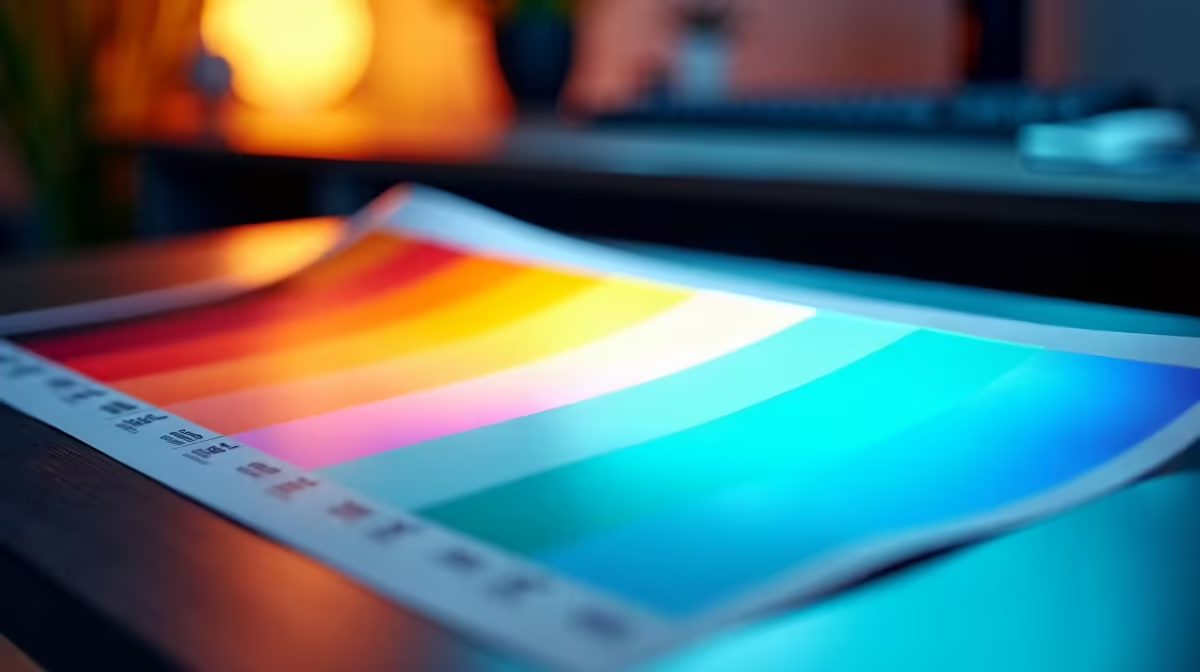
Ever spent hours perfecting colours on-screen, only for the print job to come back looking… wrong? That frustrating disconnect between your digital canvas and the final product often comes down to one unsung hero of display technology: gamma. Getting it right is non-negotiable for any serious designer, photographer, or DTP professional in South Africa. Let’s dive into what it is and how to find the best gamma for colour accuracy in your workflow. 🎨
What Exactly is Gamma, Anyway?
Think of gamma as the "tone curve" for your monitor. It controls how your display translates the digital signal from your PC into different levels of brightness. In simple terms, it dictates the luminance of your mid-tones—the shades between pure black and pure white.
An incorrect gamma setting can crush details in shadows, blow out highlights, or make your entire image look washed out or too dark. For a DTP workflow, where precision is everything, this can be disastrous. It’s the invisible force that ensures the subtle gradients in a logo or the rich tones in a photograph are represented faithfully. A solid understanding of gamma is fundamental to choosing from the vast range of PC monitors available today.
Finding the Best Gamma for Colour Accuracy
So, what’s the magic number? For decades, the digital world has largely standardised around one value.
The Industry Standard: Gamma 2.2
For virtually all modern DTP, web design, and video work, Gamma 2.2 is the gold standard. This is the native gamma for the sRGB colour space (the standard for the internet) and the default for Windows and modern macOS operating systems. By setting your monitor to Gamma 2.2, you ensure your work looks consistent across the widest range of devices.
When you’re working on designs that will be viewed online or printed by most commercial printers, aligning to Gamma 2.2 provides the most predictable results. This is especially critical when working on high-resolution 4K or 5K monitors, where every pixel counts.
What About Gamma 1.8?
You might hear whispers of Gamma 1.8. This was the default on older Apple Mac systems, chosen to more closely match the dot gain of printers at the time. However, Apple themselves transitioned to Gamma 2.2 over a decade ago (starting with OS X 10.6 Snow Leopard) to better align with industry standards. Unless you have a very specific, legacy print workflow, you can safely ignore Gamma 1.8.
Quick Gamma Check 🔧
You can get a rough idea of your monitor's gamma using a simple online test pattern. Search for a "gamma test chart" and view it from a normal distance. The pattern that appears to blend most seamlessly with its background indicates your display's current gamma. It's not a substitute for proper calibration, but it's a great 30-second health check!
How to Calibrate Your Monitor's Gamma
Knowing the target is one thing; hitting it is another. Achieving the best gamma for colour accuracy requires calibration.
Your first stop is your operating system's built-in calibration tool (like Windows Display Color Calibration). It’s a step-by-step wizard that helps you adjust gamma, brightness, and contrast visually. It’s better than nothing, but it relies on your subjective perception.
For professional, repeatable results, nothing beats a hardware calibrator. Devices like a colorimeter or spectrophotometer measure the light coming from your screen and create a custom profile (an ICC profile) to ensure your colours are spot-on. Investing in one of these powerful monitor accessories is one of the best upgrades a creative professional can make. It takes the guesswork out of your DTP workflow, whether you're at your main desk with immersive curved monitors or on the go.
Does Your Monitor Choice Affect Gamma? ✨
Absolutely. The quality of your monitor's panel is the foundation of colour accuracy.
IPS (In-Plane Switching) panels are widely regarded as the best for creative work due to their superior colour reproduction and wide viewing angles. Many modern gaming monitors now use high-quality IPS panels, making them a fantastic dual-purpose option for work and play.
Many professional-grade monitors also come factory-calibrated to a specific standard, often with a report in the box. While this is a great starting point, display characteristics can drift over time, so regular calibration is still recommended. This applies whether you're using a primary display or checking proofs with a client on one of the latest portable monitors.
Ultimately, you can't calibrate a bad monitor into a great one. Starting with a quality display is half the battle won. Thankfully, you don't have to break the bank; you can always find some of the best PC monitor deals in South Africa to kickstart your colour-accurate journey.
Ready to See True Colour?
Getting your gamma right is crucial, but it starts with the right hardware. A high-quality, colour-accurate monitor is the foundation of any professional DTP workflow. Explore our wide range of professional and gaming monitors and find the perfect canvas for your creations.