Photographers chasing a faster editing machine often reach for the biggest graphics card they can afford, then wonder why Lightroom still crawls. The truth about the best photo editing workstation is counterintuitive: the work leans far harder on a fast single-core CPU and plenty of memory than on raw graphics power. Build for clock speed and RAM, and a heavy catalogue of RAW files stops fighting you back.
Quick Answer
A photo editing workstation should prioritise a high single-core CPU clock and 32GB or more of RAM, not a top-end GPU. Lightroom catalogue operations and RAW processing depend mostly on per-core speed and memory, with a fast NVMe SSD for the catalogue and previews. The GPU helps in places but is rarely the bottleneck.
Why Single-Core Speed Rules Photo Editing
Much of what Lightroom and Photoshop do, importing RAW files, building previews, applying develop adjustments, generating thumbnails, runs on operations that lean on how fast a single core can work rather than how many cores you have. Many of these tasks do not spread cleanly across many cores, so a chip with a high per-core clock often beats a chip with more cores at a lower clock for this kind of work.
That reframes the buying decision. Instead of chasing the highest core count, you want a CPU known for strong single-thread performance and high boost clocks. The extra cores still help with batch exports and any task that does parallelise, but they are the secondary consideration, not the headline.
Memory Is the Second Pillar
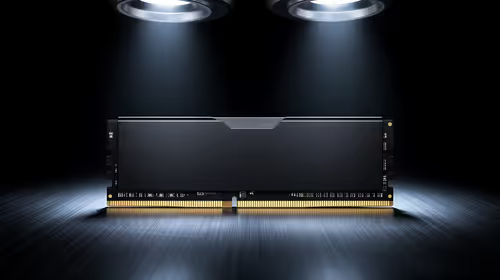
RAM is where a photo workstation lives or dies in daily use. Editing a large RAW file means the application holds the image, its history states, layers, and preview caches in memory at once. Run several images, a browser and a catalogue alongside, and memory fills fast.
For a serious photo workstation, 32GB is the sensible starting point and 64GB is worth it if you work with large multi-layer Photoshop files, high-resolution panoramas, or focus-stacked composites. With too little memory, the system swaps to disk constantly and every adjustment lags. With enough, the application stays responsive even deep into a heavy edit.
Storage: The Overlooked Speed Multiplier
A fast drive does more for perceived speed than almost any other single part in photo work, because the catalogue, previews and working files are read and written constantly.
The Catalogue and Preview Drive
Put your Lightroom catalogue and its preview cache on a fast NVMe SSD. Catalogue operations, scrolling a folder of thousands of images, jumping between develop and library, building previews, are storage-bound as much as anything. An NVMe drive turns that from a stutter into instant response.
A Tiered Storage Plan
A practical layout uses three tiers. A fast NVMe SSD holds the operating system, applications, the catalogue and active projects. A second SSD or large drive holds recent work you still touch. A large capacity drive archives finished shoots you rarely reopen. This keeps the speed where it matters without paying NVMe prices for cold archives.
Where the GPU Actually Helps
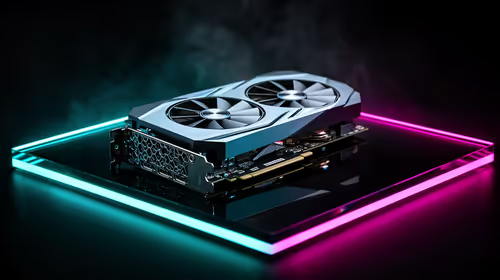
The graphics card is not useless for photo work, it is just misunderstood. A capable GPU accelerates specific Lightroom and Photoshop features: certain develop sliders, some AI-driven tools like subject masking and denoise, and smooth scrolling at high zoom. Photoshop also uses the GPU for some filters and transforms.
What this means is you want a competent modern graphics card, not the most expensive one. Past a sensible mid-range card, extra GPU money buys little for pure photo editing, where the workload is not graphics-bound the way 3D rendering or gaming is. If your work also includes heavy 3D, AI denoise at scale, or video, then a stronger card earns its place. You can compare the cards built for sustained professional workloads in the Evetech workstation graphics card range to see where the useful tier sits for your mix of work.
A Balanced Build Priority List
Spend your budget in this order for a photo-first machine.
- CPU with strong single-core speed and high boost clocks. This is the heart of responsiveness.
- 32GB to 64GB of RAM, sized to how layered and large your files get.
- A fast NVMe SSD for the system, catalogue and active projects, backed by larger drives for archive.
- A competent mid-range GPU that accelerates the AI and develop features without overspending.
- A reliable power supply and good cooling, so the CPU holds its boost clocks during long export sessions instead of throttling.
Skew the budget toward CPU and memory and you get a machine that feels fast in the moments that matter: culling, developing, and exporting. Skew it toward an oversized GPU and you spend money the software barely uses.
SA Context: Building for the Long Haul
For South African photographers, a few practical notes. Buy enough memory upfront, because adding it later is cheaper on a desktop than a laptop but still a hassle mid-project. Favour a clean upgrade path: a board and CPU platform that lets you add storage and memory as your library grows over years. And size storage generously, since RAW libraries only ever grow and running out of space mid-shoot-season is a real cost. To see how complete prebuilt workstations are priced against a self-spec'd build, the Evetech PC best sellers is a useful benchmark.
Frequently Asked Questions
Do I need a powerful GPU for Lightroom and Photoshop?
No, you need a competent mid-range one. Photo editing leans mostly on single-core CPU speed and memory, with the GPU accelerating only specific features like AI masking and denoise. Past a sensible card, extra GPU spend buys little for pure photo work.
How much RAM does a photo editing workstation need?
Start at 32GB for serious work and step up to 64GB if you handle large multi-layer files, panoramas or focus stacks. Too little memory forces constant disk swapping, which makes every adjustment lag.
Why does single-core CPU speed matter more than core count?
Many core photo tasks, RAW processing, previews and develop adjustments, do not spread cleanly across many cores. A high per-core clock therefore speeds up the operations you do most, while extra cores mainly help batch exports.
What storage setup is best for Lightroom?
Put the catalogue, previews and active projects on a fast NVMe SSD, since catalogue browsing and preview building are storage-bound. Keep recent work on a secondary SSD and archive finished shoots on a large capacity drive.
Should I buy a prebuilt or spec my own photo workstation?
Either works if the priorities are right: fast single-core CPU, ample RAM, NVMe storage and a sensible GPU. A self-spec build gives precise control, while a prebuilt saves time and is worth comparing on price for the same balance of parts.
Building a machine for Lightroom and Photoshop that actually feels fast? Compare professional cards and complete workstations through the Evetech workstation graphics card range, and the team can help you weight the build toward CPU and memory where photo work needs it.