

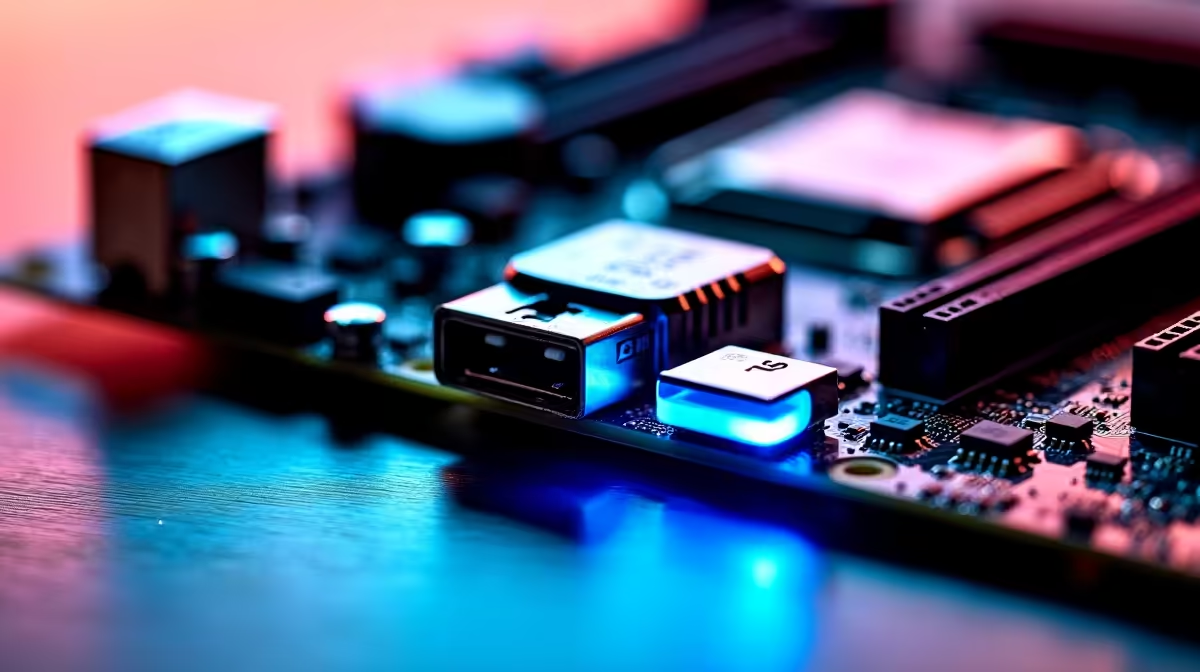
You just dropped a few thousand ZAR on a shiny new Ryzen processor. You carefully slot it into your brand-new AM5 motherboard, hit the power button... and nothing happens. Just a dreaded black screen. Before you panic and assume your hardware is dead, take a breath. You might just need a firmware update. This is exactly where a little feature called BIOS Flashback saves your build.
What Exactly Is BIOS Flashback?
In simple terms, BIOS Flashback allows you to update your motherboard's firmware without needing a compatible CPU installed. You do not even need RAM or a graphics card. Traditionally, updating a BIOS required a fully working system. If your board did not recognise your new chip out of the box, you were completely stuck.
Now, all you need is a USB flash drive and a power supply connected to the board. When you are looking to buy motherboards for a fresh custom build, checking for this specific feature is absolutely crucial.
Why It Matters for an AM5 Motherboard
AMD's AM5 platform is built to last for several years. This means new processors will launch that fit perfectly into older boards. However, an AM5 motherboard manufactured today will not magically know how to communicate with a CPU released two years from now. You will need to update the firmware to ensure system stability.
Without BIOS Flashback, you would have to borrow an older, compatible processor just to boot up and run the update. Whether you are team red eyeing ASUS AMD motherboards or exploring alternatives like ASUS Intel motherboards for a different rig, this feature eliminates the dreaded upgrade trap. It gives you true peace of mind.
How to Use BIOS Flashback
The process is surprisingly straightforward. First, download the latest BIOS file using a separate PC or laptop. Rename the file according to your manufacturer's specific instructions. Next, copy it to a FAT32-formatted USB drive. Plug that drive into the dedicated Flashback port on your rear I/O panel.
Connect your power supply to the motherboard. You do not even need to install your CPU or those blazing-fast DDR5 memory kits yet. Press and hold the BIOS Flashback button until the LED starts blinking. Wait a few minutes for the light to stop... and you are done! ⚡
USB Drive Pro Tip 🔧
Always use a USB 2.0 flash drive with a capacity of 32GB or less formatted to FAT32. High-capacity USB 3.0 drives often fail to be recognised by the BIOS Flashback utility on many modern motherboards!
The Ultimate Lifesaver for PC Builders
Having BIOS Flashback explained shows exactly why it matters so much for modern PC building in South Africa. When you are spending thousands of ZAR on premium hardware, you want a seamless setup experience. It turns a potential weekend-ruining nightmare into a minor five-minute task.
If you prefer skipping the DIY hassle entirely, you can always grab one of the best gaming PC deals where the Evetech experts handle all the complex updates for you. But for the hands-on enthusiast, this feature is a non-negotiable must-have. 🚀
Ready to Build Your Dream AM5 Rig? Now that you know how easy it is to keep your system updated, it is time to choose your hardware. Explore our massive range of motherboards and find the perfect foundation for your next-gen gaming PC.











