

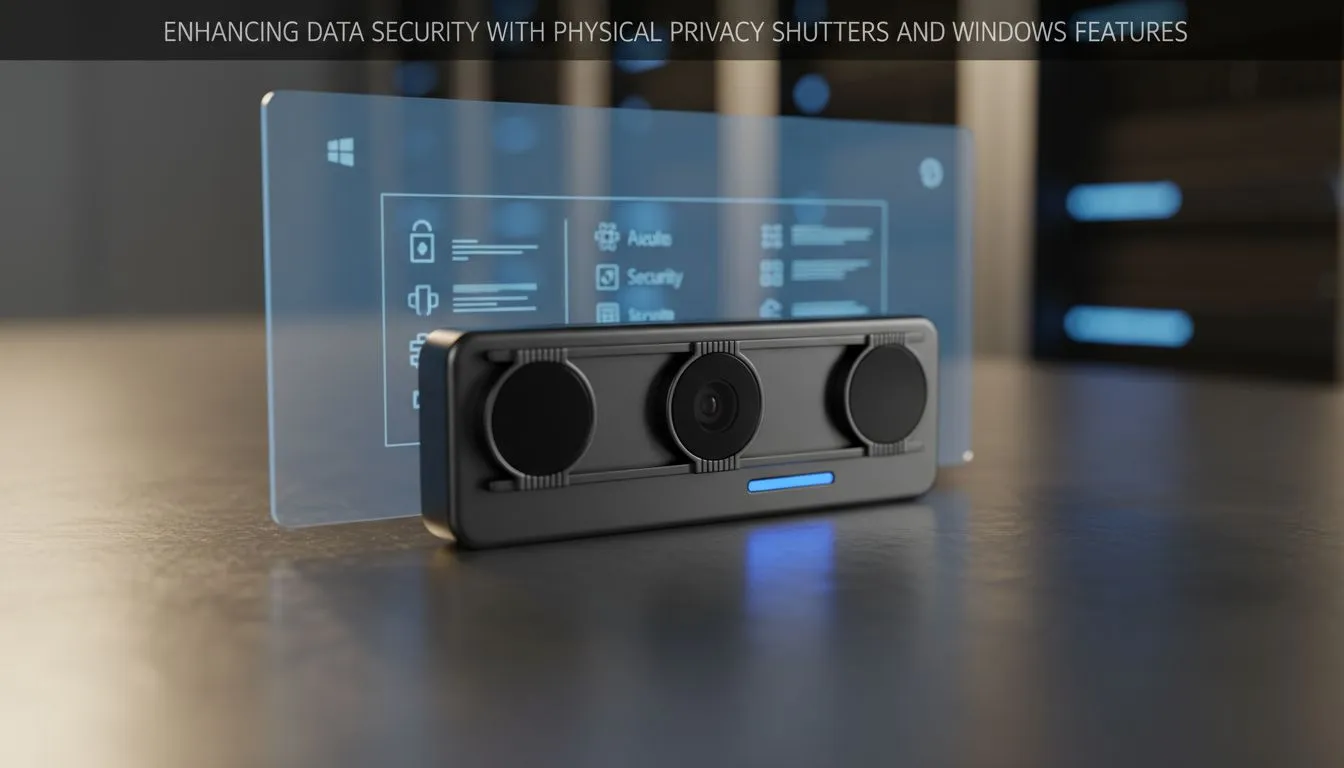
That little black dot at the top of your laptop screen… ever get the feeling it’s watching you? You’re not paranoid. In our always-online world, digital privacy is a real concern. While a piece of tape does the job, a built-in camera privacy shutter offers a far more elegant and secure solution. But physical hardware is only half the battle. We’ll show you how to combine it with powerful Windows features for ultimate peace of mind.
Why a Physical Camera Privacy Shutter is Your First Defence
Before diving into software settings, let's appreciate the simple genius of a physical barrier. A camera privacy shutter is a foolproof way to block your webcam's lens. There's no software to hack, no driver to bypass. When it's closed, it's closed. It’s an undeniable, visual confirmation that your privacy is protected. 🔒
This simple feature provides an immediate sense of security, whether you're joining a work call or just browsing. Many modern notebooks now include an integrated camera privacy shutter, making it easier than ever to secure your device. You'll find this essential feature on many of the best gaming laptop deals available in South Africa today, proving that top-tier security isn't just for business machines.
Boost Data Security with Windows' Built-in Controls
A physical shutter is great, but what about your microphone? Or what if you want to allow certain apps, like Discord or OBS, to use your camera while blocking others? This is where Windows 11's robust privacy settings come in, giving you granular control over your data. Think of it as the digital lock that complements your physical security shutter.
Fine-Tune Your Camera Permissions
Windows makes it incredibly easy to see exactly which applications are requesting access to your camera and when.
- Navigate to Settings: Press
Win + Ito open the Settings app. - Go to Privacy & security: Find this option in the left-hand menu.
- Select Camera: Scroll down to the "App permissions" section.
Here, you can see a master toggle to turn off camera access for all apps, view a list of recent activity, and individually grant or deny permission for specific applications from the Microsoft Store and your desktop. This level of control ensures no rogue app can start spying on you. Whether you're running one of our Intel laptops on special or browsing our latest Ryzen laptop deals, these OS-level features are key to a secure setup.
Security Pro Tip ⚡
Use Windows Hello for a more secure and convenient login. Instead of a password, it uses your face or fingerprint via the webcam or a fingerprint reader. It's faster and protects you from keylogging attacks. You can set it up under Settings > Accounts > Sign-in options.
Don't Forget Your Microphone 🎤
Visual privacy is important, but so is audio. A hacker listening in on your private conversations can be just as damaging. Luckily, Windows provides identical controls for your microphone. Right below the "Camera" settings in the "Privacy & security" menu, you'll find "Microphone." Here, you can apply the same app-by-app permissions, ensuring only trusted applications can listen in.
The Ultimate Combo: Hardware Shutter + Software Smarts
True digital security isn't about choosing one solution over another; it's about layering your defences. By combining a physical camera privacy shutter with the smart, granular controls inside Windows, you create a formidable barrier against unwanted intrusion. The shutter gives you instant, absolute privacy, while the software settings manage legitimate access for streaming, video calls, and gaming. ✨
This two-pronged approach is the new standard for anyone serious about their data security. It's a key feature to look for, whether you need one of the most powerful GeForce RTX gaming laptops for streaming your gameplay or are looking for affordable and secure options from our range of great gaming laptops under R20k.
Ready to Upgrade Your Security? A modern laptop with a built-in camera privacy shutter is the smartest way to protect your digital life. Explore our massive range of laptop specials and find a machine that puts your privacy first.











