

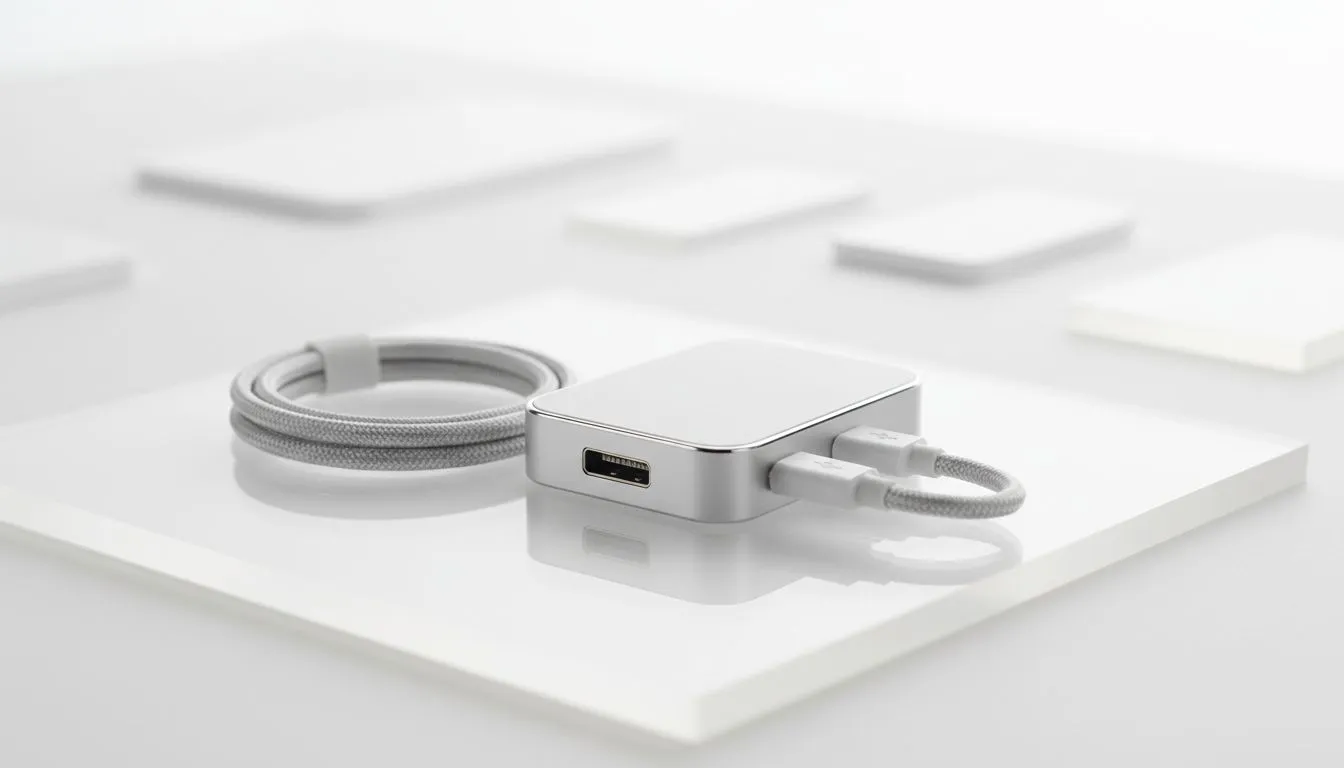
Cast Without Wi‑Fi — The 60‑second hook 🔧⚡
No Wi‑Fi? No drama. South African gamers and presenters have lost shows to flaky connections — but you can still mirror, stream or demo straight from your laptop or phone. This guide, Cast Without Wi‑Wi: Direct Connection Presentation Guide, shows quick hardware choices and step‑by‑step wiring that work offline, in halls, or at LAN cafés. Read on for practical tips, cheap ZAR options and a failproof checklist.
Cast Without Wi‑Fi — Why direct connections still matter
Wired casting means lower latency, rock‑steady video and zero reliance on venue Wi‑Fi. For esports clinics, in‑store demos or client pitch days, an HDMI or USB capture approach removes the single point of failure. If you need accessories fast, browse Evetech’s gaming accessories range to find adapters and spare cables that ship in South Africa today: buy gaming accessories. 🚀
Cast Without Wi‑Fi — Hardware choices and what each does
Shortlist: HDMI cable, USB‑C to HDMI adapter, or an HDMI capture device. HDMI is simplest for screens; capture cards let you record presentations and stream from a closed networked laptop. Evetech lists compatible accessories and local deals—compare prices in ZAR before you buy: gaming accessories deals.
Which cable or adapter?
- HDMI 2.0 or better for 1080p60; for most presentations a basic HDMI cable is fine.
- For phones: USB‑C to HDMI adapters work, but check your device supports DisplayPort Alt Mode. For local stock and category browsing, see Evetech’s full accessories category: gaming accessories category. ✨
Cast Without Wi‑Fi — Step‑by‑step setups (laptop, phone, capture)
- Laptop to projector/TV: HDMI out → HDMI in. Set display to duplicate.
- Phone to TV: USB‑C to HDMI adapter, then phone settings → Display → Cast/Output.
- Capture device (for recording streams): HDMI source → HDMI capture → USB to PC, open OBS and select device.
Presentation Pro Tip ⚡
Pack two short HDMI cables and one USB‑C adapter in your kit. If a venue projector only has VGA, carry an active HDMI→VGA converter. Test connections at least 15 minutes before showtime.
Cast Without Wi‑Fi — Troubleshooting common snags
- No signal: try a different HDMI port, swap cables, then reboot source.
- Resolution mismatch: force display to 1080p in OS settings.
- Audio missing: check output device in sound settings and confirm HDMI carries audio. Micro‑story: I once replaced a faulty HDMI with a spare cable bought for R129 and saved a live demo. Small kit, big rescue.
Cast Without Wi‑Fi — Final checklist before you walk in
- Spare cables and adapters (labelled)
- Simple USB power bank for adapters that need power
- A tested capture device and OBS profile These steps keep your presentation tight and stress‑free.
Ready to Find Your Perfect Match? The Mac vs Windows debate is complex, but for maximum power, choice, and value in South Africa, Windows is hard to beat. Explore our massive range of laptop specials and find the perfect machine to conquer your world.











