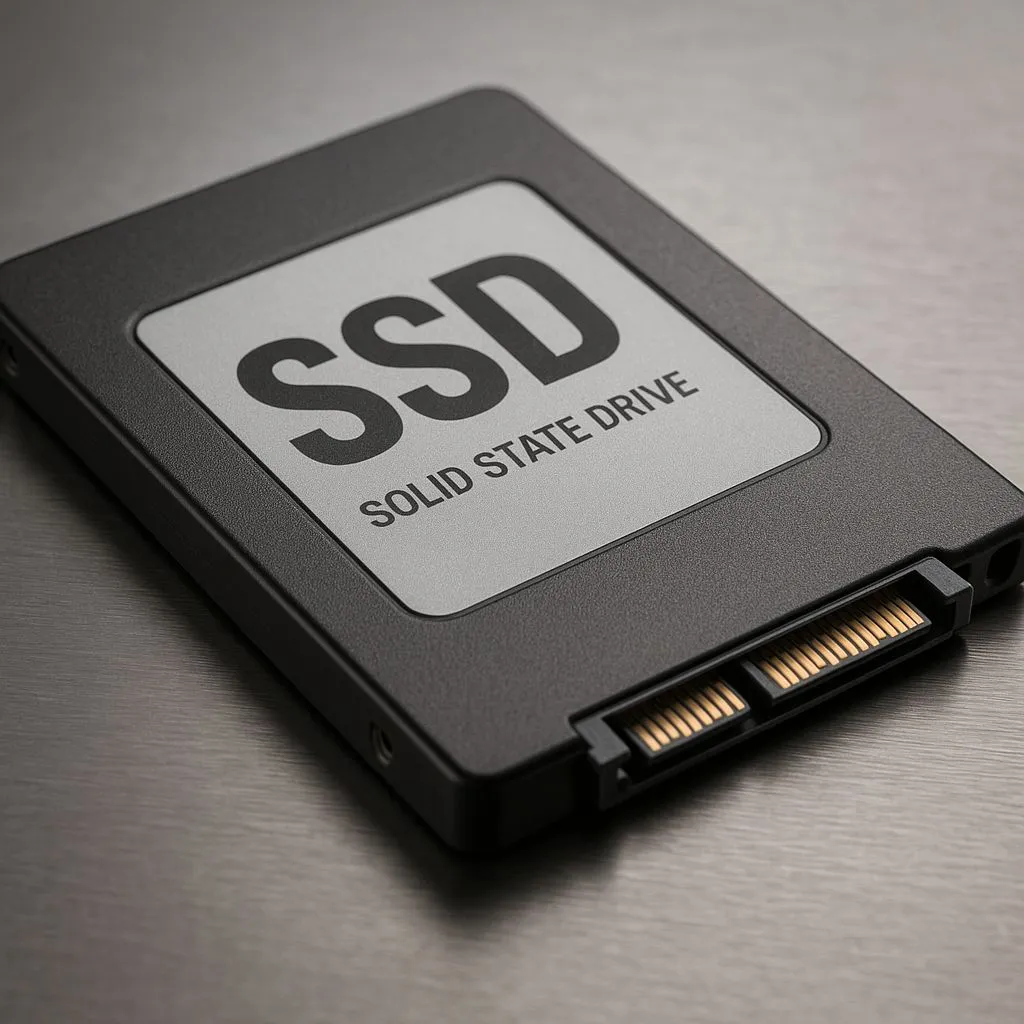
That sinking feeling… your PC freezes mid-match, and on reboot, the BIOS screams "No Bootable Device." Your games, your saves, your OS… all gone. Unlike old hard drives that often click and groan before they die, Solid-State Drives can fail silently and suddenly. The good news? You can often see the end coming if you know where to look. Learning how to check SSD health is a critical skill for any PC user in South Africa.
Why You Need to Check Your SSD's Health
Unlike their mechanical ancestors, the latest SSDs don't have moving parts. Instead, they use flash memory cells that wear out over time with every write cycle. Manufacturers rate this lifespan in Terabytes Written (TBW).
While most modern drives are built to last for years, heavy use, power surges, or firmware bugs can accelerate their decline. A regular SSD health check helps you stay ahead of total data loss. It's not about if it will fail, but when.
The Easiest Way to Check SSD Health 🚀
You don't need a degree in computer science to do this. Most drives come with built-in monitoring technology called S.M.A.R.T. (Self-Monitoring, Analysis, and Reporting Technology). This system tracks various performance and reliability metrics, giving you a window into the drive's condition.
While Windows doesn't have a great built-in S.M.A.R.T. reader, free tools make it incredibly simple.
Our Go-To Tool: CrystalDiskInfo
A lightweight, free, and powerful utility that gives you an instant, easy-to-read summary.
- Download and install CrystalDiskInfo from its official source.
- Run the application. It will immediately scan all connected drives and perform a quick check on your SSD health.
- Look at the "Health Status" at the top. It should say "Good" in blue. If it shows "Caution" (yellow) or "Bad" (red), it's time to take immediate action.
What S.M.A.R.T. Data Actually Matters? 🔧
't get overwhelmed by all the numbers. For most SSDs, focus on these key attributes: Reallocated Sector Count, Wear Leveling Count, and Percentage Used (or SSD Life Left). If the Reallocated Sector Count is anything above zero, it's a yellow flag. This means the drive is already moving data from failing cells to spare ones. Your drive is healing itself... but it's a sign of underlying issues.
My SSD Health is "Caution" or "Bad"... Now What? 😨
Seeing that yellow or red warning is stressful, but don't panic. Act.
- Backup Your Data Immediately: This is non-negotiable. Before you do anything else, copy your essential files—photos, documents, game saves—to a separate drive. A reliable external SSD is perfect for this, offering speed and peace of mind.
- Stop Using the Drive for Critical Tasks: Avoid writing large files or installing new software on the failing drive to minimise stress on it.
- Start Shopping for a Replacement: A failing SSD is a ticking time bomb. It's not worth the risk. Upgrading is also a great opportunity to boost your PC's performance. Swapping an old SATA drive for one of today's lightning-fast NVMe SSDs can drastically cut down game load times and make your whole system feel snappier.
When you're ready to upgrade, you'll find that modern solid-state drives offer incredible performance for the price. Keep an eye on the best SSD deals in South Africa to get maximum bang for your buck. Proactively checking your SSD health means you replace your drive on your own terms, not in a desperate panic after losing everything.
Ready for a Rock-Solid Upgrade?
A failing SSD is a risk you don't need to take. Secure your data and give your PC a serious speed boost with a brand-new drive. Explore our full range of Solid-State Drives and find the perfect upgrade at a price that makes sense.