

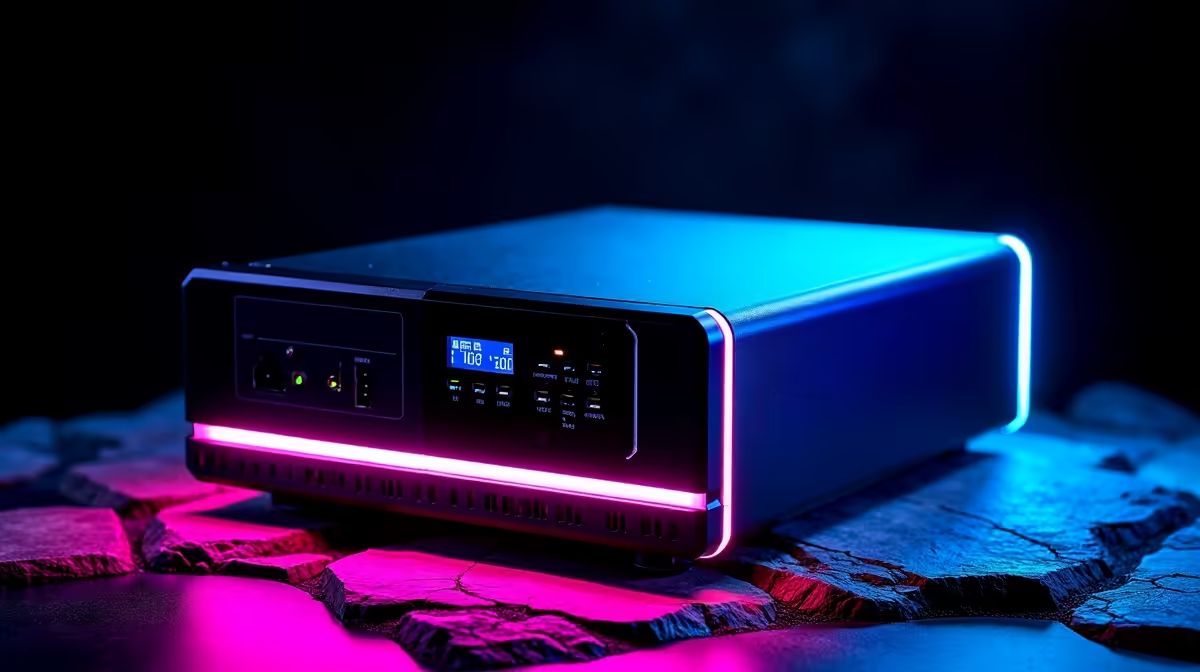
A UPS (Uninterruptible Power Supply) is one of the most underrated pieces of kit for a South African gaming setup, protecting your hardware from unexpected power interruptions and voltage fluctuations that can cause data loss or hardware damage. Setting one up correctly takes less than 30 minutes but the payoff in peace of mind and equipment protection lasts years. This guide covers everything from choosing the right UPS to configuring it properly for a gaming PC environment.
Quick Answer
To set up a gaming UPS, connect your PC, monitor, and router to the battery-backed outlets, plug peripherals into the surge-only outlets, download the manufacturer's management software, and configure automatic shutdown settings. Choose a UPS sized at 1.5–2x your total system wattage for adequate runtime and headroom. Test the unit under load once a month to verify battery health and runtime.
🔌 Choosing the Right UPS for Gaming
Sizing is everything. Add up the wattage of your gaming PC (check your PSU rating as a guide, but measure actual draw with a power meter if possible), monitor, and router. Then choose a UPS rated at 1.5–2x that combined load - this gives you runtime headroom and prevents the unit from running at maximum capacity constantly. A gaming PC drawing 400W plus a 27" monitor at 60W plus a router at 20W totals 480W. A 1000VA/600W unit covers this at 80% load. For heavier builds with high-end GPUs, step up to a 1500VA or 2000VA unit. Line-interactive UPS models are the right choice for gaming - they regulate voltage continuously, not just during outages. Evetech carries a solid range of UPS solutions for home gaming setups at various capacity levels.
⚙️ Physical Setup and Connection
Place your UPS on a hard, flat, well-ventilated surface - never inside an enclosed cabinet where heat builds up. Connect the UPS mains plug directly to a wall outlet, never to a power strip or extension lead. Identify the battery-backed outlets (usually the upper row) and plug in your PC, primary monitor, and router here. Plug secondary monitors, desk lamps, or phone chargers into the surge-only outlets if your unit has them - these items don't need battery backup. Route cables cleanly to avoid pulling tension on the UPS outlets. Allow the UPS to charge for at least 4 hours before its first use to ensure the battery reaches a full charge state. Connect the USB or serial cable between the UPS and your PC for software monitoring.
💻 Software Configuration and Testing
Most quality UPS brands provide free power management software that runs in the background and monitors battery status, load percentage, and input voltage. Install this software and configure automatic PC shutdown to trigger when the battery drops below 20% charge - this protects your data if the power interruption lasts longer than your runtime budget. Set notifications for low battery and power events. Once configured, test the setup by unplugging the UPS from the wall while your PC is running - confirm that the PC stays on, software alerts trigger correctly, and auto-shutdown engages appropriately. Repeat this test every 3–6 months to verify the battery is still performing within acceptable parameters.
❓ FAQ
Q: Should I plug my gaming monitor into the battery-backed or surge-only outlets? A: Always plug your primary monitor into the battery-backed outlets - you need the display on to save your game or work safely when power is interrupted.
Q: Can I plug a gaming headset or keyboard into the UPS? A: USB-powered peripherals draw minimal wattage and can be plugged into surge-only outlets if available, or into the battery-backed side without meaningfully affecting runtime.
Q: How often should I replace a gaming UPS battery? A: Sealed lead-acid batteries in most consumer UPS units last 3–5 years. If your runtime has dropped noticeably from when the unit was new, it's time for a battery replacement.
Evetech stocks UPS & Power Backup and Graphics Card Deals — shop online with fast delivery across South Africa.
Ready to Find Your Perfect Match? Find the right UPS for your gaming setup at Evetech - protecting your hardware and your progress in South Africa.











