

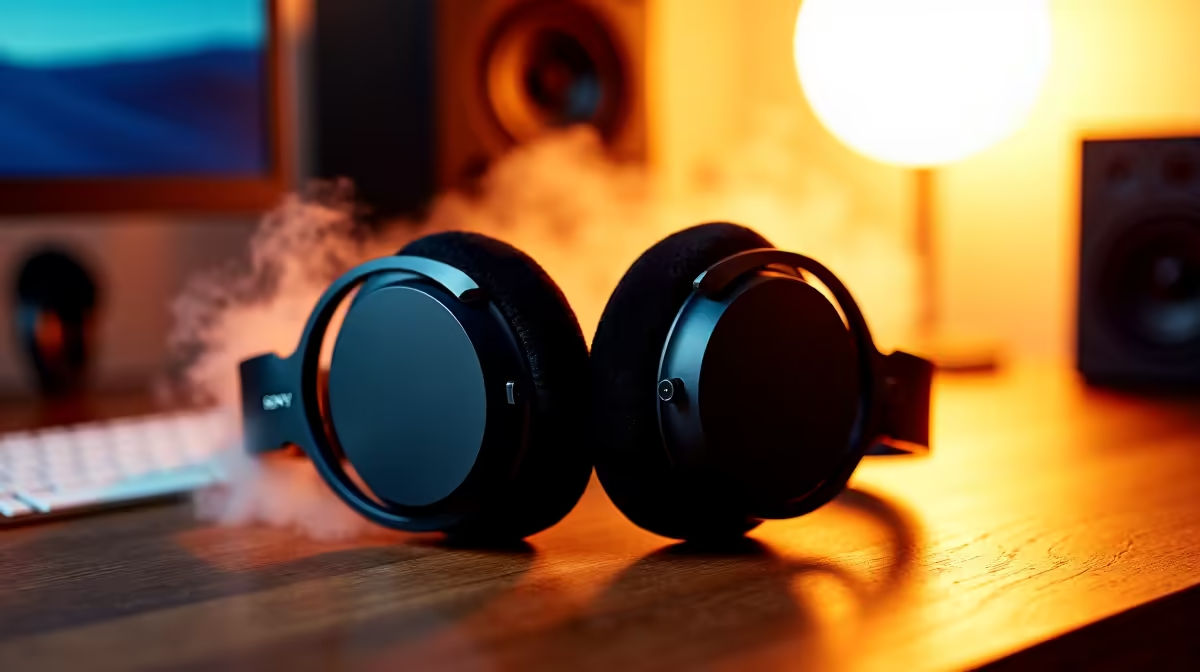
Setting up a wireless headphone sounds simple, but different connection methods and device combinations introduce common friction points that trip people up. Whether you are pairing to a PC, PlayStation, phone, or a DAC/amp, the process differs enough to warrant a clear walkthrough.
Quick Answer
How do you set up a wireless headphone? Enable Bluetooth on your device, put the headphone into pairing mode (usually by holding the power button until an LED flashes or a voice prompt plays), then select the headphone from your device's Bluetooth device list. For USB wireless dongles, simply plug the dongle into a USB port and power on the headphone - no Bluetooth pairing needed.
🔧 Step-by-Step Setup by Connection Type
Bluetooth Pairing (PC, Phone, Tablet)
- Charge the headphone to at least 20% before first setup.
- Power on the headphone and hold the pairing button (usually the power button) for 3–5 seconds until the LED flashes blue-white alternately or a voice prompt announces pairing mode.
- On Windows: go to Settings > Bluetooth & devices > Add device > Bluetooth. On Android: Settings > Connected devices > Pair new device.
- Select your headphone from the list. On first pair, most headphones pair immediately. Some require a PIN - default is usually 0000.
- Confirm the connection is active via the headphone LED (solid or slow pulse) and audio test.
USB Wireless Dongle (Gaming Headsets)
Most gaming headsets - like those from SteelSeries, Logitech G, or HyperX - use proprietary 2.4 GHz USB dongles for lower latency than Bluetooth.
- Plug the USB dongle into an available USB port on your PC or console.
- Power on the headset. On many models this automatically connects to the paired dongle out of the box.
- If pairing is required, press the sync button on the dongle (small pinhole or button) and simultaneously hold the headset sync button until both LEDs synchronise.
- Set the headset as your default audio output in Windows Sound Settings.
📊 Troubleshooting Common Setup Issues
| Problem | Likely Cause | Fix |
|---|---|---|
| Headphone not appearing in Bluetooth list | Not in pairing mode | Hold power/pair button longer; reset headphone |
| Audio cuts out or stutters | 2.4 GHz interference | Move dongle to USB port away from USB 3.0 ports |
| One ear has no sound | Firmware bug or left/right balance off | Check balance settings; update firmware |
| Mic not recognised by PC | Wrong default device | Set headset as default communication device in Sound settings |
| Headset connects but no sound | Wrong output selected | Check Windows Sound > Playback tab |
💡 Pro Tips for a Better Wireless Headphone Experience
Update the firmware of your headset immediately after setup. Manufacturers regularly push fixes for pairing stability, mic quality, and battery reporting. Most brands have companion software for Windows that handles this automatically.
For PC gaming, USB dongles consistently outperform Bluetooth for latency-critical audio. Bluetooth aptX Low Latency narrows the gap, but if your headset includes a dongle, use it for gaming. Use Bluetooth for casual music or phone calls.
Most wireless headphones store multiple paired devices - check the manual for multi-device pairing to switch between your PC and phone without re-pairing each time.
❓ Frequently Asked Questions
Why won't my wireless headphone stay connected to my PC? Windows power management often disconnects Bluetooth devices to save power. Go to Device Manager > Bluetooth > your headset adapter > Properties > Power Management and uncheck "Allow the computer to turn off this device to save power."
Can I use a wireless gaming headset with a PS5 and PC simultaneously? Some models support simultaneous dual connection (PC via dongle, console via Bluetooth), but most require switching. Check the specific headset's specs for multi-device support.
How do I reset a wireless headphone to factory settings? Most headphones reset by holding the volume up and down buttons simultaneously for 10 seconds, or holding the power and mute button together. Refer to the manual - the method varies by brand and model.
Evetech stocks All Gaming Headsets and Graphics Card Deals — shop online with fast delivery across South Africa.
Ready to Find Your Perfect Match? Shop at Evetech











