So, you’ve dialled in your graphics card settings and optimised your rig for every last drop of performance. But did you know your monitor might be hiding a secret performance boost? Many South African gamers overlook their screen's firmware, yet updating it can fix bugs and improve performance. The best part? You can often streamline firmware updates via DisplayPort, making the process cleaner and simpler than ever before. Let’s dive in. 🔧
Why Monitor Firmware Updates Even Matter
Think of monitor firmware as the screen’s mini-operating system. It controls everything from colour processing and input lag to compatibility with the latest graphics cards. Manufacturers release updates to fix annoying bugs (like flickering with G-Sync/FreeSync), enhance HDR performance, or even reduce input latency.
Ignoring these updates is like leaving free performance on the table. For anyone serious about their setup, keeping firmware current is a non-negotiable part of PC maintenance, ensuring all your modern PC monitors are running at their absolute peak.
How DisplayPort Streamlines the Firmware Update Process
Traditionally, updating a monitor’s firmware was a bit of a mission. It often required connecting a separate USB Type-B cable from your monitor to your PC, creating extra cable clutter and another step to remember. It works, but it’s not exactly elegant.
This is where DisplayPort shines. ✨
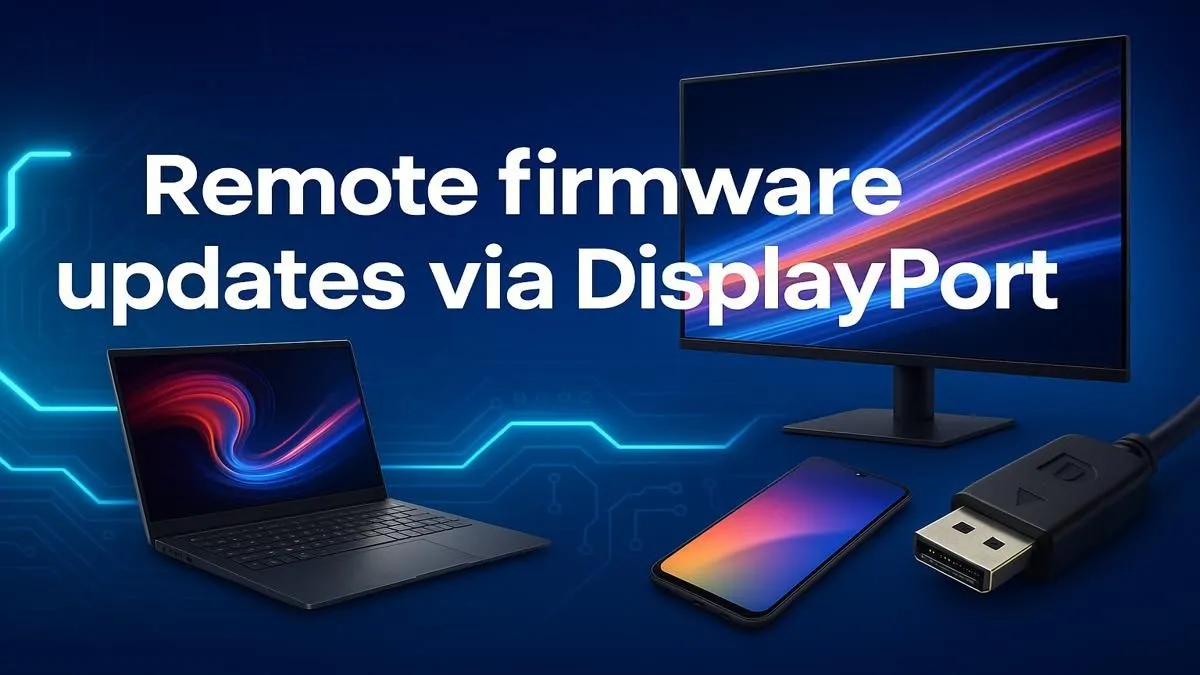
The magic lies in DisplayPort’s Auxiliary Channel (AUX CH). This is a dedicated, low-bandwidth data channel that travels through the same cable as your video and audio signal. Manufacturers can use this channel to send firmware data directly to your monitor, completely eliminating the need for that extra USB cable. This ability to streamline firmware updates via DisplayPort is a built-in advantage of the standard, making it the preferred connection for many of today's top gaming monitors.
Your Quick Guide to Updating Firmware via DisplayPort
Ready to see if your screen has a pending update? While the exact process varies by brand (always check your manufacturer's support page!), the general steps are refreshingly simple when using DisplayPort.
The Basic Steps
- Visit the Source: Head to your monitor manufacturer’s official website and find the support or downloads page for your specific model.
- Download the Goods: Look for the latest firmware file and any required update utility software.
- Connect Correctly: Ensure your PC is connected to your monitor only with a DisplayPort cable. Disconnect any HDMI or USB cables to avoid conflicts.
- Run the Utility: Close all other programs, launch the update tool you downloaded, and follow the on-screen instructions carefully.
- Patience is Key: The process might take a few minutes. Do not turn off your monitor or PC during the update, as this could brick the screen. Once complete, it will likely restart itself.
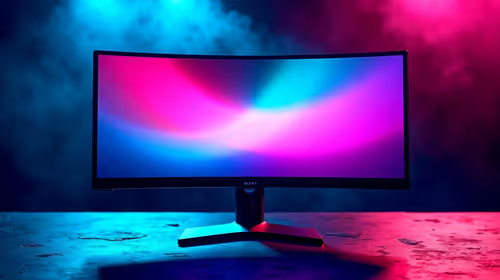
This simplified process is especially beneficial for complex setups featuring multiple crisp 4K and 5K monitors or immersive curved displays, where minimising cable management is a huge win. Even some portable monitors are adopting this convenient update method.
Cable Quality is Crucial
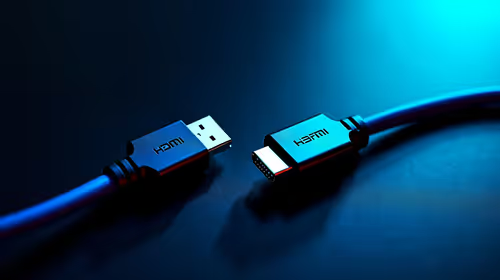
all cables are created equal. A poor-quality DisplayPort cable can cause data transmission errors during a firmware update, potentially leading to failure. Always use the cable that came with your monitor or invest in one from our range of certified, [high-quality DisplayPort cables](https: www.evetech.co.za PC-Components buy-monitor-accessories-368.aspx) to ensure a stable connection.
By using the DisplayPort firmware update method, you’re not just installing new software; you’re ensuring your display has the best possible performance and stability for every gaming session. 🚀
Ready for a Visual Upgrade?
If your current monitor doesn’t support this feature, it might be time for a change. Find a screen that offers cutting-edge performance and future-proof features… check out the latest monitor deals at Evetech and see the difference for yourself.