

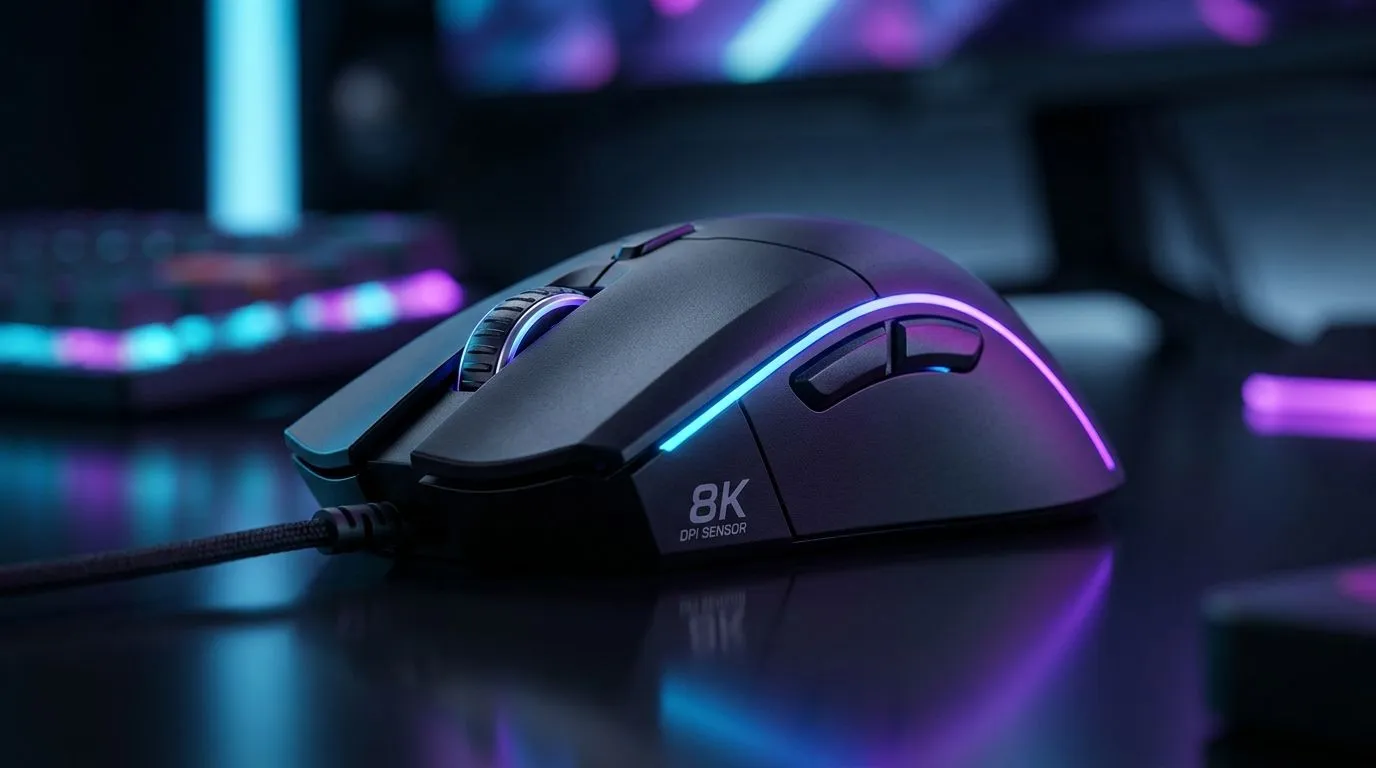
DPI Settings Guide for an 8K Sensor Gaming Mouse: Get Snappy, Not Jittery 🎯
If you’ve ever felt your mouse is “almost there” but not quite, DPI settings are usually the culprit. In South Africa, where load-shedding, ping spikes, and uneven desks are real-life problems, small tuning matters. The goal is simple: control that feels consistent from flicks to tracking. With an 8K sensor gaming mouse, you can push polling performance… but only if your DPI, in-game sensitivity, and Windows settings line up.
Let’s get you dialled in… properly. 🔧
DPI Settings Guide for an 8K Sensor Gaming Mouse: Start With a Baseline ⚡
Most modern gaming mice let you set DPI (counts per inch) and then map sensitivity inside the game. Don’t jump straight to 16000 DPI. For many players, a mid-range DPI plus a lower in-game sensitivity gives better micro-aim control.
A practical starting point:
- DPI: 800 to 1600
- In-game sensitivity: adjust so your full swipe lands roughly where you expect
- Windows Pointer Speed: keep it at the default, unless your mouse software explicitly accounts for it
Why? Windows can apply acceleration if you don’t keep the pointer settings consistent. Even if you’re using game raw input, habits matter, and muscle memory matters even more.
Check Your Mouse Type Before You Tune
Your “feel” also depends on whether you’re wired or wireless. If you want to explore options that match your setup, browse:
DPI Settings Guide for an 8K Sensor Gaming Mouse: 8K Polling Needs Matching Software
8K polling (8000Hz) reduces the time between reports. That can feel smoother, but your settings must not fight each other. Use your mouse software’s profiles to lock in:
- CPI/DPI level
- polling rate (set it to 8000Hz if supported)
- any acceleration or smoothing features (keep them off for competitive aim)
If you’re still building your setup, don’t ignore the “small stuff” that affects control: feet, pad surface, and even cable drag.
DPI Settings Guide for an 8K Sensor Gaming Mouse: The In-Game Method (No Guessing) ✨
Here’s the method pro players use because it’s repeatable:
- Pick a DPI (try 1000 or 1600).
- In-game, set sensitivity so a comfortable swipe turns your aim to a consistent reference point.
- Do a 2-minute tracking test, then a flick test.
- Change one variable at a time.
If your aim feels “too fast” but your real wrist motion is small, lower in-game sensitivity before lowering DPI. DPI changes affect your entire range. In-game adjustments are often easier to fine-tune for each title.
Productivity Pro Tip 🔧
On Windows, keep pointer speed at the default (6 11) for consistency, then rely on in-game sensitivity and your mouse software’s CPI only. This reduces the odds of accidental acceleration messing with your muscle memory.
DPI Settings Guide for an 8K Sensor Gaming Mouse: Typical Targets by Game
You don’t need one universal DPI forever. Many players keep the same DPI across games, then only adjust in-game sensitivity. For high-precision shooters, lower sensitivity usually wins, especially during micro-corrections.
If you’re shopping for an 8K-capable mouse and want deals or options, start here:
DPI Settings Guide for an 8K Sensor Gaming Mouse: When to Stop Tweaking 🚀
If your flicks look crisp but tracking is shaky, your mouse pad surface or grip might be the real issue. If you get jitter when you lift and re-place the mouse, check your surface and your tracking settings in the mouse software.
The best DPI setup is the one you can repeat under pressure. Pick a baseline, test it, and iterate slowly.
Ready to Find Your Perfect Match? The Mac vs Windows debate is complex, but for maximum power, choice, and value in South Africa, Windows is hard to beat. Explore our massive range of laptop specials and find the perfect machine to conquer your world.











