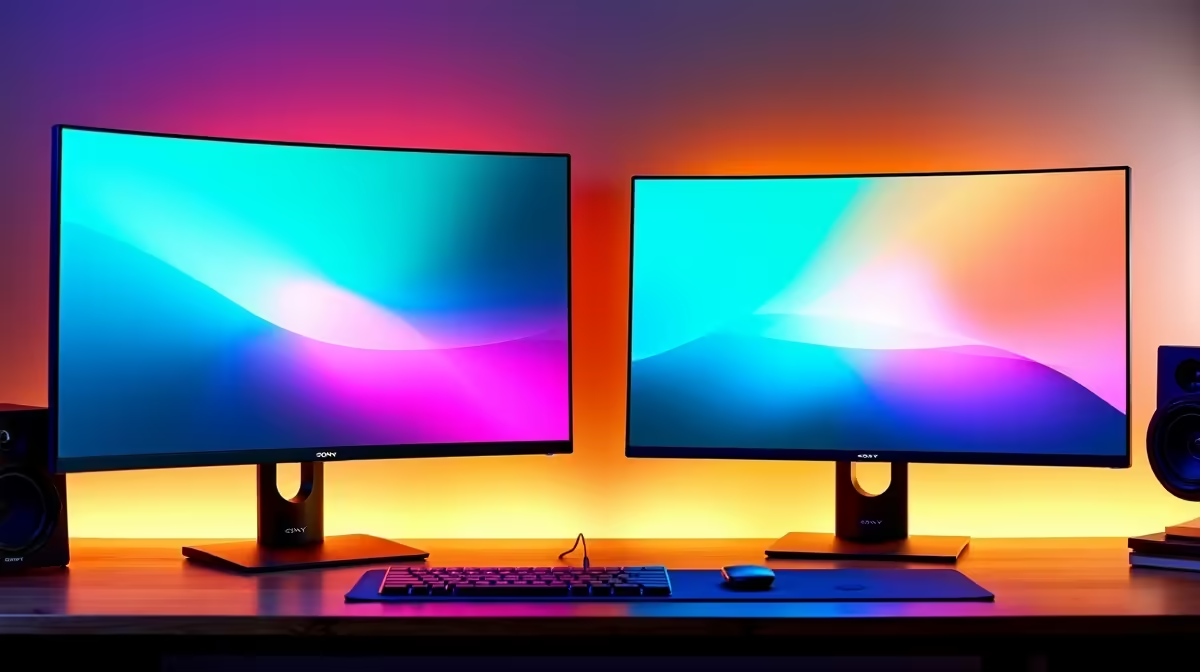
Master Your Visuals: Calibrating Dual Monitor Brightness for a Seamless Setup
Ever stared at two monitors, one glowing like the sun and the other looking a bit… drab? It’s a common frustration, whether you’re deep into a gaming session, editing photos, or just trying to get some work done. By the end of this guide, you’ll have perfectly matched the brightness and colour of your dual monitors, ensuring a consistent, eye-pleasing display across your entire setup. Say goodbye to jarring visual differences and hello to a fluid, professional workspace. ✨
What You'll Need: Prepare for Perfect Picture
Before we dive into the nitty-gritty, let's ensure you have everything ready for a smooth calibration process. Most of these are likely already part of your setup, but a quick check never hurts. 🔧
- Your Dual Monitor Setup: Obvious, right? Make sure both monitors are connected and displaying correctly. If you're looking to upgrade or add more displays, check out Evetech's comprehensive range of PC monitors for every need.
- Monitor On-Screen Display (OSD) Controls: These are the physical buttons on your monitors that allow you to adjust settings directly. Familiarise yourself with them.
- Operating System Display Settings: Access to your Windows Display Settings or macOS System Preferences.
- Graphics Card Control Panel: NVIDIA Control Panel or AMD Radeon Software. These tools offer deeper control over your display’s colour and gamma.
- A Clean Screen: Give both monitors a quick wipe down. Dust and smudges can really throw off your perception of colour and brightness. Consider some quality monitor accessories for maintenance.
- Optional: Calibration Tool (Colourimeter): For professional-grade accuracy, a dedicated hardware calibrator is ideal, though not strictly necessary for basic matching. These are typically used by graphic designers and video editors.
The Calibration Journey: Step-by-Step Brightness Harmony
Let's get those displays singing in perfect visual harmony. We'll start with the basics and move to more advanced adjustments.
1. Reset to Factory Defaults
Before making any new adjustments, it’s best to start with a clean slate. Go into each monitor’s OSD menu and find the "Reset to Factory Defaults" option. This will undo any previous adjustments and give you a neutral starting point. It’s like hitting refresh before a big game.
2. Set Your Primary Monitor's Brightness and Contrast
Choose one monitor as your "primary" reference. This will be the one you match your other display to.
- Brightness: Adjust the brightness level on your primary monitor first. A good starting point is usually between 50-75%, depending on your room's ambient light. Avoid setting it too high, which can cause eye strain.
- Contrast: Once brightness is set, adjust the contrast. You want to see distinct shades of black and white without losing detail in either extreme. A common strategy is to use a test image with gradients.
Optimising Your Display Experience
that optimal monitor settings aren't just about brightness. Consider your monitor's panel type and refresh rate too. While a [curved monitor](https: www.evetech.co.za buy-curved-monitors x 1588) offers immersion, its brightness will still need careful calibration.
3. Match Your Secondary Monitor's Brightness and Contrast
Now, for your second monitor. Using your primary display as a visual guide, adjust the brightness and contrast on your secondary monitor until it visually matches the primary as closely as possible. Go back and forth between the two, making small tweaks until they look consistent. This step relies heavily on your eye, so take your time.
4. Adjust Colour Temperature and Gamma
This is where things get a bit more nuanced.
- Colour Temperature (White Point): Most monitors offer presets like "Warm," "Cool," or "Standard (6500K)." Aim for 6500K (D65) for a neutral white, which is the standard for most content. Ensure both monitors are set to the same colour temperature.
- Gamma: Gamma controls the luminosity of mid-tones. For most PCs, a gamma of 2.2 is standard. Your graphics card control panel often has gamma adjustment options. Match the gamma on both monitors for consistent mid-tone rendering. This is especially important for detail in shadows and highlights, crucial for both 5K and 4K monitors.
Troubleshooting Colour Inconsistencies
colours still seem off after adjusting colour temperature, check if one of your monitors has a "Dynamic Contrast" or "Game Mode" enabled in its OSD. These often over-process the image, leading to unnatural colours. Disable them for a more accurate display, especially when setting up for [all gaming monitors](https: www.evetech.co.za all-gaming-monitors x 1587).
5. Fine-Tune with Graphics Card Software
Your graphics card drivers (NVIDIA Control Panel or AMD Radeon Software) offer more granular control than the monitor's OSD. ⚡
- NVIDIA: Open NVIDIA Control Panel > Display > Adjust desktop colour settings.
- AMD: Open AMD Radeon Software > Display > Colour tab.
Here, you can fine-tune brightness, contrast, gamma, and even individual RGB channels. Make small, incremental adjustments on your secondary monitor to achieve the perfect match with your primary. This is where you can truly dial in the nuances.
6. Test with Reference Images
Once you’re satisfied, test your setup using various images and applications. Use a colour calibration test image (easily found online) or even just open a full-screen white document or a dark game scene on both screens. Look for any lingering differences in brightness, colour, or detail. Your eyes will be the ultimate judge here.
Working with Mixed Monitor Types
very different monitors can be a challenge. For instance, pairing a standard desktop monitor with a [portable monitor](https: www.evetech.co.za buy-portable-monitors x 1590) might require more compromises. Focus on getting the overall brightness and white point as close as possible, even if perfect colour matching isn't achievable.
Quick-Reference FAQ
Q: Why do my monitors look different even after calibration?
A: Monitors often use different panel technologies and backlights, making a perfect match difficult. Environmental factors like ambient light can also play a role. Focus on getting them as close as possible rather than chasing absolute perfection.
Q: Should I use software calibration tools?
A: Windows and macOS have built-in calibration tools, which are better than nothing. However, for truly accurate results, a hardware colourimeter is recommended. For casual use, a visual match using the steps above is usually sufficient.
Q: How often should I calibrate my monitors?
A: For general use, calibrating every few months or whenever you notice a significant visual difference is a good practice. If you’re doing colour-critical work, monthly calibration might be necessary.
Q: My monitor's OSD has limited options. What then?
A: If your monitor's OSD is basic, rely more heavily on your graphics card's control panel (NVIDIA Control Panel or AMD Radeon Software) to make adjustments. These typically offer more comprehensive colour and brightness controls.
Upgrade Your Visual Experience!
Don't settle for mismatched screens. A perfectly calibrated setup enhances everything from gaming to graphic design. Discover the best PC monitor deals and elevate your desktop today.