

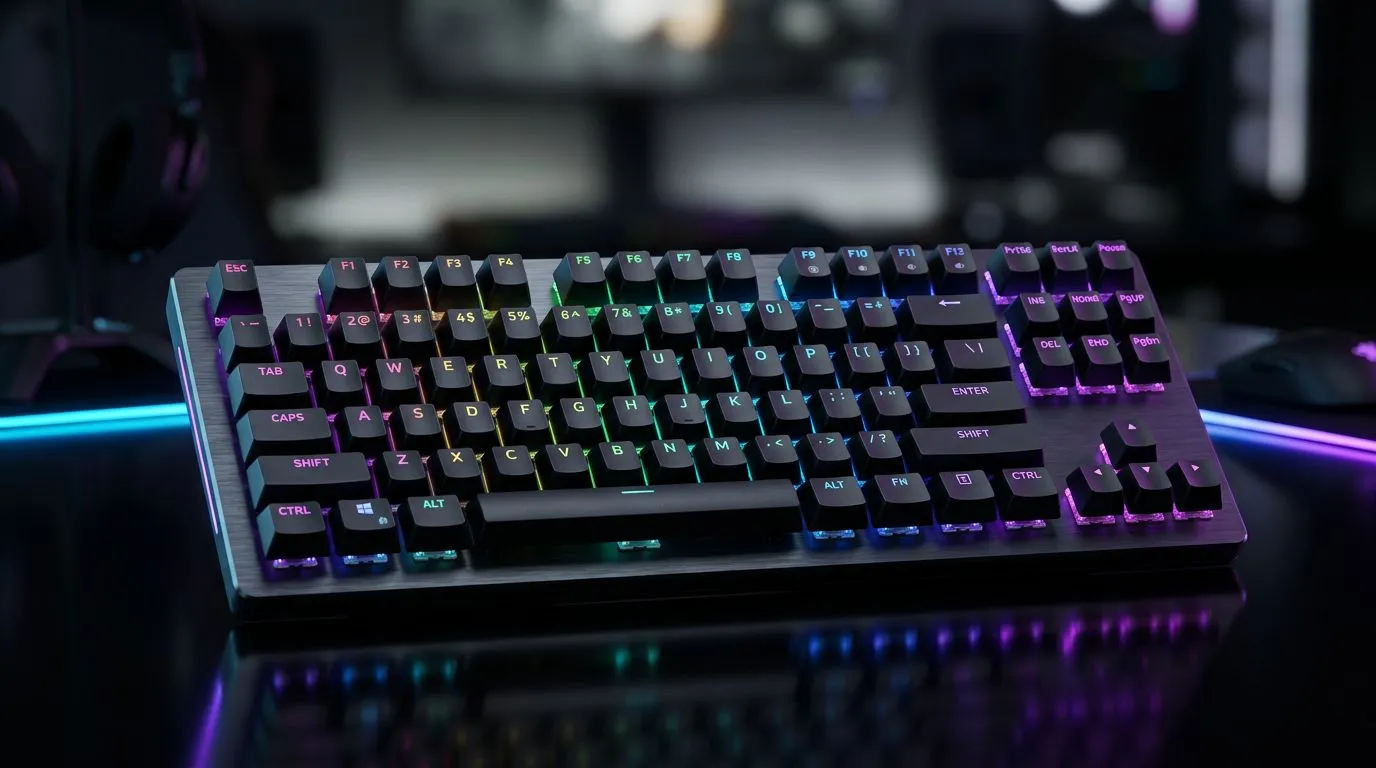
Enhanced RGB Lighting Keyboard Modes Explained: Why SA Gamers Care 🔥
If you’ve ever mapped your keys for Apex Legends, Valorant, or Warzone… and watched your keyboard suddenly switch colour mid-match, you know the feeling. The good news? RGB lighting is more than aesthetics. With the right keyboard modes, you can turn lighting into muscle memory, spot key states faster, and even match your setup to your room vibe.
In this Deep Dives guide, we’ll break down Enhanced RGB Lighting Keyboard Modes Explained in plain English, then help you choose modes that actually help you play.
Enhanced RGB Lighting Keyboard Modes Explained: The Core Mode Types ⚡
Most “enhanced” RGB keyboards use a mix of the same mode families. The names vary by brand, but the behaviour usually doesn’t.
Reactive, Cap/Num Lock, and Smart State Indicators
- Reactive lighting: keys light up when pressed, often fading out quickly. Great for touch-typing feedback and casual play.
- Status indicators: Caps Lock, Num Lock, or profile indicators. These can prevent “why won’t my keys work?” moments.
- Gaming-specific smart modes: some keyboards highlight WASD, disable non-essential effects, or lock lighting to a static profile while gaming.
If you’re choosing a keyboard primarily for gaming, look for modes that reduce distractions during longer sessions. Your eyes will thank you.
Static, Breathing, and Wave Effects ✨
These are the “aesthetic first” modes:
- Static: one solid colour per key or per zone. Clean and easy on the brain.
- Breathing: a slow pulse that can feel calming, especially in dark rooms.
- Wave / ripple: colours sweep across the keys. Fun, but can be distracting if you’re tracking enemy movement.
Custom Profiles and On-Device Memory 🚀
This is where “enhanced” really shows up. Many gaming keyboards let you store profiles internally, so you’re not dependent on software every time you plug in.
For South Africa’s mixed setup reality (work laptop today, desktop tomorrow), onboard memory is a big deal.
Sync and Audio-Led Effects (Careful With These)
Some boards offer:
- Music / audio-reactive modes
- Game sync
- RGB sync across devices
These can look incredible, but they’re also more variable. If you want consistent performance and minimal distraction, static or reactive-for-movement modes usually win.
Enhanced RGB Lighting Keyboard Modes Explained: How to Set Up Modes for Real Gameplay 🔧
Let’s make it practical. Here’s a setup approach that works whether you’re grinding ranked or building content.
Profile 1: “Competitive Minimal”
- Turn off wave animations.
- Use static lighting for the important keys (WASD, movement, utility).
- Keep reactive lighting light or limited to the active keys.
- Leave macro keys readable but not blinding.
Profile 2: “Training / Aim Practice”
- Use reactive lighting so each input “confirms” you pressed correctly.
- If there’s breathing, keep it subtle.
- Avoid audio-reactive modes. They add noise when you’re focusing on timing.
Profile 3: “Casual Vibe”
- Go wild with colour cycling.
- Use wave effects for desktop use, not for high-stakes matches.
Productivity Pro Tip ⚡
On Windows, use the PowerToys FancyZones utility to create custom snap layouts for your windows. It's a lifesaver for managing multiple apps on an ultrawide monitor, letting you organise your timeline, preview window, and asset folders perfectly for video editing.
Enhanced RGB Lighting Keyboard Modes Explained: Wired vs Wireless Impacts Your Choice ⚙️
You might be thinking: “RGB modes are about colours, not connectivity.” Fair question. But connectivity affects consistency and latency feel, especially if you’re switching between devices or moving between setups.
Here’s a simple way to decide:
- Wired: typically best for “plug in and forget” consistency, and it’s usually the safe pick for competitive use.
- Wireless: convenient for desk flexibility, but you’ll want to consider battery life and charging routines.
If you’re shopping, browse options here for both scenarios:
- Explore wired gaming keyboard options: buy the cheapest gaming keyboard in South Africa (Wired)
- Compare with wireless options: buy the cheapest gaming keyboard in South Africa (Wireless)
Enhanced RGB Lighting Keyboard Modes Explained: What to Look For Before You Buy 🎯
RGB is only useful if it supports your play habits. When you’re comparing keyboards, check for:
- Mode control: Can you switch profiles easily? On-board buttons matter.
- Software reliability: If the software is required for effects, it can be annoying when you travel or change PCs.
- Distraction level: You should be able to switch to “clean mode” quickly.
- Key readability: Your lighting shouldn’t wash out legends or labels.
- Bundle value: A combo can save money and give you a consistent look across devices.
If you want to compare deals and combos, start here:
- Best gaming keyboard deals
- Cheapest gaming keyboard in South Africa
- If you’re going for full desk coherence, check: buy keyboard & mouse combo
- And again, a solid option to compare broadly: buy cheapest gaming keyboard in South Africa
Enhanced RGB Lighting Keyboard Modes Explained: Quick Checklist for the Right Mode Setup ✅
Before you lock in a keyboard, mentally test your own preferences:
- Can you switch to a minimal lighting profile in seconds?
- Do you prefer reactive feedback, or do you want static clarity?
- Will you be using multiple devices? If yes, onboard profile memory is huge.
- Are you okay reducing audio-reactive modes for competitive focus?
- Does the keyboard style match your desk lighting, without hurting visibility?
If your answer is “yes” to clean competitive mode + fast profile switching, you’re already aiming in the right direction.
Ready to Find Your Perfect Match? The Mac vs Windows debate is complex, but for maximum power, choice, and value in South Africa, Windows is hard to beat. Explore our massive range of laptop specials and find the perfect machine to conquer your world.











