A thin-and-light laptop with desktop graphics bolted on the side is a genuinely clever idea: full gaming power at your desk, portability on the road. But an eGPU setup is not a single product you buy, it is five separate parts that have to agree with each other, and getting the order and compatibility right is what separates a working rig from an expensive paperweight. Two of those parts, the enclosure and its power supply, carry straight over into a future desktop if you ever build one.
Quick Answer
A complete eGPU build needs five things beyond your laptop: an enclosure, a desktop graphics card, an ATX power supply to feed it, an OCuLink or Thunderbolt 5 cable, and a compatible host port or M.2 adapter on the laptop. Budget for the GPU as the largest single cost, and confirm your laptop's port before buying anything else.
How an eGPU actually works
An external GPU houses a full desktop graphics card in a box outside your laptop and connects it back over a high-speed cable. The laptop offloads rendering to the external card, which is the only way to give a graphics-limited thin laptop or mini PC real gaming muscle without replacing the whole machine.
The catch is the connection. A desktop GPU normally sits in a PCIe slot with a direct, wide pipe to the processor. An external link is narrower, so some performance is lost in transit. How much you lose depends entirely on which connection you choose, which is the first real decision in the build.
The two connections that matter in 2026
Two serious options exist. Thunderbolt 5, now on newer laptops, doubles the throughput of the previous generation and supports hot-plugging, making it the easiest to live with. OCuLink behaves like a direct PCIe connection with less overhead and edges ahead under heavy load, but it needs the system off to connect or disconnect, and many laptops require an M.2 adapter to expose the port.
Choose Thunderbolt 5 for plug-and-play ease, or OCuLink for the last slice of performance with a powerful card. Either way, confirm your host port before spending a cent.
The complete parts checklist
Here is everything the build needs, and what to weigh on each.
1. The enclosure
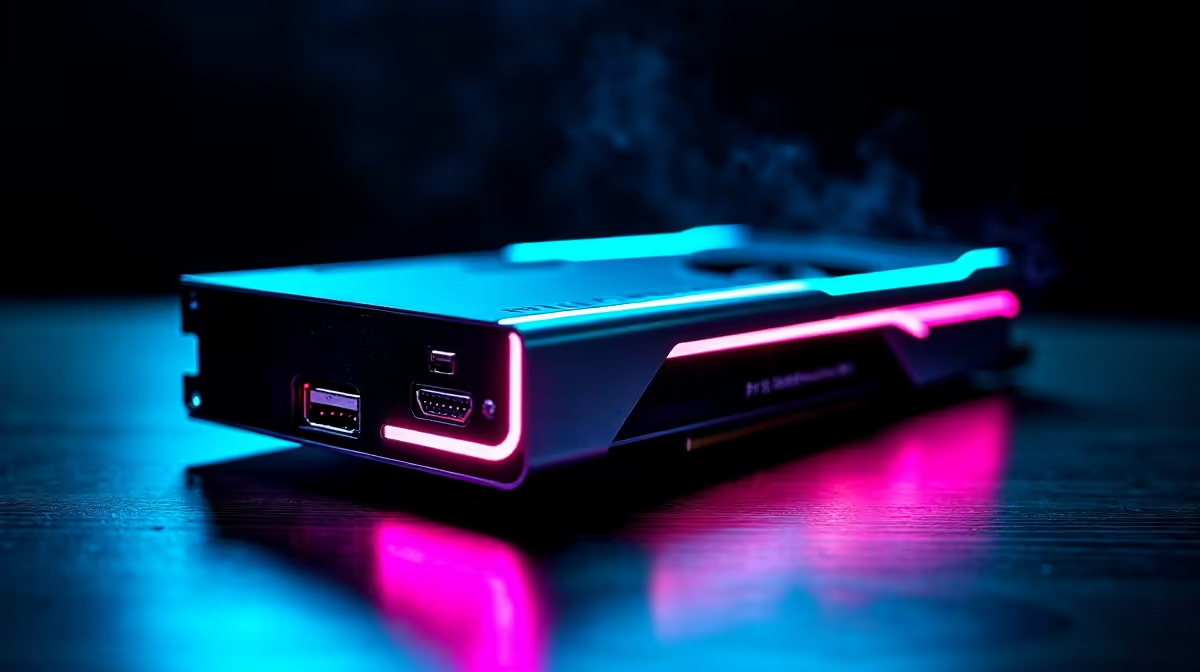
The enclosure is the box that holds the card, supplies power and houses the connection. Modern docks accept full-size desktop GPUs and either built-in or separate ATX and SFX power supplies. This is the part you reuse later: drop the same card into a desktop down the line and the enclosure and its PSU become a spare, or stay as your portable setup. Choose an enclosure that fits the physical length of the GPU you intend to run and matches your chosen connection. The docking station catalogue at Evetech is where to size up enclosure options and connection types before committing.
2. The graphics card
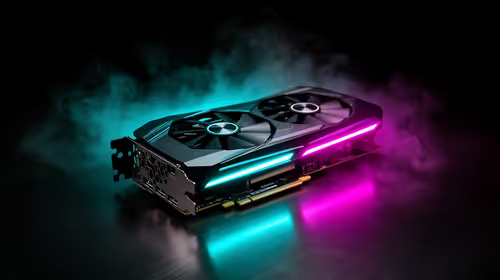
This is the heart of the rig and your biggest spend. Pick the card to match what you actually do, gaming resolution, creative workloads, and to the bandwidth your connection allows, because a top-tier card throttled by a slow link wastes money. A mid-to-upper card over OCuLink often delivers better real-world value than the absolute flagship squeezed through a busier connection. The best-selling GPUs at Evetech show what current builders are choosing and give a realistic sense of where the price-to-performance sits.
3. The power supply
The GPU needs feeding, and the enclosure's power supply must be sized for the card's actual power draw with headroom on top. Some enclosures ship with a PSU built in; others take a standard ATX or SFX unit you supply. Either way, match the wattage to the card's draw and add a margin, an underfed GPU is unstable under load. This is the second component that survives into a desktop build, so buying a quality unit is not money wasted.
4. The cable
The cable is small but not an afterthought. An OCuLink build uses a specific SFF-8612 to SFF-8611 cable, and a Thunderbolt 5 build needs a certified Thunderbolt 5 cable, not just any USB-C lead that physically fits. Using the wrong or uncertified cable is a common cause of a setup that connects but runs slowly or drops out. Buy the cable that matches your chosen interface exactly.
5. The host port or adapter
Finally, the laptop end. If your laptop has Thunderbolt 5, you are ready. If you are going the OCuLink route and the laptop lacks a native OCuLink port, you typically need an M.2 adapter that exposes one from an internal slot. Confirm this before anything else, because it determines whether the rest of the parts list is even viable for your machine.
The order you should buy in
Do not start with the exciting part. Start with the host port, because it dictates everything. Confirm whether your laptop has Thunderbolt 5 or can expose OCuLink through an M.2 adapter. That decision sets your connection, which sets your cable and influences which enclosure you can use.
Next choose the enclosure and its power supply together, since the PSU must suit both the enclosure and the card you plan to run. Then buy the graphics card sized to that connection's bandwidth, and finally the correct cable for the interface. Building in this order stops the classic mistake of buying a flagship card before discovering your laptop's port cannot do it justice.
What an eGPU is and is not good for
An eGPU shines for the person who carries their machine daily but needs desktop-class graphics at the desk. It is excellent for gaming and creative work at a fixed desk, and the reusable enclosure and PSU soften the cost over time. It also suits mini PCs that ship with an OCuLink port, turning a tiny box into a capable gaming machine.
It is less suited to anyone chasing the absolute maximum frames, because the external link always costs some performance against a card sitting in a real PCIe slot. And it only makes sense if your laptop has the right port; without Thunderbolt 5 or an OCuLink-capable M.2 slot, a full desktop or a gaming laptop is the cleaner answer. Going in with clear expectations is what makes an eGPU a satisfying build rather than a compromise you regret.
Frequently Asked Questions
What are the five parts I actually need?
An enclosure, a desktop graphics card, a power supply sized for that card, the correct cable for your connection, and a compatible host port or M.2 adapter on the laptop. Confirm the host port first, because it determines whether the rest of the list works for your machine.
Is OCuLink or Thunderbolt 5 better for an eGPU?
OCuLink behaves like a direct PCIe link and edges ahead under heavy load with powerful cards, but usually needs the system off to connect. Thunderbolt 5 is more convenient with hot-plugging and is widely available on newer laptops. Choose by whether you prioritise raw performance or ease of use.
Will I lose performance compared to a desktop?
Yes, some. The external connection is narrower than a card sitting directly in a PCIe slot, so you give up a slice of performance in transit. OCuLink loses less than Thunderbolt, but neither fully matches an internal desktop card.
Can I reuse the parts later?
Two of them, yes. The enclosure and its power supply carry over if you build a desktop later, and the graphics card itself can move into that desktop too. That reusability is part of what makes an eGPU a reasonable spend over time.
Does any laptop work with an eGPU?
No. The laptop needs either a Thunderbolt 5 port or an internal M.2 slot that can expose OCuLink through an adapter. Without one of those, an eGPU is not viable, and a desktop or gaming laptop is the better route.
What should I buy first?
Confirm your laptop's host port before anything else. It sets your connection type, which determines the cable and influences the enclosure, and it stops you buying an expensive card your laptop cannot properly feed.
Planning an eGPU build that you can carry forward into a desktop later? Browse the docking stations and best-selling GPUs at Evetech to match the enclosure, card and connection to your laptop's actual port.