The silence is deafening. You’re about to clutch a round, the tension is thick... and suddenly, your gaming PC has no sound. Jassis, it’s frustrating! Before you launch your headset across the room, take a breath. When your gaming PC audio isn't working, it feels like a disaster, but most sound issues are surprisingly easy to fix. This guide will walk you through the most common problems and solutions, getting you back into the action fast.
Start with the Simple Stuff: Your First-Line Checks
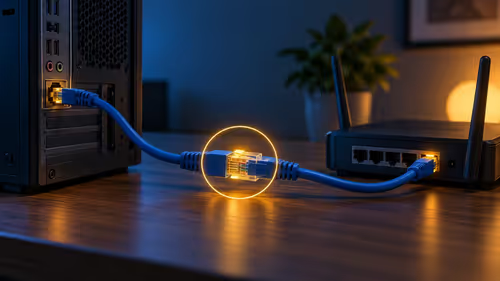
Before diving into complex settings, let's cover the basics. It’s amazing how often the simplest thing is the culprit. First, check your physical connections. Is your headset or speaker cable plugged in securely? Is it in the right port (usually the green one)? If you're using a USB headset, try a different USB port. Many headsets also have a physical mute button or volume dial—make sure you haven't accidentally silenced yourself while building frantically in a Fortnite showdown.
Next, check Windows itself. Right-click the speaker icon in your taskbar and open the 'Volume mixer'. Ensure your primary device and the specific application you're using aren't muted. In the same sound menu, go to 'Sound settings' and verify that your desired headset or speakers are set as the default playback device. Sometimes Windows switches outputs after an update, especially if you have a monitor with built-in speakers, leaving you wondering why your powerful rig suddenly sounds like you're playing Minecraft through a tin can... or not at all.
Digging into Drivers and Software Settings 🔧
If the physical checks didn't solve your gaming PC's sound problem, it's time to look at the software. The Windows Audio Troubleshooter is a good starting point. It can automatically detect and fix common configuration errors. Just search for "Find and fix audio playback problems" in the Start Menu and run the wizard.
More often than not, the issue lies with your audio drivers. These tiny pieces of software are the bridge between your hardware and your operating system. A corrupt or outdated driver is a classic reason for a gaming PC to have no sound. You can download the latest drivers directly from your motherboard or sound card manufacturer's website. Keeping them updated is crucial for performance, especially when exploring the immersive, demanding world of Cyberpunk 2077. Another potential fix is to disable audio enhancements. These effects can sometimes conflict with games like Overwatch 2, causing audio to cut out or disappear completely.
Quick Driver Check ⚡
Right-click the Start button and select 'Device Manager'. Expand the 'Sound, video and game controllers' section. If you see a yellow exclamation mark next to your audio device, that's a sure sign of a driver problem. Right-click it and select 'Update driver' to let Windows search automatically.
When It Might Be a Hardware Problem 🎧
Still no sound? Let's rule out a hardware failure. The easiest test is to plug your headset or speakers into another device, like your smartphone or a laptop. If you get sound there, the device is fine, and the problem is definitely with your PC. If it's silent on other devices too, then congratulations... you've found the problem, and it might be time for a new headset. This is a critical step before you start worrying about the PC itself when trying to pinpoint enemy locations in PUBG.
For the more technically inclined, you can check your PC's BIOS/UEFI settings. Restart your computer and enter the BIOS (usually by pressing DEL, F2, or F12 on startup). Look for an 'Onboard Devices' or 'Integrated Peripherals' menu and ensure that the 'HD Audio Controller' (or similar) is enabled. Sometimes a system update can accidentally disable it. This is especially important for rigs that need to process the complex audio layers of a title like Microsoft Flight Simulator. A quick check here can save you hours of frustration, ensuring your onboard audio is ready for action in games like GTA V.
Game-Specific Audio Glitches
Sometimes, your PC is fine... but the game is the problem. Many games have their own complex audio settings that can override your system defaults. Before you panic, dive into the in-game audio menu. Ensure the correct output device is selected and the volume levels are up. If the problem persists, try verifying the integrity of your game files through Steam or the Epic Games Store. A corrupted audio file can cause silence in specific situations, a nightmare when you're trying to hear footsteps in competitive games like Counter-Strike 2 or pinpointing enemy callouts in Warzone 2.0.
Sound Good? Or Time for an Upgrade?
If you've tried everything and your PC's audio is still silent, it might be a sign of a deeper hardware issue. Don't let faulty components ruin your experience. Explore our massive range of custom-built gaming PCs and hear every footstep, explosion, and victory cry in perfect clarity.